
Overview
Adding users to your Sierra account allows your team — including agents, managers, ISAs, and lenders — to collaborate, communicate with leads, and manage tasks efficiently. Each user is assigned a role and permissions that determine what they can access and do within the system.
Table of Contents
Why This Feature Matters
Managing users correctly helps you:
-
Ensure each team member has the right level of access
-
Protect sensitive data by limiting permissions appropriately
-
Support collaboration across agents, admins, and partners
-
Keep your account organized and secure as your team changes
Only Primary Managers and Managers can add or delete users.
How to Add a User
1. Access the User Management Section
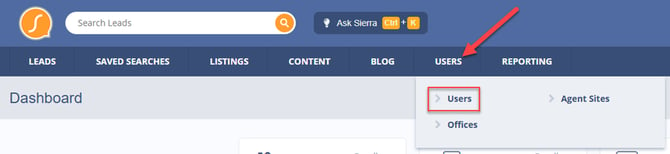
From the backend of your Sierra CRM, click Users in the main navigation, then select Users from the dropdown.
2. Add a New User
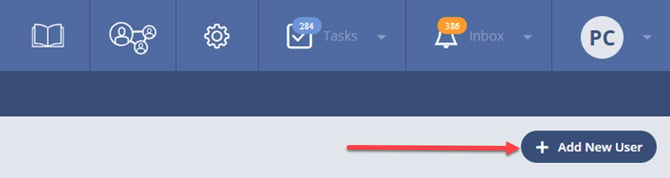
Click on the ‘Add New User’ button to begin the user creation process.
3. Enter User Information
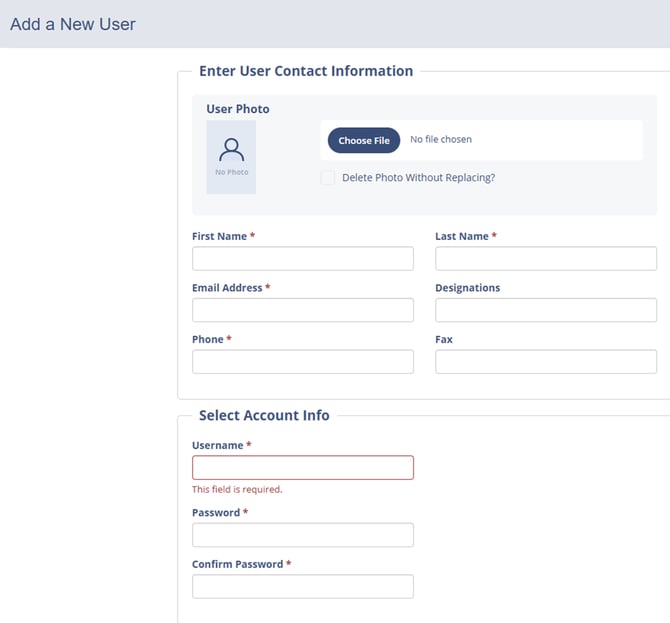
Fill in the required fields:- Name
- Phone Number
- Temporary password (the user can change this after logging in)
New users can upload their pictures after their account is created.
4. Select User Type
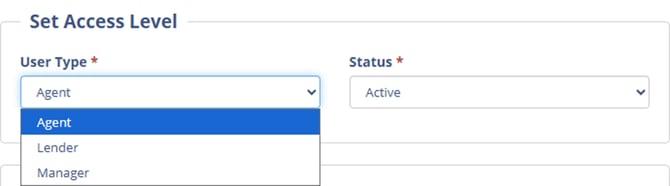
Choose one of the following User Types for the new user:
-
Agent — Can view and manage only their assigned leads
-
Lender — Can be given limited, customized permissions
-
Manager — Can view and manage all leads in the account
5. Set User Status
Set the user’s status to:
-
Active — The user can log in and use the system
-
On Hold — The user cannot currently access the system
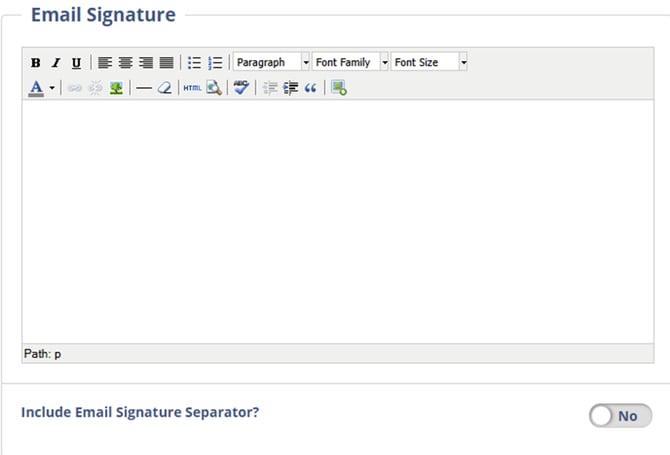
6. Customize Email Signature (Optional)
All users can create a simple Email Signature in this area to personalize their communication.
7. Set Permissions Based on User Role
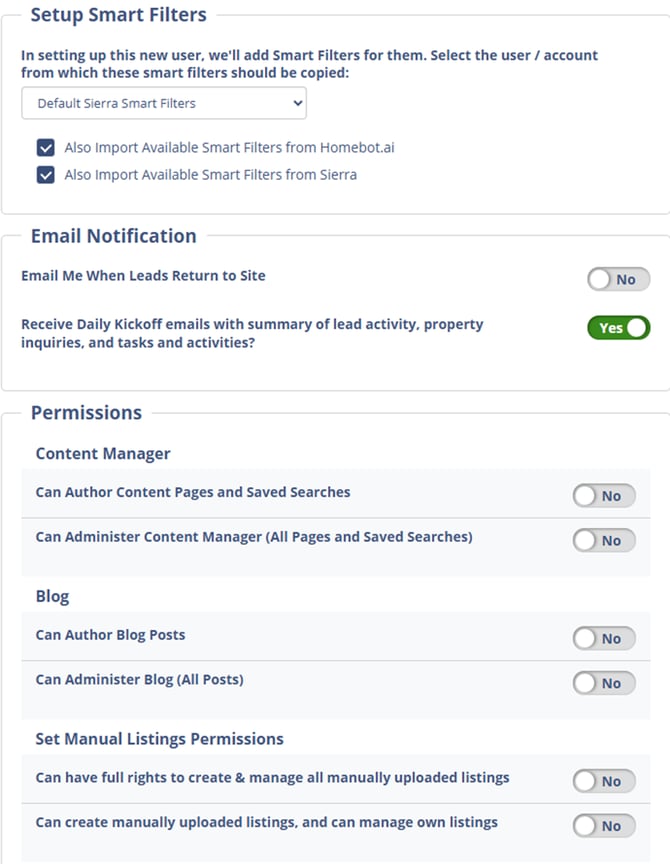
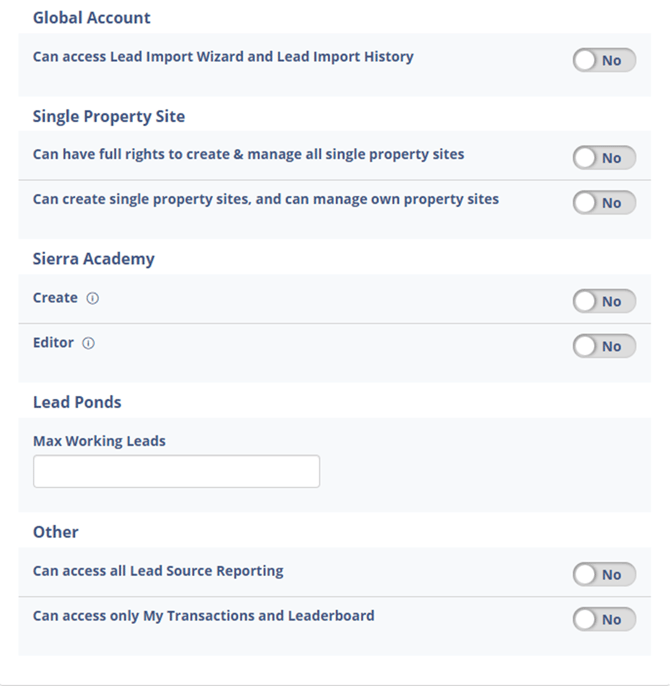
Assign permissions based on the user’s role, such as access to:
-
Smart Filters
-
Email Notifications
-
Content Pages
-
Saved Searches
-
Single Property Sites
8. Send New Account Notification Email (Optional)
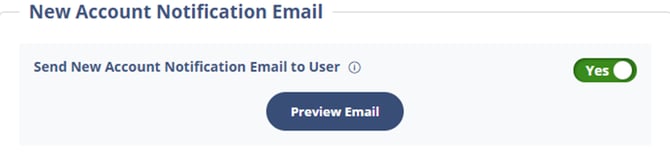
Once the user is added and permissions are set, you have the option to send a New Account Notification Email. This email contains login credentials and instructions for the user to access their new Sierra CRM account.
- If you do not send the email during user creation, you can always send it later by editing the user’s profile and toggling the permission to ‘Yes’ for the notification.
9. Save the User
- Click ‘Save and Edit’ when you’re done.
- The new user will now be added to your account with the appropriate permissions.
Deleting a User (Managers and Primary Managers Only)
In some cases, you may need to remove a user from your Sierra account — for example, if someone leaves your team or no longer needs access.
⚠️ Important: Only Managers and Primary Managers can delete users.
How to Delete a User
-
Click the Users tab in the main navigation.
-
Select Users from the dropdown menu.
-
Locate the user you want to remove.
-
On the right-hand side of that user’s row, click the More menu (three dots).
-
Select Delete User.
-
Confirm the deletion when prompted.
Once deleted, the user will no longer be able to log in or access their Sierra account.
Best Practices
-
Review your user list periodically to remove inactive or former team members.
-
Use “On Hold” for temporary removals instead of deleting if the user may return.
FAQs
-
Who can add or delete users?
Only Primary Managers and Managers can add or delete users. -
Can I edit a user after they’ve been created?
Yes. You can edit user details, roles, permissions, and notification settings at any time. -
What happens when I delete a user?
The user immediately loses access to your account and can no longer log in.