
The Sierra Luxury Site is intentionally designed to support brand credibility and visual storytelling for high-value real estate markets. Unlike other sites that prioritize utility, this layout focuses on polished presentation and consistent design standards. By using Site Layout Settings, you can customize your brand's appearance while maintaining performance and scalability.
Table of Contents
-
Accessing Site Layout Settings
-
Branding and Color Configuration
-
Hero Media and Navigation
-
Curated Content Sections
-
Testimonials and Social Integration
-
Best Practices
-
Troubleshooting Common Issues & FAQ
Accessing Site Layout Settings
To begin customizing your Sierra Luxury Site, follow these steps within the Sierra Client Admin Area (CAA).
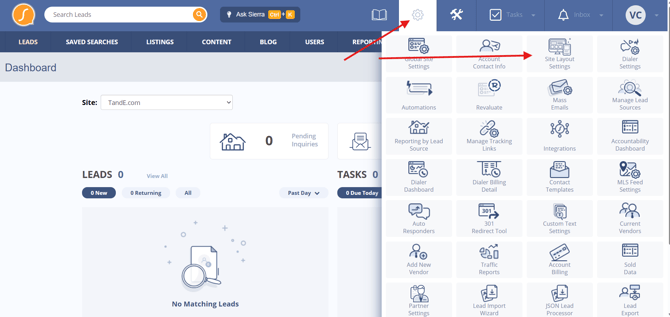
- Log into the CAA.
- To open your configuration options, click the Gear icon in the top navigation.
- Select Site Layout Settings to view the customization menu.
Branding and Color Configuration
The Branding section manages your website's visual tone to ensure it aligns with your luxury identity.
Logo Requirements
To maintain a professional look, upload a JPG, GIF, or PNG (max 5MB) for the main navigation. For your footer, you have the flexibility to display the main logo, a custom logo, or no logo at all.
If Display Custom Logo in Footer is selected, an additional option will appear allowing you to upload a separate logo specifically for the footer.
Color System and Typography
To achieve precise branding, set Primary and Secondary colors using the color wheel or specific Hex codes. You can also customize Primary and Secondary font colors to match your style. For your site links, choose between using the primary accent color or defining custom link and hover colors.
Hero Media and Navigation
The hero area serves as the primary focal point of your homepage and is essential for making a strong first impression.
Background Media
To ensure optimal clarity on large screens, use a JPG at 3840px × 2160px (4K resolution) for your Hero Image. If you want a dynamic feel, you can embed a Vimeo or YouTube URL for desktop viewers. Mobile devices will default to the hero image to preserve loading speeds.
Navigation Behavior
To keep the menu visible as visitors scroll, toggle the Sticky Navigation option on. If enabled, you can also control the placement of your logo and navigation elements (Top Left, Center, or Top Right) within the hero and footer areas.
Toggle Sticky Navigation Bar on or off - What this means:
When enabled, your navigation bar stays visible at the top of the screen as visitors scroll down the page, helping keep your brand and navigation accessible at all times.
Curated Content Sections
The site includes several manual and automated sections to showcase your expertise.
Manual Curation
- Notable Listings: To showcase specific properties, manually feature up to 6 homes with images, prices, property details and description.
- Market Presence: Display up to 4 custom statistics, such as total sales volume or counties served.
- Featured Communities: Highlight up to 4 areas using large image tiles.
Automated Updates
- Featured Agents: Highlight team members automatically by assigning specific Sierra Agent Tags.
- Blog Posts: This section automatically displays your most recent post to keep content fresh.
Testimonials and Social Integration
Social proof is vital for building trust with high-end clients.
Google Reviews
To surface your Google Reviews on the site, use an Elfsight.com Google Reviews widget and paste only your Elfsight App ID into the Testimonials field. For more information on Elfsight follow: Enhance Your Pages with Elfsight Widgets
How to add reviews:
- Create or sign in to your Elfsight account.
- Configure your Google Reviews widget.
- Copy only your Elfsight App ID
(Example: elfsight-app-xxxxxxxx-xxxx-xxxx-xxxx-xxxxxxxxxxxx) - Paste the App ID into the Testimonials field.
- Do not paste HTML, script tags, or full embed code.
To support engagement, you can enable or disable a contact form and social media icons in the footer.
Best Practices
- Use a restrained color palette to maintain a polished, luxury aesthetic.
- Keep manual sections curated and intentional.
- Update Notable Listings and Market Presence regularly.
- Enable sticky navigation for longer pages.
- Use footer elements to support engagement without distracting from the homepage story.
Troubleshooting Common Issues
-
My hero image looks blurry
Confirm the image meets the recommended 3840px × 2160px size and is uploaded as a JPG. -
My background video does not appear on mobile
Background videos display on desktop only. Mobile devices will always show the hero image. -
My listings or stats are not updating automatically
Notable Listings and Market Presence are manual by design and must be updated individually. -
My Google Reviews are not displaying
Confirm only the Elfsight App ID is entered and the widget is active.
FAQs
-
Can I automate Notable Listings using IDX?
No. This section is intentionally manual. -
Can I display more than 6 listings or 4 communities?
No. These limits preserve clarity and visual balance. -
Does the Luxury Site change inner pages?
At this time, Community Pages and Listing Detail Pages remain the same as other sites.