
Why This Matters
When transitioning between firms, a comprehensive website branding update is essential to maintain professional credibility and ensure MLS/brand compliance. Outdated logos or references can confuse visitors and reduce trust in your business.
By utilizing Sierra’s Site Layout Settings, you can update visible branding elements across Ace, Pro, and Luxury templates without the need for a full site rebuild.
Table of Contents
- Accessing Site Layout Settings
- Updating Logos and Brand Colors
- Hero Visuals and Navigation
- Template-Specific Manual Reviews
- Brokerage Change Checklist
- Troubleshooting & FAQ’s
Accessing Site Layout Settings
To begin your website branding update, you must first access the global controls within the Sierra Client Admin Area (CAA).
Navigating the Admin Menu
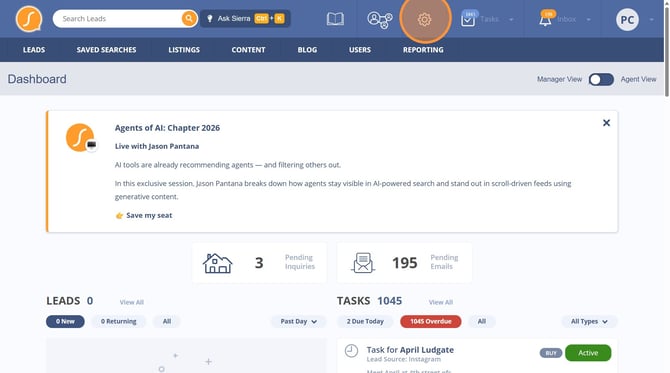
To open your design controls, log into the CAA and click the Gear icon in the top navigation.
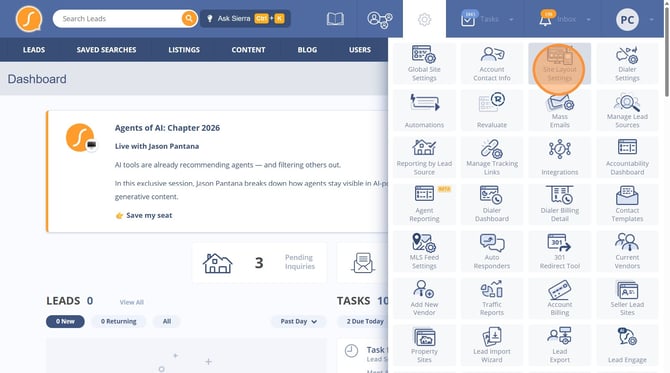
To manage your visuals, select Site Layout Settings to access logos, colors, and navigation styles.
Updating Logos and Brand Colors (Ace, Pro & Luxury)
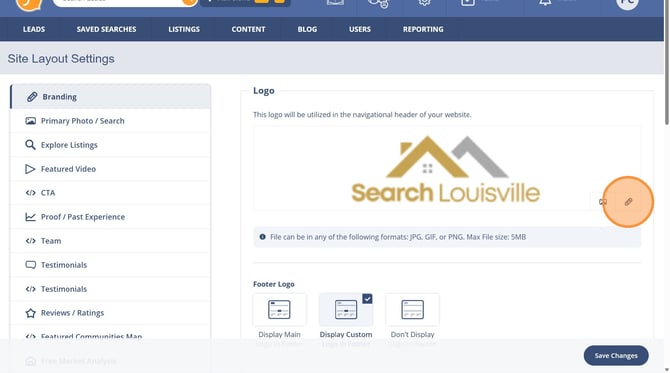
The logo section manages how your brokerage identity appears globally.
Professional Logo Integration
To update your header, upload a new brokerage approved logo as a JPG, GIF, or PNG up to 5MB.
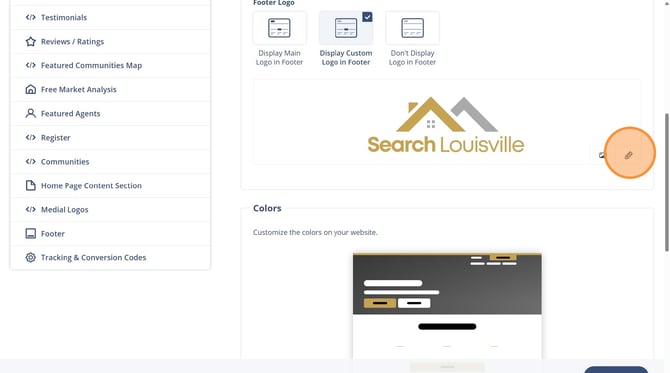
For the footer, you can choose to display the main logo, a custom logo for compliance, or no logo at all.
Luxury Template Note
Luxury sites allow additional control over logo placement to support a refined, high-end visual hierarchy.
Precise Color Matching
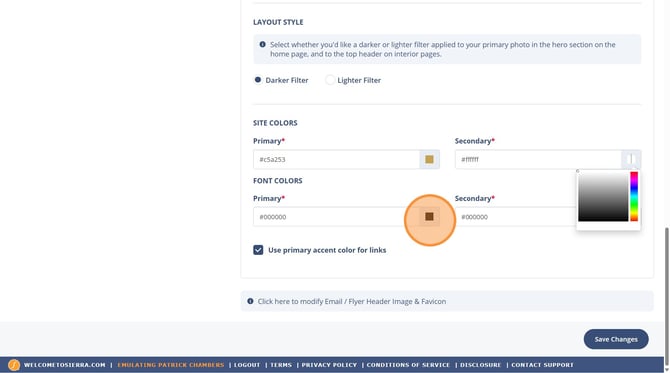
To ensure brand alignment, use the provided color picker or input Hex Codes into the field (6-digit alphanumeric codes used in digital design and HTML/CSS to specify colors by representing Red, Green, and Blue (RGB) intensity) for precise matching on buttons and accents.
To maintain visual polish, update primary and secondary font colors along with link hover states to match your new firm's style guide.
Luxury Template Note
Luxury color changes are intentionally more global to preserve consistency and polish.
Hero Visuals and Navigation Adjustments
The hero area is your most visible branding surface and requires immediate attention during a transition.
Refreshing the Hero Area
To maintain a modern look, replace any imagery referencing your previous brokerage with high quality, neutral, or brokerage approved alternatives.
If you use a Luxury template, you can integrate background videos hosted on Vimeo or YouTube for desktop views.
Navigation and Footer Compliance
To reinforce your new brand as users scroll, it is recommended to keep the sticky navigation bar visible. To meet legal requirements, review all footer contact forms, social links, and legal disclosures to ensure they reflect current brokerage requirements.
Template-Specific Manual Reviews
While many updates are global, certain sections require a manual website branding update to ensure total accuracy.
Ace and Pro Templates
These templates focus on IDX driven content. To ensure accuracy, perform manual updates if brokerage language was specifically added to page text.
Luxury Templates
To maintain professional standards, carefully review manual sections including Notable Listings, Featured Agents, Featured Communities, Market Presence statistics, Testimonials (Google Reviews) to ensure all data aligns with your new firm.
Brokerage Change Checklist
To ensure your site is fully transitioned, verify the following elements:
Required Updates
- Upload new brokerage-approved primary and footer logos.
- Update brand colors using Hex codes.
- Review hero image for old brokerage references
- Confirm navigation branding and sticky header behavior
- Refresh compliance language and disclosures in the footer.
If your brokerage change requires updates to licensing language or disclosures, contact your Sierra team for guidance.
Recommended Maintenance
- Review Agent Profiles and "About" pages for old brokerage mentions.
- Homepage imagery and messaging
- Manual homepage sections (Luxury only)
- To validate the changes, clear your browser cache and test the site on both mobile and desktop devices.
Best Practices
- Update branding immediately after your brokerage change is finalized.
- Always use brokerage-approved logos and colors.
- Keep homepage visuals neutral and professional during transitions.
- Make Luxury template changes deliberately to preserve a polished look.
- Review both desktop and mobile experiences before announcing your site.
Troubleshooting Common Issues
-
My old logo is still showing
Clear your browser cache and confirm the logo was saved successfully in Site Layout Settings. -
My colors don’t look correct
Double-check Hex codes and confirm both primary and secondary colors were updated. -
Some pages still reference my old brokerage
Site Layout Settings control global branding, but page content may need manual updates. -
My homepage image looks blurry
Confirm the image meets recommended size and format requirements.
FAQs
-
Do I need to rebuild my website when changing brokerages?
No. Most branding updates can be handled through Site Layout Settings. -
Will this affect my IDX or listings?
No. Branding changes do not impact IDX functionality or listing data. -
Does this process differ by template?
The core process is the same for Ace, Pro, and Luxury. Luxury offers additional layout and branding controls. -
Can Sierra update my branding for me?
Depending on your package or services, Sierra may assist. Contact your Sierra team for options.