
Table of Contents
- Why This Feature Matters
- What Is a Tracking Link?
- Where You Can Create Tracking Links
- How to Create a Tracking Link
- Tracking Link Settings Explained
- Registration Type Options
- Assignment Options
- Tracking Leads from Specific Links
- Automating Follow-Up for New Leads
- Best Practices
- Troubleshooting Common Issues
- FAQs
Why This Feature Matters
Tracking Links let you turn regular website traffic into actual leads and do it in a way that’s trackable and automated.
Instead of just sending people to a page, you can capture their information, see where they came from, and trigger follow-up without any manual work.
They’re especially helpful when you’re promoting listings, content, or niche searches on social media or through ads.
Tracking Links help you:
- Capture leads instead of just page views
- Track where your leads are coming from with Source and Campaign
- Route leads automatically to the right agent or pond
- Trigger follow-up immediately so no one slips through the cracks
What Is a Tracking Link?
A tracking link is a special version of a link to one of your Sierra website pages that adds lead capture and tracking on top of a normal visit.
When someone clicks a tracking link:
- They’re shown a squeeze page before viewing the full content
- They’re prompted to register or connect their account
- Their information is saved as a new lead
- The lead is tagged and routed based on your settings
You can create tracking links for listings, saved searches, blog posts, and other pages on your main site making it easy to share links publicly while still capturing and managing new leads.
Where You Can Create Tracking Links
You can generate a tracking link from:
- Any property detail page
- Any saved search results page
- Any main page on your Sierra website
⚠️ Important: Tracking links can only be created from the main site. They are not available on agent subdomains.
How to Create a Tracking Link
- Navigate to the page you want to promote (listing, search results, blog post, etc.).
- Hover your cursor in the top-left corner of the page for a few seconds until a small link icon appears.
- Click the icon to open the Tracking Link Generator in the admin area.
- Log in if prompted.
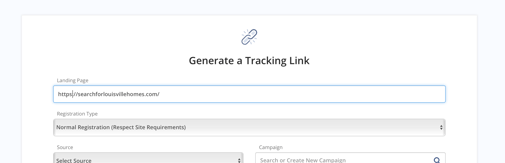
Tracking Link Settings Explained
|
Field |
Description |
|
Landing Page |
Auto-filled with the page you started from |
|
Name |
Optional internal label (visible in Tracking Link Manager for managers) |
|
Source |
Where the link will be posted (e.g., Facebook, Email, Google Ads) |
|
Campaign |
A grouping label for reporting (e.g., “123 Main St” or “First-Time Buyers”) |
|
Registration Type |
Determines the style of the squeeze page |
Registration Type Options
-
Normal Registration (Respect Site Requirements) – Enforces your site’s global registration rules.
-
No Registration – Bypasses site requirements; visitors are not forced to register.
-
Facebook Style (Listing Detail Pages Only) – Requires login via Facebook or email; only works for property listings. Best for Facebook promotions.
-
Full Registration – Visitors can log in via Facebook, Google+, or email. Works for listings and other pages.
-
No Social Options – Only email login, no social options.
-
Open House Style (Listing Detail Pages) – For in-person lead capture at open houses.
Assignment Options
|
Option |
What It Does |
|
Assign to Agent or Pond |
Routes leads directly or into distribution |
|
Assign to Lender |
Auto-assigns lender if applicable |
|
Assign Collaborators |
Adds internal collaborators to the lead |
Agent-level users automatically receive their own leads from tracking links they create.
Tracking Leads from Specific Links
Every lead generated from a tracking link is automatically tagged:
-
Source tag – Identifies where the visitor clicked the link (e.g., Facebook PPC)
-
Campaign tag – Identifies the campaign or property (e.g., “11418 Kingsborough Trail”)
You can filter leads by these tags in the Lead Manager to:
-
Add them to a call list
-
Send a mass email or text
-
Assign them to a specific action plan
Tags can also be viewed and edited on the lead’s detail page.
Automating Follow-Up for New Leads
You can trigger actions only for brand-new leads, including:
- Add a note to the lead record
- Assign a fully automated or traditional action plan
- Assign a drip campaign
- Assign an e-alert or market update
- Auto-send a text message (Dialer required)
- Auto-send an email
- Auto-send a voicemail (Dialer required)
This ensures every lead receives immediate and consistent follow-up.
Best Practices
- Use clear, benefit-driven language in social posts
- Always use the shortened link when posting publicly
- Match your source and campaign to your marketing channel
- Assign action plans for faster response times
- Test different registration types for conversion optimization
Troubleshooting Common Issues
- I don’t see the link icon on the site → Make sure you’re logged in and using the main site (not a subdomain).
- The Source I need isn’t available → Managers can add sources via the Lead Sources Manager.
- No action plans appear in the dropdown → You must have active action plans created first.
- Text or voicemail options are missing → The Sierra Dialer must be enabled at both the account and user level.
- Leads aren’t being assigned correctly → Check assignment rules and ensure you didn’t override them in the tracking link.
FAQs
- Do tracking links affect SEO?
No, they are used only for marketing and lead capture. - Can I use tracking links in paid ads?
Yes, they are commonly used in Facebook and Google Ads. - Can existing leads trigger the automation again?
No, automations only apply to new leads. - Can I edit a tracking link later?
Yes, managers can manage links Gear icon → Manage Tracking Links