
Why This Feature Matters
Automations help you take consistent action without relying on memory or manual effort. Even a single, simple automation can:
- Ensure no new lead is overlooked
- Reduce repetitive tasks
- Improve response consistency
- Save time every day
Sierra Automations are designed to support your workflow, not replace thoughtful follow-up. This guide walks you through creating one simple automation so you can get started confidently.
Table of Contents
Before You Begin
Before creating your first automation, confirm:
-
You are a Primary Manager or Manager user
- You have access to the Sierra Client Admin Area (CAA)
- You understand the basic outcome you want (for example: tagging a new lead or creating a task)
- You are starting with a simple use case
This guide intentionally avoids advanced logic so you can focus on the basics.
Example Automation You’ll Build
When a new lead is created → apply a tag and create a follow-up task
This is one of the most common and effective starter automations.
Step 1: Access Automations
- Log into your Sierra Client Admin Area (CAA).
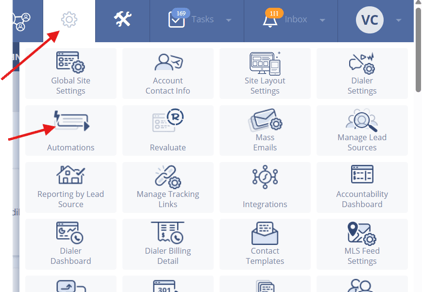
- Click the Gear icon in the top navigation.
- Select Automations.
- Click + New Automation.
Step 2: Name Your Automation
Give your automation a clear, descriptive name.
Example: New Lead – Apply Tag + Create Task
Clear naming makes automations easier to manage later.
Step 3: Choose a Trigger
Triggers define when an automation runs.
- Select Lead Assignment as the trigger.
- Select Lead Assignment to Agent
- Select New
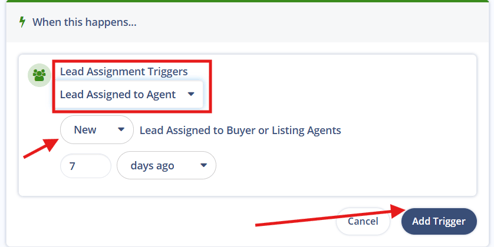
- Click Add Trigger
This means the automation will run every time a new lead is added.
Note that each complete Sierra automation will require at least 1 trigger and a maximum of 5 triggers.
Step 4: Add Your First Action (Apply a Tag)
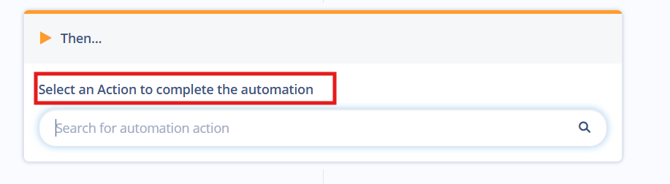
Actions define what happens after the trigger.
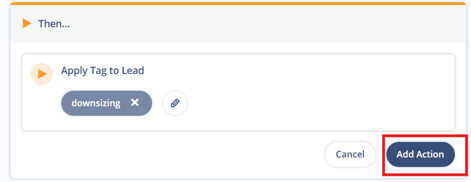
- Choose Apply Tag.
- Select or create a tag (example: New Lead).
- Save the action.
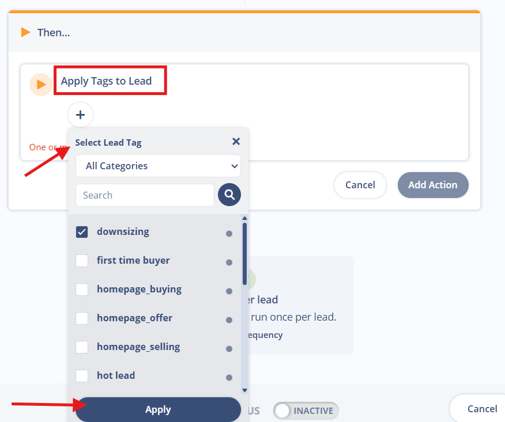
Tags help organize leads and support filtering later.
Note that each complete Sierra automation will require at least 1 action and a maximum of 5 actions.
Step 5: Add a Second Action (Create a Task)
You can add multiple actions to one automation.
- Click Add Action.
- Choose Create Task.
- Configure the task:
- Description (example: Call New Lead)
-
- Due date (example: same day or next day)
- Assigned user or role
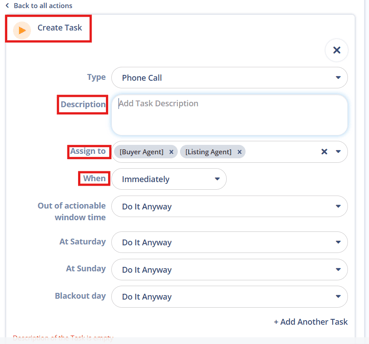
This ensures a follow-up task is created automatically.
Step 6: Review and Activate
Before turning the automation on:
- Review the trigger
- Confirm both actions are correct
- Make sure this automation won’t conflict with existing workflows
When ready, activate the automation.
Your first automation is now live.
What Happens After Activation
Once active:
- Every new lead will automatically receive the tag
- A follow-up task will be created without manual effort
- Your workflow becomes more consistent immediately
You can edit or deactivate the automation at any time.
Best Practices
-
Start simple and begin with one trigger and one or two actions
-
Avoid complex conditions at first
-
Use clear names for automations and tasks
-
Test with a real lead after activation
-
Review results after a few days
Simple automations often deliver the biggest wins.
Common Mistakes to Avoid
- Creating too many automations at once
- Using complex conditions before understanding the basics
- Forgetting to activate the automation
- Overlapping multiple automations with the same trigger
If something doesn’t behave as expected, review the trigger and actions first.
Automation Limits & What to Expect
Sierra includes system limits to keep automations running smoothly across all accounts.
Current limits include:
- 10,000 automation executions per day
- Up to 425 active automations per account
An execution occurs each time an automation runs an action (for example sending an email, creating a task, or updating a lead).
Accounts with high lead activity or multiple automations may reach this limit faster.
If the daily limit is reached:
- Remaining automations will pause for the rest of the day
- Automations will resume automatically the next day
Most accounts never encounter this limit, but it can happen as automation usage grows.
Fully Automated Action Plan limit
Automations that apply a Fully Automated Action Plan also fall under a separate daily limit. Your account can manually assign up to 50 Fully Automated Action Plans per day, and plans applied by Automations count as manual assignments. Once your account reaches that limit, Automations won't apply a Fully Automated Action Plan for the rest of the day. Support can raise this limit on request.
Troubleshooting & Common FAQs
Troubleshooting Common Issues
-
My automation didn’t run
Confirm it is active and that the trigger conditions were met. -
The task didn’t assign correctly
Check the user or role selected in the task action. -
I’m not sure if this automation is working
Create a test lead and confirm the tag and task appear. - My automation ran but didn't apply the action plan
If the action plan is a Fully Automated Action Plan, your account may have reached its daily limit of manually assigned Fully Automated Action Plans. Check for a daily limit email. Plans resume applying the next day.
FAQs
-
How many automations should I start with?
Start with one or two simple automations before expanding. -
Can I edit an automation later?
Yes. Automations can be edited, paused, or deleted at any time. -
Will this automation affect existing leads?
No. It only runs when the trigger occurs. - What should I automate next?
After your first automation, consider automating follow-up tasks, lead tagging, or internal notifications. -
Why did I receive a “Daily Automations Limit Reached” email?
Your account hit the daily limit of 10,000 automation executions. Automations will pause for the rest of the day and resume automatically the next day. If this happens often, review your automations for overlaps or high-frequency triggers. If your email mentions manually assigned Fully Automated Action Plans instead, see the next question. - Why did I receive an email saying my account reached its daily limit of manually assigned Fully Automated Action Plans?
This is a separate limit from automation executions. Your account can manually assign up to 50 Fully Automated Action Plans per day, and plans applied by Automations count toward that total. Once your account reaches the limit, Automations won't apply a Fully Automated Action Plan to any lead for the rest of the day. Plans resume applying the next day. Contact Support if you need a higher limit.
Next Steps
Once your first automation is working, you can continue building additional automations for different situations, just be sure each one has a clear goal and doesn’t duplicate an existing workflow.
A small number of well-built automations will save more time (and create a better lead experience) than a large number of complex ones.