---
title: Fello Integration Setup
description: Sync between your Sierra Interactive CRM and Fello account & unlock the seller leads hidden in your database.
image: https://www.sierrainteractive.com/wp-content/uploads/2022/07/Website-Preview-V2A.jpg
---
[Skip to content](https://help.sierrainteractive.com/helpcenter/fello-integration-setup#main-content)
[Contact Support](https://help.sierrainteractive.com/helpcenter/kb-tickets/new?hsLang=en)
[](https://help.sierrainteractive.com/helpcenter?hsLang=en)
- [Sierra CRM Login](https://client.sierrainteractivedev.com/login.aspx?sn=sierrainteractive.com)
- [Sierra Support](https://share.hsforms.com/1-PkIvKPkRJ2Oe4iP28LPugcrxj0?__hstc=240356316.ca34a03f98730f420ad639300528f2a2.1764955183725.1783970890126.1783975123568.351&__hssc=240356316.31.1783975123568&__hsfp=3cbed2008eb4c720102b6f72b9dd6767)
- [Training & Learning](https://info.sierrainteractive.com/live-training-learning-opportunities)
Show submenu for Training & Learning
- [Sierra Academy](https://info.sierrainteractive.com/sierra-academy)
- [Live Training Sessions](https://help.sierrainteractive.com/helpcenter/join-live-training-sessions-explore-sierra-learning-resources)
Show submenu for Live Training Sessions
- [Tuesdays 11AM ET](https://us02web.zoom.us/j/81520282538)
- [Wednesdays 1:30PM ET](https://us02web.zoom.us/j/84246589732)
- [Fridays 3PM ET](https://us02web.zoom.us/j/86964951435)
- [Sierra YouTube Channel](https://www.youtube.com/@sierrainteractive/featured)
- [Sierra Facebook Mastermind](https://www.facebook.com/groups/sierrainteractive)
- [Referral Dashboard](https://www.sierrainteractive.com/customer-referral-dashboard/)
- [Operations & Closures](https://info.sierrainteractive.com/sierra-interactive-observed-holidays)
- [System Status](https://status.sierrainteractive.com/)
Open main navigation
Close main navigation
- [Sierra CRM Login](https://client.sierrainteractivedev.com/login.aspx?sn=sierrainteractive.com)
- [Sierra Support](https://share.hsforms.com/1-PkIvKPkRJ2Oe4iP28LPugcrxj0?__hstc=240356316.ca34a03f98730f420ad639300528f2a2.1764955183725.1783970890126.1783975123568.351&__hssc=240356316.31.1783975123568&__hsfp=3cbed2008eb4c720102b6f72b9dd6767)
- [Training & Learning](https://info.sierrainteractive.com/live-training-learning-opportunities)
Show submenu for Training & Learning
- [Sierra Academy](https://info.sierrainteractive.com/sierra-academy)
- [Live Training Sessions](https://help.sierrainteractive.com/helpcenter/join-live-training-sessions-explore-sierra-learning-resources)
Show submenu for Live Training Sessions
- [Tuesdays 11AM ET](https://us02web.zoom.us/j/81520282538)
- [Wednesdays 1:30PM ET](https://us02web.zoom.us/j/84246589732)
- [Fridays 3PM ET](https://us02web.zoom.us/j/86964951435)
- [Sierra YouTube Channel](https://www.youtube.com/@sierrainteractive/featured)
- [Sierra Facebook Mastermind](https://www.facebook.com/groups/sierrainteractive)
- [Referral Dashboard](https://www.sierrainteractive.com/customer-referral-dashboard/)
- [Operations & Closures](https://info.sierrainteractive.com/sierra-interactive-observed-holidays)
- [System Status](https://status.sierrainteractive.com/)
- [Contact Support](https://help.sierrainteractive.com/helpcenter/kb-tickets/new)
Search Help Center
- There are no suggestions because the search field is empty.
1. [Help Center](https://help.sierrainteractive.com/helpcenter?hsLang=en)
2. [Integrations & API](https://help.sierrainteractive.com/helpcenter/integrations-api?hsLang=en)
3. [CRM Integrations](https://help.sierrainteractive.com/helpcenter/integrations-api?hsLang=en#crm-integrations)
September 17, 2026
# Fello Integration Setup
## Sync between your Sierra Interactive CRM and Fello account & unlock the seller leads hidden in your database.
### Table of Contents
1. [Why This Feature Matters](https://help.sierrainteractive.com/helpcenter/fello-integration-setup#why)
2. [How to Set Up the Fello Integration](https://help.sierrainteractive.com/helpcenter/fello-integration-setup#how)
3. [Best Practices for Success](https://help.sierrainteractive.com/helpcenter/fello-integration-setup#best)
---
### Why This Feature Matters
Every agent has potential seller leads sitting dormant in their database. The challenge is identifying who is ready to transact. Homeowners might be browsing their home value, requesting cash offers, or engaging with marketing materials, but without a connected system, these valuable signals are often missed. This disconnect leads to lost opportunities and leaves you reacting to leads instead of proactively generating them.
The direct Fello integration solves this by syncing crucial engagement data right into your Sierra CRM. When a homeowner in your database interacts with Fello, that activity is automatically logged on their contact record in Sierra. This gives you a complete picture of their journey, helps you identify the most engaged potential sellers, and allows you to trigger timely, personalized follow-up.
**Key Features**
- **Field Mapping:** Customize which data fields sync between Sierra and Fello so the information that lands on your contact records matches how your team already works.
- **Event Mapping:** Track homeowner engagement events, including home value requests, cash offer activity, and marketing interactions, as they happen.
- **Error Monitoring:** Keep visibility into sync errors so a dropped connection doesn't quietly cost you engagement data.
[back to the top](https://help.sierrainteractive.com/helpcenter/fello-integration-setup#top)
---
### How to Set Up the Fello Integration
Follow these simple steps to connect your Sierra Interactive account with Fello.
#### **1. Navigate to Integrations**
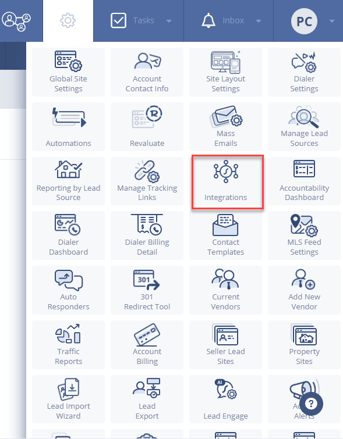
First, log in to your Sierra CRM. Click the **Settings** gear icon in the top navigation bar, and from the dropdown menu, select **Integrations**.
#### **2. Select the Fello Integration**
In the Integrations menu, use the search bar and locate "Sierra Interactive." Add your Fello API Key here.
.png?width=670&height=303&name=image%20(5).png)
#### **3. Accept the Terms and Activate**
A window will appear with the Acceptable Use Policy. Review the terms, check the box to confirm your agreement, and click **Next**. On the following screen, click the **Activate** button.
#### **4. Copy Your API Key**
Once activated, the system will generate a unique API key. Click the copy icon next to the key to copy it to your clipboard. You will need to paste this key into your Fello account settings to complete the connection.
#### **5. Confirm the Active Status**
After you have copied the key, you will see Fello listed as "Active" in your Direct API integrations list, confirming the connection is live on Sierra's end.
[back to the top](https://help.sierrainteractive.com/helpcenter/fello-integration-setup#top)
---
### Best Practices for Success
- **Use Tags to Trigger Action Plans:** Create rules in Sierra to automatically apply tags like "Fello Seller Lead" or "Requested Cash Offer" based on synced activity. Use these tags to launch specific action plans that deliver relevant, automated follow-up.
- For information on tags, follow: [Tags Manager: Adding, Editing, and Organizing Lead Tags](https://help.sierrainteractive.com/helpcenter/the-sierra-tags-manager-how-tagging-enhances-your-lead-management?hsLang=en)
- - For information on action plans, follow: [Scale Your Lead Follow-Up with Fully Automated Action Plans](https://help.sierrainteractive.com/helpcenter/scale-your-lead-follow-up-with-fully-automated-action-plans?hsLang=en)
- **Segment Your Database for Targeted Marketing:** Build saved filters in your CRM for all leads with Fello activity. This creates a high-intent audience segment you can use for targeted email blasts, call campaigns, or event invitations focused on sellers.
- **Customize Your Dashboard:** Add a panel to your agent dashboard that shows recent Fello activities. This keeps potential seller leads top-of-mind and ensures you never miss a chance for timely outreach.
[back to the top](https://help.sierrainteractive.com/helpcenter/fello-integration-setup#top)
- [Getting Started with Sierra](https://help.sierrainteractive.com/helpcenter/getting-started-with-sierra?hsLang=en#main-content)
- [Orientation & Approvals](https://help.sierrainteractive.com/helpcenter/getting-started-with-sierra?hsLang=en#orientation-approvals)
- [Activate Your Sierra Dialer](https://help.sierrainteractive.com/helpcenter/getting-started-with-sierra?hsLang=en#activate-your-sierra-dialer)
- [CRM Setup](https://help.sierrainteractive.com/helpcenter/getting-started-with-sierra?hsLang=en#crm-setup)
- [Connect Your Data](https://help.sierrainteractive.com/helpcenter/getting-started-with-sierra?hsLang=en#connect-your-data)
- [Launch Your Website](https://help.sierrainteractive.com/helpcenter/getting-started-with-sierra?hsLang=en#launch-your-website)
- [Start Working with Leads](https://help.sierrainteractive.com/helpcenter/getting-started-with-sierra?hsLang=en#start-working-with-leads)
- [Enhance Your Site](https://help.sierrainteractive.com/helpcenter/getting-started-with-sierra?hsLang=en#enhance-your-site)
- [Video Resource Library](https://help.sierrainteractive.com/helpcenter/video-resource-library?hsLang=en#main-content)
- [Webinar Recordings](https://help.sierrainteractive.com/helpcenter/video-resource-library?hsLang=en#webinar-recordings)
- [Video FAQ](https://help.sierrainteractive.com/helpcenter/video-resource-library?hsLang=en#video-faq)
- [IntelliSearch](https://help.sierrainteractive.com/helpcenter/video-resource-library?hsLang=en#intellisearch)
- [Lead Generation & Capture](https://help.sierrainteractive.com/helpcenter/lead-generation-capture?hsLang=en#main-content)
- [Sierra Digital Marketing Services](https://help.sierrainteractive.com/helpcenter/lead-generation-capture?hsLang=en#sierra-digital-marketing-services)
- [Lead Tracking](https://help.sierrainteractive.com/helpcenter/lead-generation-capture?hsLang=en#lead-tracking)
- [Saved Searches & IDX Settings](https://help.sierrainteractive.com/helpcenter/lead-generation-capture?hsLang=en#saved-searches-idx-settings)
- [Email Marketing & Automation](https://help.sierrainteractive.com/helpcenter/lead-generation-capture?hsLang=en#email-marketing-automation)
- [Lead Capture Tools](https://help.sierrainteractive.com/helpcenter/lead-generation-capture?hsLang=en#lead-capture-tools)
- [IntelliSearch](https://help.sierrainteractive.com/helpcenter/lead-generation-capture?hsLang=en#intellisearch)
- [Lead Engagement & Nurturing](https://help.sierrainteractive.com/helpcenter/lead-engagement-nurturing?hsLang=en#main-content)
- [AI-Assisted Lead Engage](https://help.sierrainteractive.com/helpcenter/lead-engagement-nurturing?hsLang=en#ai-assisted-lead-engage)
- [E-Alerts & Market Updates](https://help.sierrainteractive.com/helpcenter/lead-engagement-nurturing?hsLang=en#e-alerts-market-updates)
- [Sierra Success Hub](https://help.sierrainteractive.com/helpcenter/lead-engagement-nurturing?hsLang=en#sierra-success-hub)
- [Drip Campaigns](https://help.sierrainteractive.com/helpcenter/lead-engagement-nurturing?hsLang=en#drip-campaigns)
- [Action Plans & Automations](https://help.sierrainteractive.com/helpcenter/lead-engagement-nurturing?hsLang=en#action-plans-automations)
- [Buyer Lead Workflow](https://help.sierrainteractive.com/helpcenter/lead-engagement-nurturing?hsLang=en#buyer-lead-workflow)
- [Bulk Actions](https://help.sierrainteractive.com/helpcenter/lead-engagement-nurturing?hsLang=en#bulk-actions)
- [Lead Management](https://help.sierrainteractive.com/helpcenter/lead-management?hsLang=en#main-content)
- [Lead Organization & Tagging](https://help.sierrainteractive.com/helpcenter/lead-management?hsLang=en#lead-organization-tagging)
- [Reporting & Exports](https://help.sierrainteractive.com/helpcenter/lead-management?hsLang=en#reporting-exports)
- [Platform Tools](https://help.sierrainteractive.com/helpcenter/lead-management?hsLang=en#platform-tools)
- [Lead Routing & Permissions](https://help.sierrainteractive.com/helpcenter/lead-management?hsLang=en#lead-routing-permissions)
- [Calling & Dialer Tools](https://help.sierrainteractive.com/helpcenter/lead-management?hsLang=en#calling-dialer-tools)
- [Team Management & Accountability](https://help.sierrainteractive.com/helpcenter/lead-management?hsLang=en#team-management-accountability)
- [Website Management](https://help.sierrainteractive.com/helpcenter/website-management?hsLang=en#main-content)
- [Website Structure & Navigation](https://help.sierrainteractive.com/helpcenter/website-management?hsLang=en#website-structure-navigation)
- [AI Visibility & SEO](https://help.sierrainteractive.com/helpcenter/website-management?hsLang=en#ai-visibility-seo)
- [Website Pages & Content](https://help.sierrainteractive.com/helpcenter/website-management?hsLang=en#website-pages-content)
- [DNS, Branding, & User Experience](https://help.sierrainteractive.com/helpcenter/website-management?hsLang=en#dns-branding-user-experience)
- [Analytics](https://help.sierrainteractive.com/helpcenter/website-management?hsLang=en#analytics)
- [Support & Account Help](https://help.sierrainteractive.com/helpcenter/support-account-help?hsLang=en#main-content)
- [Contact Support](https://help.sierrainteractive.com/helpcenter/support-account-help?hsLang=en#contact-support)
- [Billing & Account Changes](https://help.sierrainteractive.com/helpcenter/support-account-help?hsLang=en#billing-account-changes)
- [Access & Permissions](https://help.sierrainteractive.com/helpcenter/support-account-help?hsLang=en#access-permissions)
- [Industry & MLS Compliance](https://help.sierrainteractive.com/helpcenter/industry-mls-compliance?hsLang=en#main-content)
- [NAR](https://help.sierrainteractive.com/helpcenter/industry-mls-compliance?hsLang=en#nar)
- [Compliance and Best Practices](https://help.sierrainteractive.com/helpcenter/industry-mls-compliance?hsLang=en#compliance-and-best-practices)
- [Integrations & API](https://help.sierrainteractive.com/helpcenter/integrations-api?hsLang=en#main-content)
- [Communication Integrations](https://help.sierrainteractive.com/helpcenter/integrations-api?hsLang=en#communication-integrations)
- [Marketing Integrations](https://help.sierrainteractive.com/helpcenter/integrations-api?hsLang=en#marketing-integrations)
- [CRM Integrations](https://help.sierrainteractive.com/helpcenter/integrations-api?hsLang=en#crm-integrations)
- [API & Developer Tools](https://help.sierrainteractive.com/helpcenter/integrations-api?hsLang=en#api-developer-tools)
- [Calendar & Appointments](https://help.sierrainteractive.com/helpcenter/integrations-api?hsLang=en#calendar-appointments)
[](https://help.sierrainteractive.com/helpcenter?hsLang=en)
1205 E Washington St #110, Louisville, KY 40206
Copyright © 2025, Sierra Interactive
```json
{
"@context" : "https://schema.org",
"@type" : "VideoObject",
"contentUrl" : "https://21458556.fs1.hubspotusercontent-na1.net/hubfs/21458556/Direct%20Sierra%20Integration%20-%20Set%20up%20complete.mp4",
"dateModified" : "2024-10-01T17:46:01.907Z",
"duration" : "PT2M43S",
"height" : 1080,
"name" : "Direct Sierra Integration - Set up complete",
"thumbnailUrl" : "https://21458556.fs1.hubspotusercontent-na1.net/hubfs/21458556/Direct%20Sierra%20Integration%20-%20Set%20up%20complete.mp4/medium.jpg",
"uploadDate" : "2024-10-01T17:46:01.902Z",
"width" : 1920
}
```
```json
{
"@context" : "https://schema.org",
"@id" : "https://help.sierrainteractive.com/helpcenter/#organization",
"@type" : "Organization",
"image" : {
"@id" : "https://help.sierrainteractive.com/helpcenter/#logo"
},
"logo" : {
"@id" : "https://help.sierrainteractive.com/helpcenter/#logo",
"@type" : "ImageObject",
"caption" : "Sierra Interactive",
"contentUrl" : "https://help.sierrainteractive.com/hs-fs/hubfs/sierra%20interactive%20logo.png?width=250&height=34&name=sierra%20interactive%20logo.png",
"url" : "https://help.sierrainteractive.com/hs-fs/hubfs/sierra%20interactive%20logo.png?width=250&height=34&name=sierra%20interactive%20logo.png"
},
"name" : "Sierra Interactive",
"sameAs" : [ "https://www.facebook.com/sierrainteractive", "https://www.instagram.com/sierrainteractive", "https://www.linkedin.com/company/sierra-interactive", "https://www.youtube.com/@sierrainteractive" ],
"url" : "https://help.sierrainteractive.com/helpcenter"
}
```
```json
{
"@context" : "https://schema.org",
"@id" : "https://help.sierrainteractive.com/helpcenter/#website",
"@type" : "WebSite",
"name" : "Sierra Interactive",
"potentialAction" : {
"@type" : "SearchAction",
"query-input" : "required name=search_term_string",
"target" : {
"@type" : "EntryPoint",
"urlTemplate" : "https://help.sierrainteractive.com/helpcenter/?s={search_term_string}"
}
},
"publisher" : {
"@id" : "https://help.sierrainteractive.com/helpcenter/#organization"
},
"url" : "https://help.sierrainteractive.com/helpcenter"
}
```
```json
{
"@context" : "https://schema.org",
"@id" : "https://help.sierrainteractive.com/helpcenter/#howto-1",
"@type" : "HowTo",
"author" : {
"@id" : "https://help.sierrainteractive.com/helpcenter/#organization"
},
"description" : "Sync between your Sierra Interactive CRM and Fello account & unlock the seller leads hidden in your database.\n",
"isPartOf" : {
"@id" : "https://help.sierrainteractive.com/helpcenter/#website"
},
"mainEntityOfPage" : {
"@id" : "https://help.sierrainteractive.com/helpcenter/#howto-1"
},
"name" : "Fello Integration Setup",
"publisher" : {
"@id" : "https://help.sierrainteractive.com/helpcenter/#organization"
},
"step" : [ {
"@type" : "HowToStep",
"text" : "1. Navigate to Integrations\nFirst, log in to your Sierra CRM. Click the Settings gear icon in the top navigation bar, and from the dropdown menu, select Integrations."
}, {
"@type" : "HowToStep",
"text" : "2. Select the Fello Integration\nIn the Integrations menu, click on the Direct API tab. Scroll through the list of available integrations and click on Fello."
}, {
"@type" : "HowToStep",
"text" : "3. Accept the Terms and Activate\nA window will appear with the Acceptable Use Policy. Review the terms, check the box to confirm your agreement, and click Next. On the following screen, click the Activate button."
}, {
"@type" : "HowToStep",
"text" : "4. Copy Your API Key\nOnce activated, the system will generate a unique API key. Click the copy icon next to the key to copy it to your clipboard. You will need to paste this key into your Fello account settings to complete the connection."
}, {
"@type" : "HowToStep",
"text" : "5. Confirm the Active Status\nAfter you have copied the key, you will see Fello listed as \"Active\" in your Direct API integrations list, confirming the connection is live on Sierra's end."
} ]
}
```