
 Note: Zapier's interface may change over time. Screenshots have been intentionally omitted from this article. For the most accurate and up-to-date navigation and UI, refer directly to Zapier's support documentation.
Summary
Zapier is a third-party automation tool that lets you connect Sierra Interactive with other platforms that do not have a direct integration, API connection, or Email to Lead option. It helps you create simple automated workflows (called Zaps) so information can move between Sierra and other tools without manual entry or custom development.
Zapier is most commonly used to:
-
Send new leads into Sierra from external tools
-
Pass basic lead data between systems
-
Reduce manual copy-and-paste work
Zapier does not replace Sierra’s built-in integrations, it fills the gaps where no direct connection exists.
Table of Contents
Why This Matters
Sierra integrates directly with many popular platforms. However, you may use tools that:
-
Do not support Sierra’s API
-
Do not offer Email to Lead
-
Do not have a native integration
Zapier acts as a bridge between Sierra and those tools so you can:
-
Capture leads from more sources
-
Keep systems in sync without double entry
-
Improve response times
-
Streamline simple workflows
What Is Zapier?
Zapier is an automation platform that connects two or more apps so they can work together.
Each automation (a Zap) has two parts:
-
Trigger — Something that happens in one app
(Example: A form is submitted, or a new lead is created.) -
Action — What Zapier does in response
(Example: Create a new lead in Sierra, add a row to a spreadsheet.)
Example: Tag a Lead → Add Task + Action Plan
Let’s say an agent on your team applies the “Re-engage” tag to a lead in Sierra.
You can build a Zap that looks like this:
- Trigger: A New Tag is applied in Sierra
- Actions:
- Create a Task in Sierra for the assigned agent to call the lead
- Apply a Traditional Action Plan to begin follow-up emails and texts
This workflow helps your team act immediately on re-engagement opportunities and ensures no lead falls through the cracks.
What Zapier Does for Sierra
Zapier allows you to:
-
Create new leads in Sierra from external platforms
-
Pass simple lead data between systems
-
Trigger lightweight follow-up actions
-
Connect tools that cannot otherwise integrate
Common use cases:
-
Send Google Form or Typeform submissions into Sierra
-
Send event registrations into Sierra
-
Add Sierra leads to spreadsheets or email tools
-
Notify your team when a new lead arrives
What Zapier Does Not Do
Zapier does not:
-
Replace Sierra’s native integrations
-
Provide full two-way syncing
-
Modify account-level settings
-
Handle complex or system-level data
-
Update every field on existing leads
-
Perform bulk imports
Zapier is best used for creating new leads and passing simple structured data, not managing your full database or advanced system logic.
How to Get Started with Zapier and Sierra
Step 1: Connect Zapier in Sierra 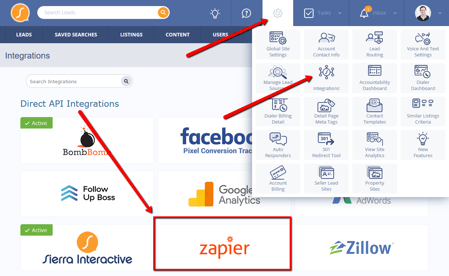
-
Log into your Sierra Admin Area (CAA)
-
Click the Gear icon
-
Select Integrations
-
Scroll to the Direct API section
-
Find and click Zapier
-
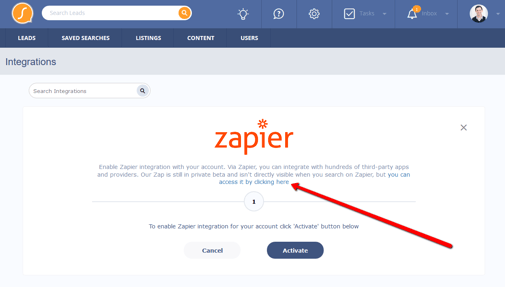
Follow the prompts to activate the integration
Step 2: Generate and Copy Your API Key 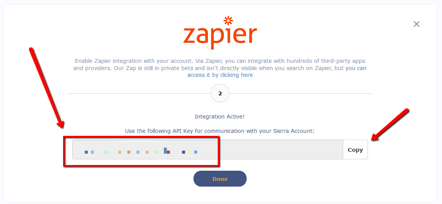
If the integration requires an API key, complete these steps:
-
In the CAA, Go to Users
-
Open your user profile
-
Find the API Key section
-
Generate or copy your key
Step 3: Sign Into Zapier
-
Go to Zapier and sign in or create an account
-
Click Create Zap
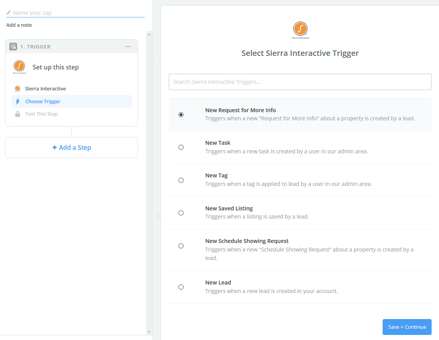
Step 4: Set Your Trigger
-
Choose your trigger app (for example: Google Forms, Facebook Lead Ads, Calendly)
-
Select the trigger event (for example: “New form submission”)
-
Connect the trigger app and test it
Step 5: Add Sierra as the Action App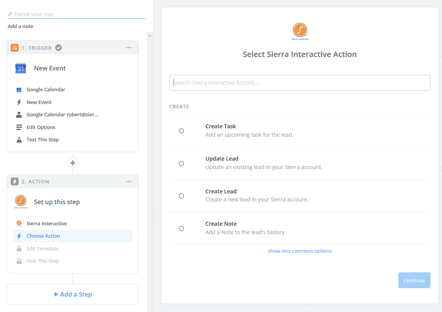
-
Choose Add Action
-
Select Sierra
-
Choose Create Lead
-
Connect Sierra using your API key if prompted
-
Map the fields, such as:
-
First name
-
Last name
-
Email
-
Phone
-
Lead source
-
Notes
-
Step 6: Test and Turn On Your Zap
-
Send a test record through Zapier
-
Confirm the lead appears correctly in Sierra
-
Turn on the Zap
Once activated, Zapier will automatically create leads in Sierra whenever the trigger occurs.
Best Practices
-
Start simple with one trigger and one action
-
Name your Zaps clearly so your team understands their purpose
-
Test before turning anything on
-
Use filters to prevent junk or incomplete data
-
Set consistent lead sources for reporting
-
Review Zaps quarterly to make sure they still match your workflow
Troubleshooting Common Issues
Zap not triggering?
-
Confirm your API key is active and correct
-
Check that your trigger app is sending test data
Duplicate leads?
-
Make sure multiple Zaps are not firing from the same event
Fields not mapping correctly?
-
Double-check field mapping in Zapier matches Sierra’s field structure
Zap stopped working?
-
Check if your API key was rotated or expired
-
Check Zapier error logs for failure messages
FAQs
-
Do I need Zapier if the platform already integrates with Sierra?
No. If a platform supports Sierra’s API or Email to Lead, Zapier is not needed. -
Is Zapier two-way?
No. Zaps run in one direction at a time. -
Can Zapier update existing leads?
Zapier can update some fields but is primarily intended for creating new leads. -
Is Zapier included with Sierra?
No. Zapier is a separate service with its own pricing. -
Can I import thousands of leads using Zapier?
No. Use Sierra’s CSV importer for large uploads. -
Do I need a paid Zapier account?
Some simple Zaps can run on the free plan, but multi-step workflows or premium apps may require a paid Zapier plan.