
Table of Contents
- Why This Feature Matters
- Step-by-Step Instructions
- Best Practices
- Troubleshooting Common Issues
- FAQs
Summary
The Keyword Modal in IntelliSearch gives agents and clients a fast, intuitive way to refine property searches. Using checkbox-based filters, you can browse common features and amenities—like pools, basements, waterfront access, or community amenities—without manually typing keywords. You can also combine the modal with typed keywords for even more precise results.
Why This Feature Matters
- Familiar, checkbox-style workflow: Reduces learning curve for new agents and makes it easy for clients.
- View All = full MLS field access: Clicking “View All” opens the modal and displays all available MLS-mapped fields.
- Real-time results: Selections update search results instantly, no saving or refreshing required.
- Multi-MLS support: The modal adjusts fields based on the selected MLS. Switching MLSs updates the available filters automatically.
- Better clarity for ambiguous terms: Browsing helps distinguish between similar terms like Hot Tub vs Spa.
- Keyword best practices: Use precise, MLS-aligned keywords (e.g., “private pool” vs “pool,” “ocean view” vs “coastal view”), compound phrases for complex features, and lifestyle/location descriptors to improve relevance.
Step-by-Step Instructions
-
Navigate to Saved Searches in the top navigation bar and select Saved Searches.
-
Click +New Saved Search
-
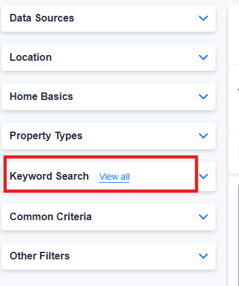
From the property search page, select Keyword Search.
-
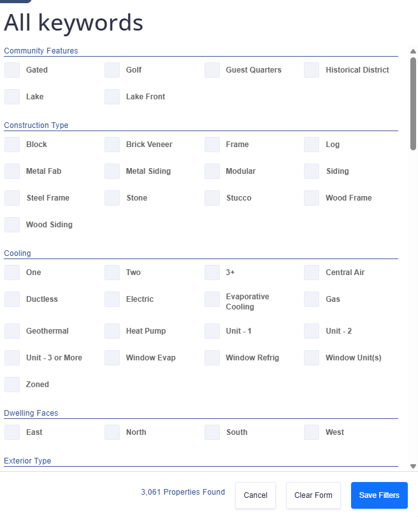
Click View All to open the Keyword Modal.
-
Browse through categories such as:
-
Interior Features (e.g., Fireplace, Walk-in Closet, Basement)
-
Exterior Features (e.g., Pool, Balcony, Sprinkler System)
-
Community & Lot Features (e.g., Golf Course Lot, Corner Lot, Waterfront)
-
Stories (e.g., 1-Story, 2-Story, 3+ Stories)
-
-
Select the checkboxes that match your client’s preferences.
-
Optionally, add free-text keywords for additional precision.
-
Once selections are made, click Save Filters.
Best Practices
- Start broad, refine gradually: Begin with key features and narrow down to avoid eliminating results prematurely.
- Combine with Property Type filters: Use alongside modal selections for more accurate targeting.
- MLS-specific awareness: Fields vary by MLS. Verify the selected MLS matches the intended market.
- Keyword specificity:
- Use exact descriptors (e.g., “inground pool” vs “pool”).
- Apply compound phrases for detailed features (e.g., “primary on main,” “open concept”).
- Distinguish features vs amenities (“attached garage” vs “garage parking”).
- Combine multiple descriptors: “waterfront” + “dock” + “shoreline.”
- For lifestyle searches: combine location + lifestyle features: “downtown” + “walkable” + “restaurants.”
- Test and refine: Preview listings, adjust keywords if results are too broad or narrow, and monitor client engagement.
- Save searches: After refining, save searches and set up alerts to notify clients of new matches.
Troubleshooting Common Issues
- No Results Found: Reduce the number of filters or broaden keyword specificity.
- Feature Not Listed: Use free-text keywords when the modal doesn’t show a specific feature.
- MLS Differences: Switching MLSs can change the available features. Verify the correct MLS is selected.
- Too Many Unrelated Listings: Refine keywords for specificity; remove generic terms.
- Saved Search Didn’t Update: Ensure you clicked Save Filters before saving the search.
- Waterfront Listings Show “Near” Instead of “On”: Combine keywords like “waterfront” + “dock” + “shoreline” for accuracy.
FAQs
- Can I use the Keyword Modal and type keywords at the same time?
Yes. Combine checkboxes and free-text keywords to build precise searches. - Will the modal show all possible features?
It contains the most commonly used and MLS-provided features. For uncommon or custom features, use free-text search. - How many keywords should I use?
Start with 2–3 strong, specific keywords. Too many can dilute relevance. - Do saved searches include Keyword Modal filters?
Yes. All modal selections are saved and included in property alerts. - Do IntelliSearch keywords replace MLS filters?
No—they enhance MLS filters. Use both for best results. - Can I use keywords in agent subdomains?
Yes. IntelliSearch functions sitewide if configured, including agent subdomains. - How can I check which property types and sub-types my MLS supports?
Use the MLS Regions & Property Types/Subtypes lookup tool. It confirms how listings are mapped before creating Saved Searches.