
Table of Contents
- What Are Merge Fields
- Where and When to Use Merge Fields
- List of Common Merge Fields
- Best Practices for Using Merge Fields
- FAQs
Why This Matters
Personalized communication increases engagement and builds trust with leads. Merge fields make it easy to:
- Ensure messages are accurate and professional
- Save time when sending repeated messages
- Maintain consistency across templates, action plans, and individual messages
- Reduce errors that occur when manually entering data
Using merge fields effectively supports both efficiency and lead conversion.
What Are Merge Fields?
Merge fields are dynamic placeholders that pull information directly from your CRM into messages. They can include:
- Lead information (first name, last name, email, phone number)
- Agent information (name, email, phone)
When a message is sent, the merge field automatically populates with the relevant information for that lead.
Where and When to Use Merge Fields
Merge fields can be used anywhere messages are composed in Sierra—both emails and texts.
1. Contact Templates
- Go to gear icon > Contact Templates.
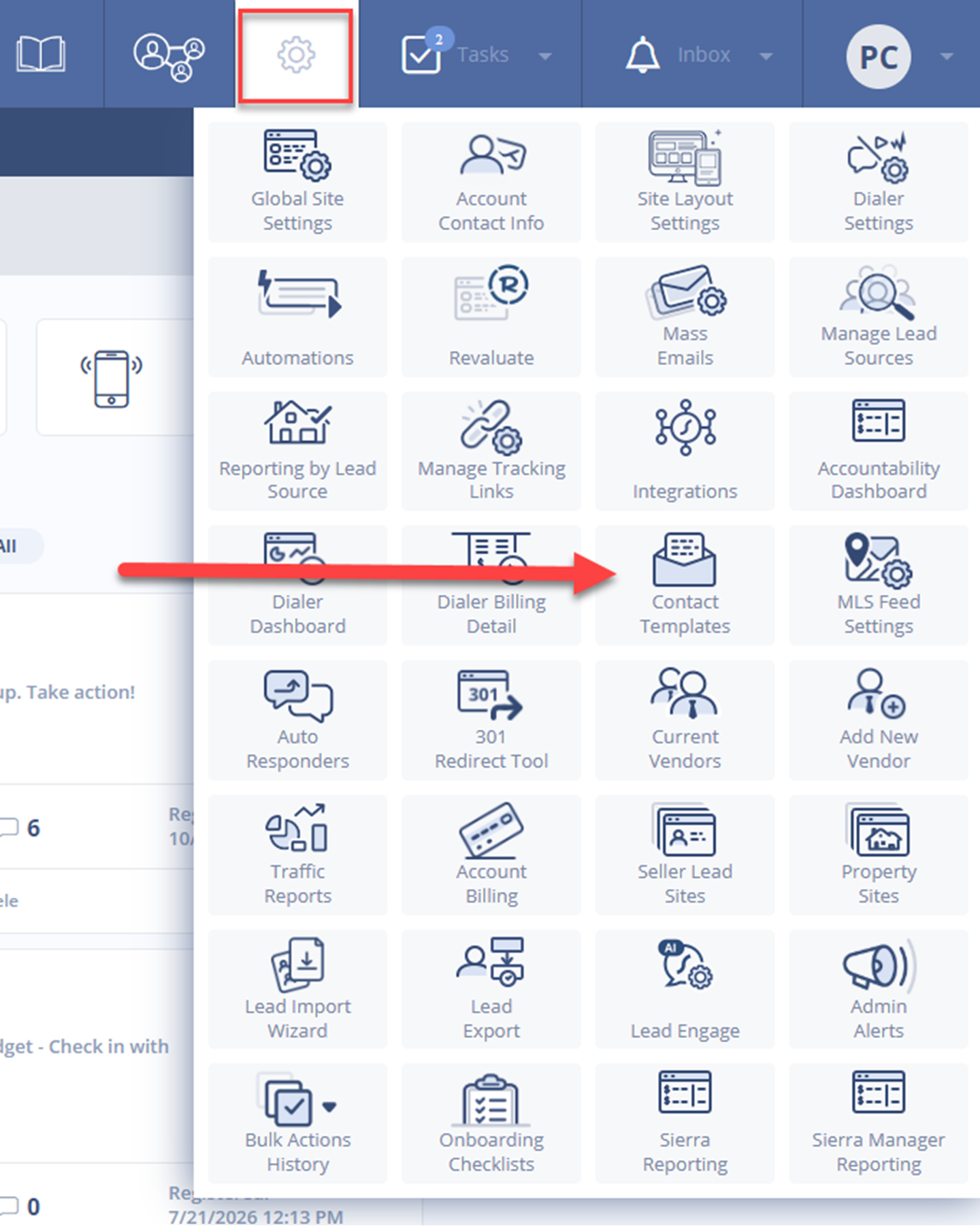
- Edit an existing template or click Create New Template.

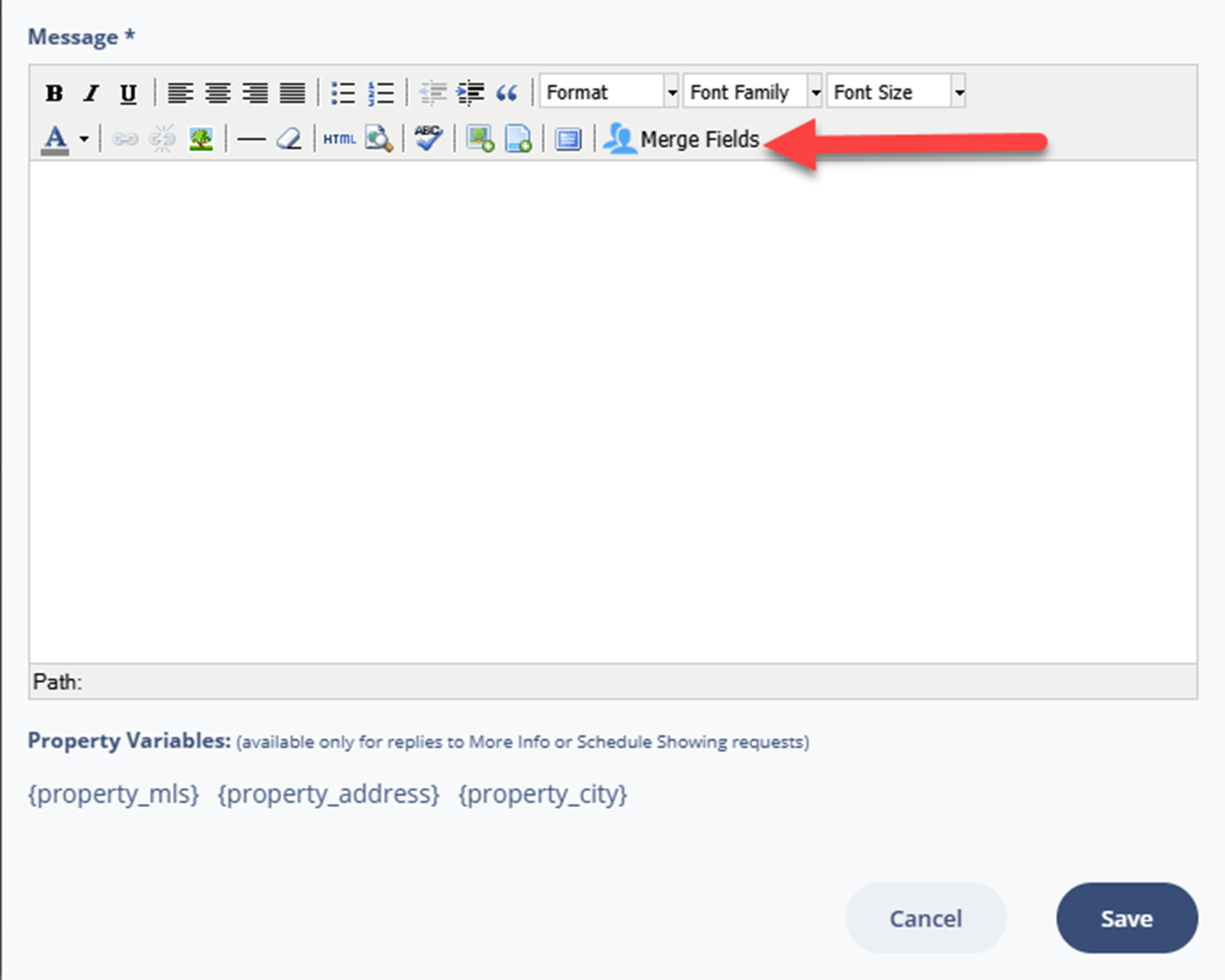
- In the message body, click the Merge Fields button.
- Select the desired field to insert into your template.
2. Bulk Actions from the Leads Dashboard
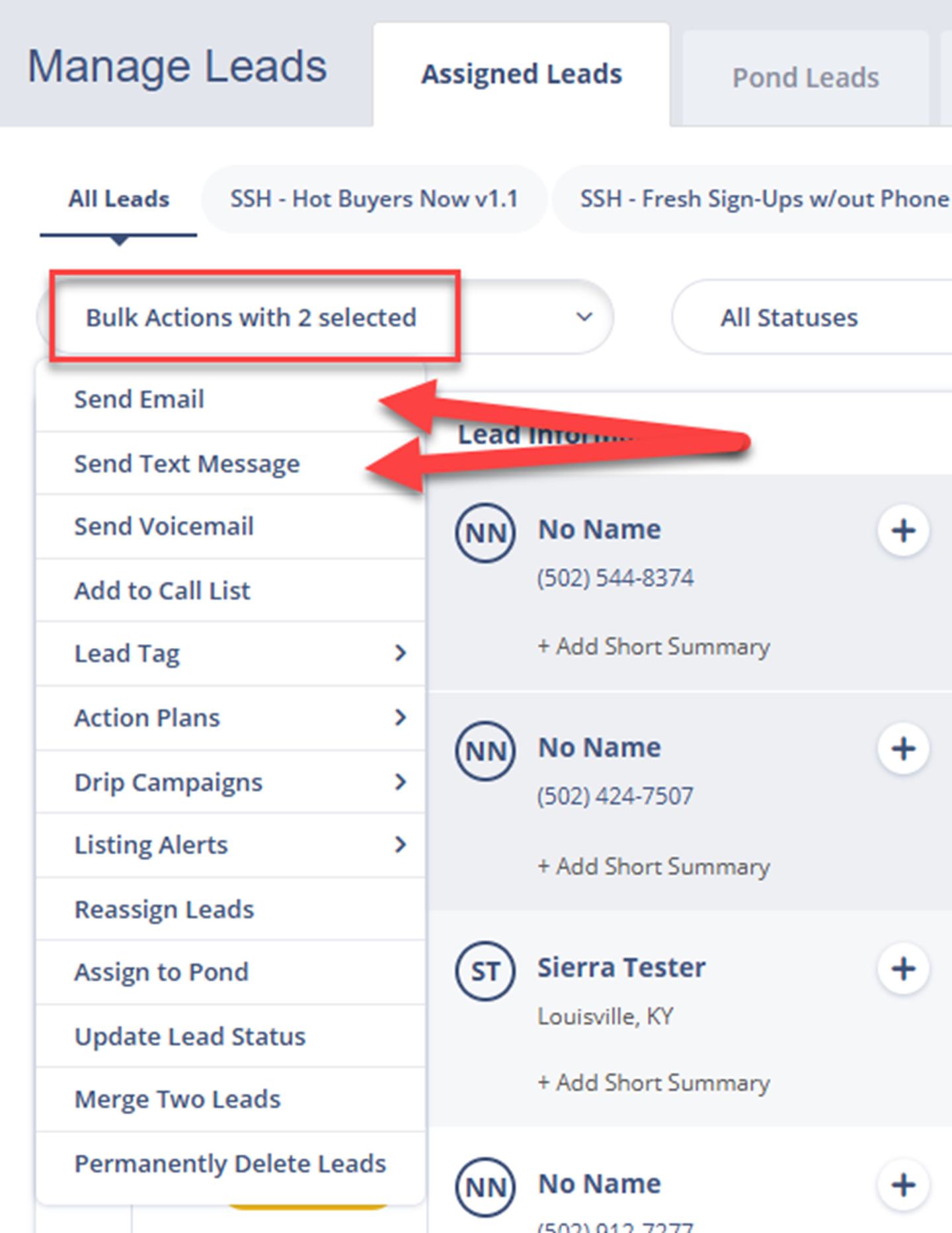
- Go to the Leads tab and open the Leads Dashboard.
- Select the leads you want to message using the checkboxes on the left.
- Click the Bulk Actions dropdown and choose Send Email or Send Text Message.
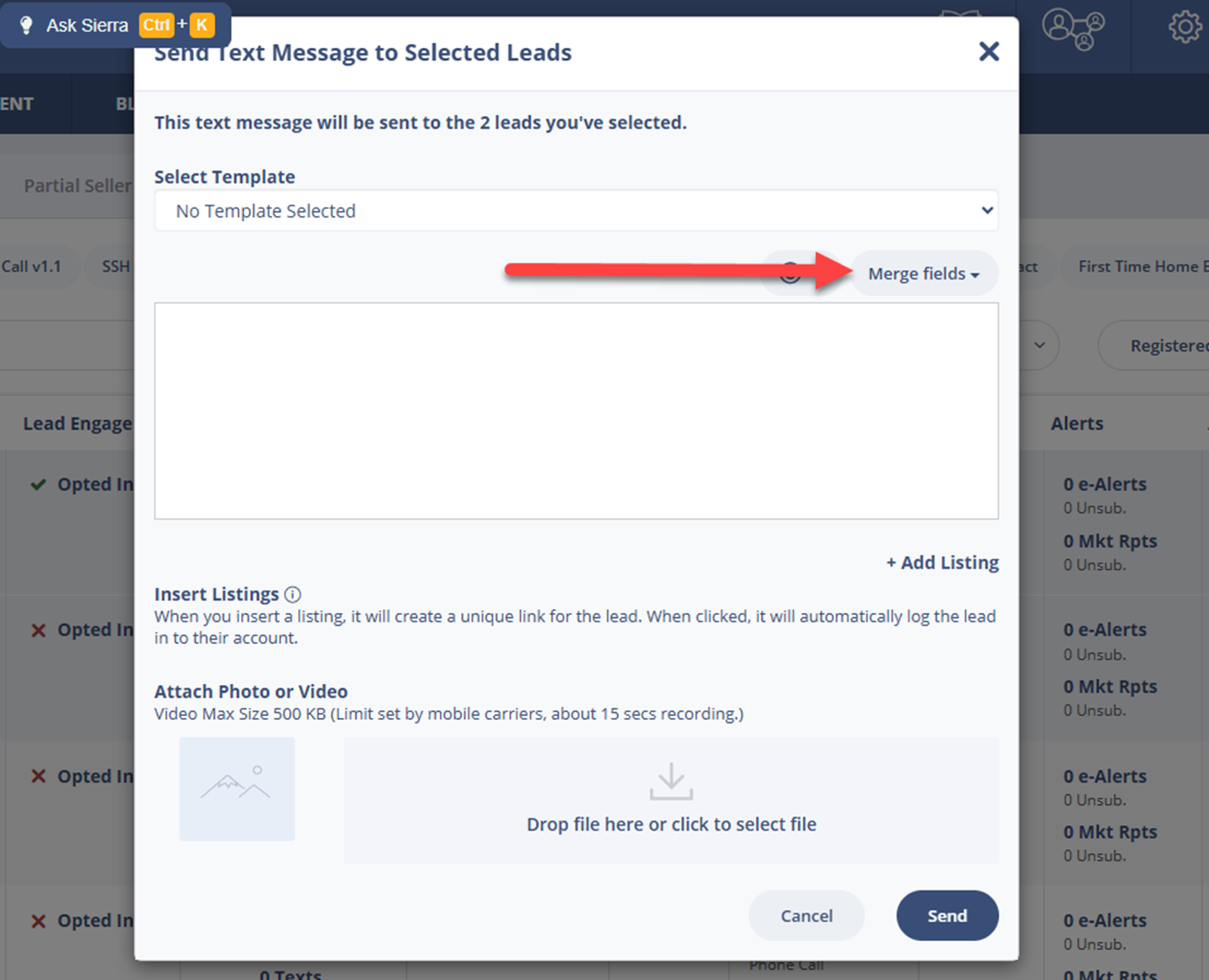
- In the message body, click the Merge Fields button and select the field you want to insert.
3. Action Plans or Drip Campaigns
- Select + New Activity and choose Email or Text Message.
- Under the template dropdown, choose No Template if not using a pre-built template.
- In the message body, click the Merge Fields button and select the desired field.
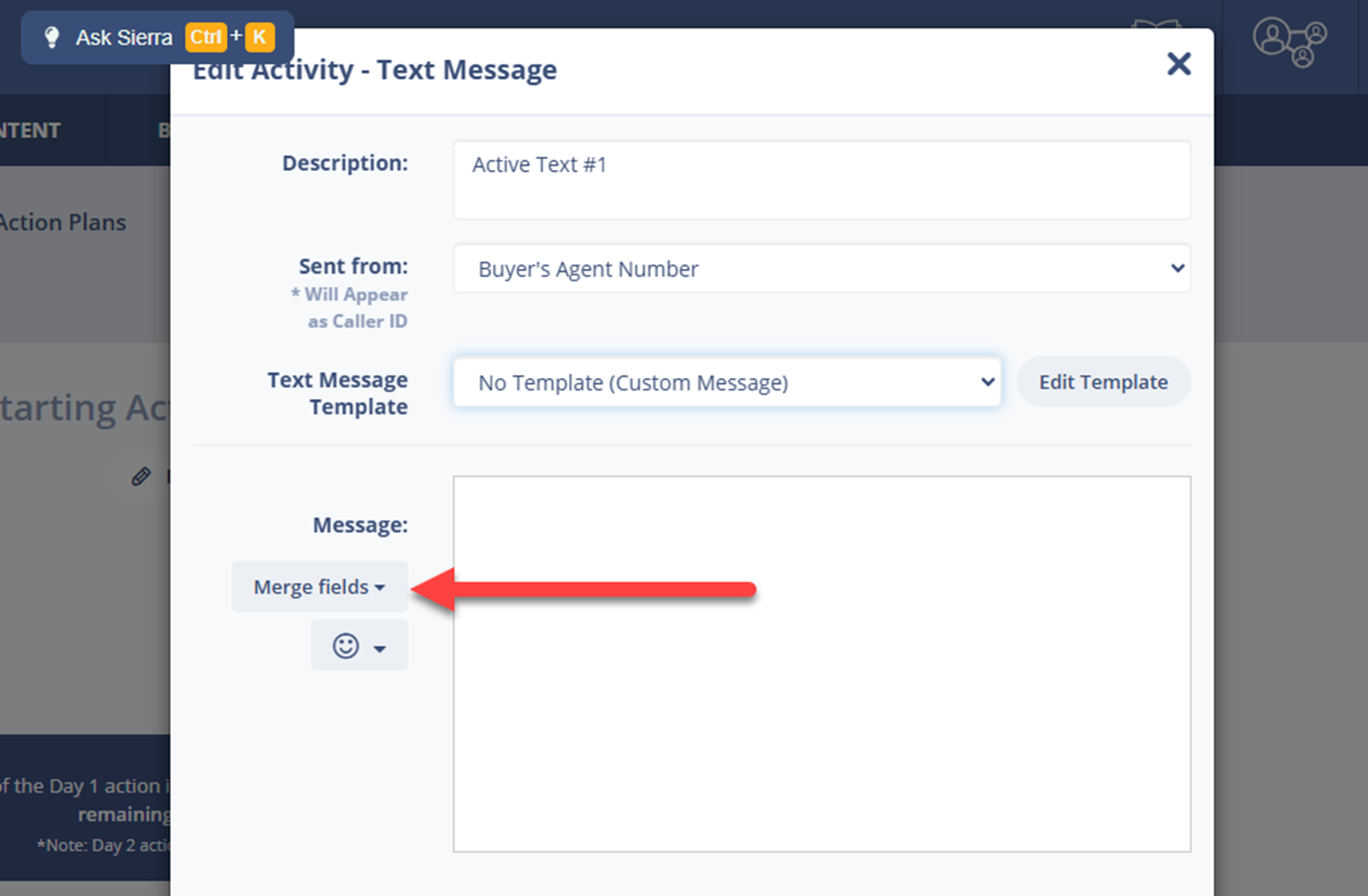
4. Individual Messages on Lead Detail Pages
- Open a lead from the Leads Dashboard or via the search bar.
- In the message body (email or text), click the Merge Fields button to insert the desired field.
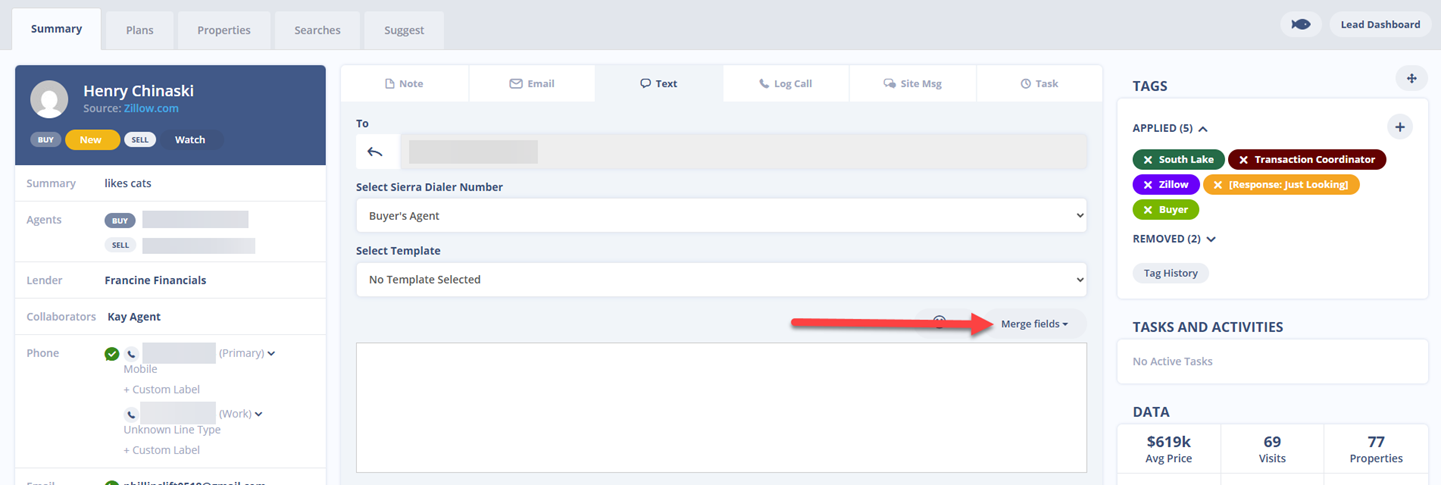
Please Note: Sending texts with merge fields requires the Sierra Dialer.
List of Common Merge Fields
Lead Information
- First Name, Last Name
- Phone Number
- Street Address, City, State, Zip Code
- Birthday
Agent & Lender Information
- Name
- Phone
- Signature
- Office Name
Property Information
- Lead Number of Properties Viewed
- Lead Number of Properties saved
- Lead Average Property Price
- Lead Number of Site Visits
Best Practices for Using Merge Fields
-
Use for static info when possible: Great for lead details that rarely change (name, phone number, email)
-
Regularly review templates: Ensure fields pull accurate, current data.
-
Combine with personalization: Merge fields only pull CRM data—write messages that feel human and tailored.
-
Verify lead information: Accurate CRM data ensures merge fields populate correctly.
-
Test templates: Send test messages to confirm merge fields display as expected.
FAQs
Q: Merge fields aren’t showing the correct information. What do I do?
A: Check that the lead’s CRM data is accurate and up to date. Outdated or missing information will appear blank or incorrect in messages.
Q: Can I use merge fields in text messages?
A: Yes, but only if the Sierra Dialer is enabled.
Q: Can merge fields replace full personalization?
A: No. Merge fields automate inserting CRM data, but you should still write messages that are tailored and conversational.