
Mass communications in Sierra allow agents to efficiently reach multiple leads at once through Mass Text or Mass Voicemail, saving time while maintaining personalized, compliant messaging.
Table of Contents
- Why This Feature Matters
- Step-by-Step Instructions
- Best Practices
- Troubleshooting Common Issues
- FAQs
Why This Feature Matters
Using Mass Text and Mass Voicemail helps your team:
- Reach many leads at once without sacrificing personalization
- Save time compared to calling or texting individually
- Maintain consistent messaging for lead engagement
- Target messages by lead type (buyer, seller, lender)
Step-by-Step Instructions
Mass Texting Leads
Only users with Dialer access can send mass texts, so double-check permissions if messages aren’t going through.
-
-
Navigate to Settings → Dialer Settings to confirm the feature is turned on for all users who will be sending messages.
-
-
Select Leads from the Lead Dashboard
-
Go to the Leads tab > Leads Dashboard
-
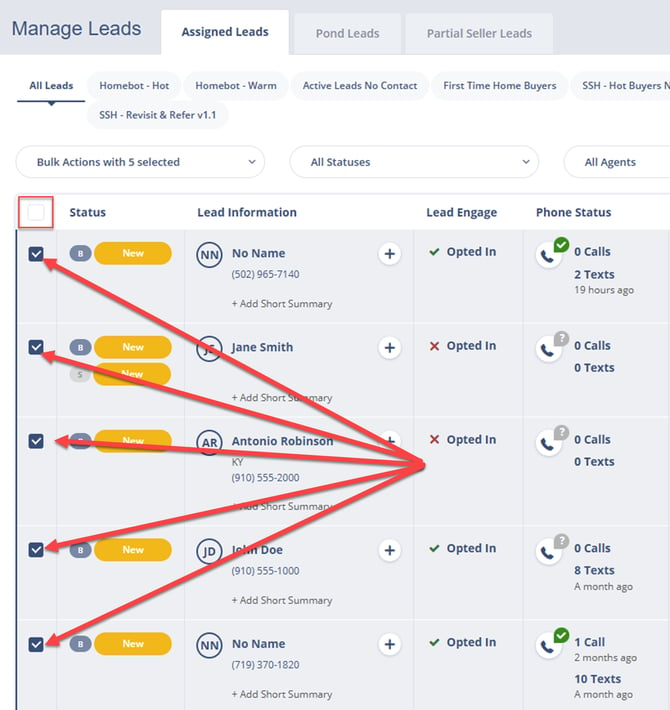
Use the checkboxes to select the leads you want to message. You can filter by lead type (buyer, seller, lender) or other tags to refine your selection.
-
-
Compose and Send Mass Text
-
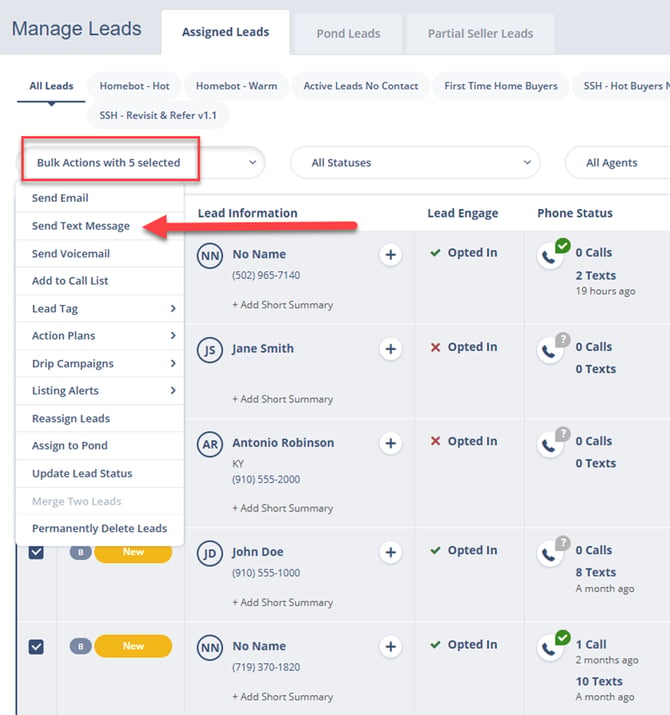
Click Bulk Actions → Send Text Message
-
-
-
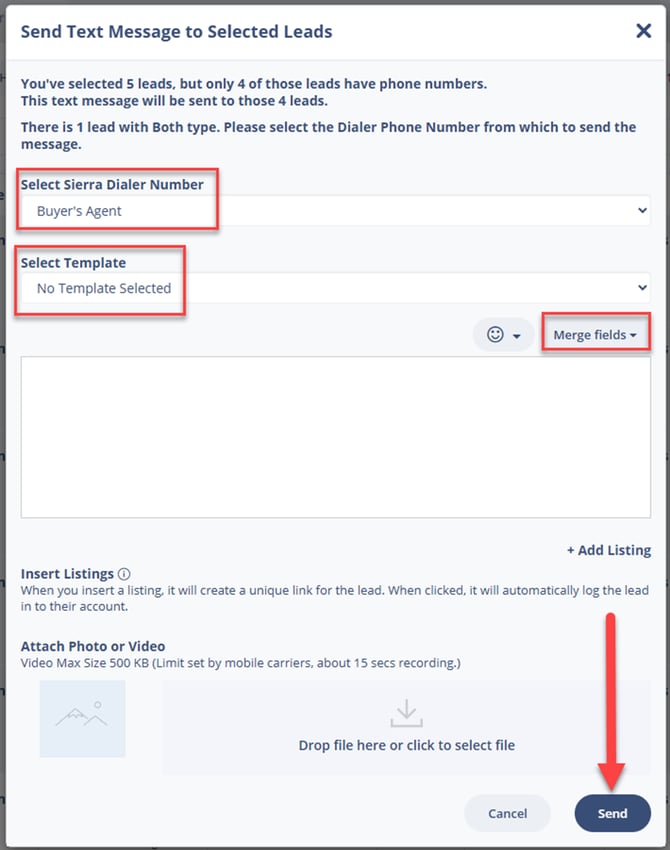
Type your message in the text box. Personalize where possible using merge fields (e.g., ).
-
-
- Click Send to deliver the message. Each lead receives it individually, keeping conversations private (similar to a BCC in email).
Sending Mass Voicemails
- Enable the Dialer & Permissions
- Gear Icon → Voice And Text Settings → Toggle Enable Mass Voicemail Functionality
- (Optional) Allow agent-level users to send mass voicemails
-
Select Leads to Receive Voicemail
-
Go to the Leads tab > Leads Dashboard
-
In the Lead Dashboard, choose one or more leads.
-
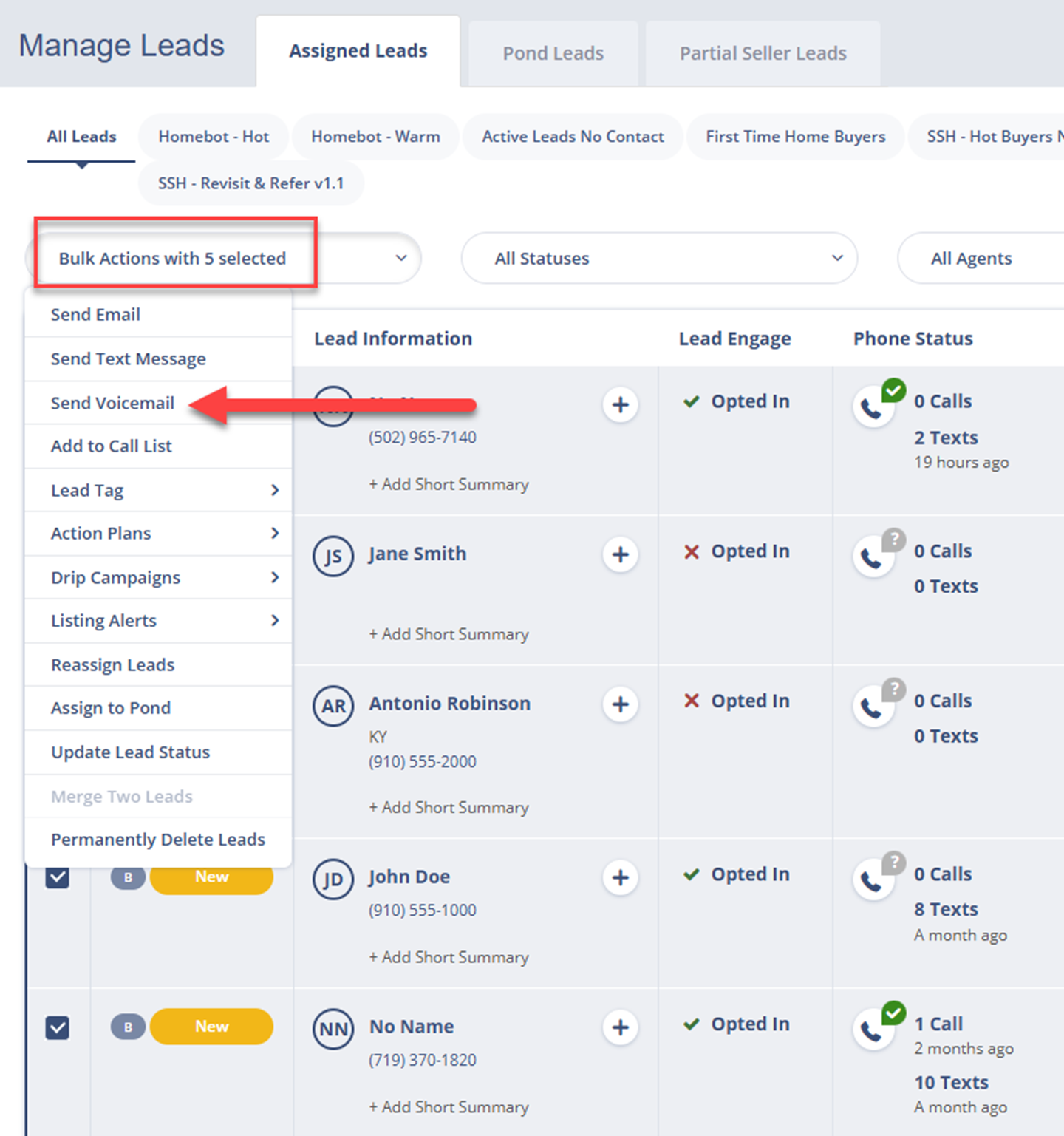
Click Bulk Actions → Send Voicemail.
-
-
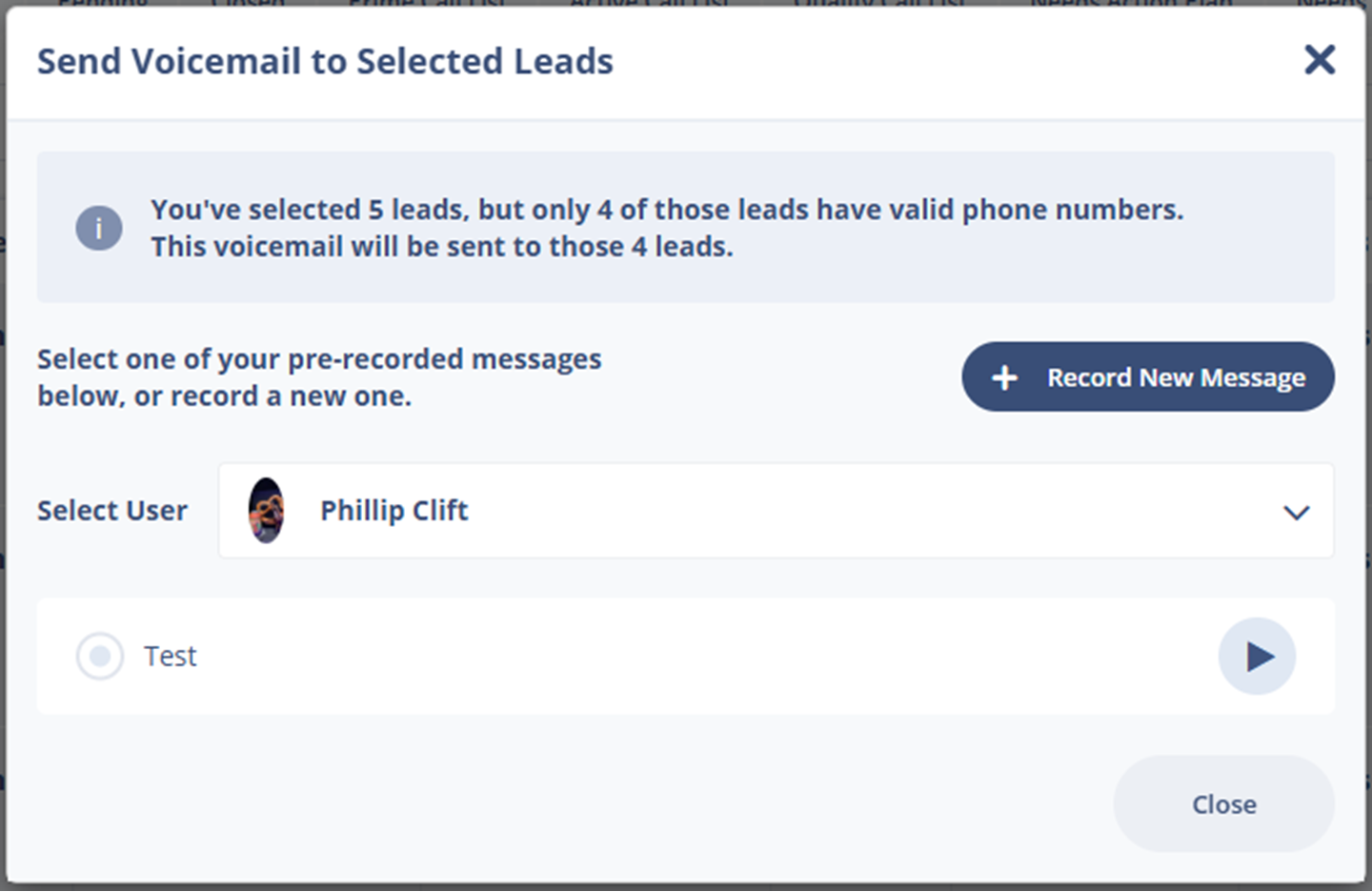
Choose or Record a Voicemail Message
-
Option A: Record a new message via headset, call-in, or upload an audio file (.mp3 or .wav).
-
Option B: Use the Voice Messages Manager to select an existing recording.
-
-
Confirm Caller ID
-
Select the appropriate Dialer number that matches your lead type (buyer, seller, or lender).
-
-
Submit the Voicemail Drop
-
Click Send or Submit.
-
The voicemail is delivered directly to the lead’s voicemail inbox; their phone does not ring.
-
Best Practices
- Personalize messages by lead type (buyer, seller, lender)
- Monitor mass text and voicemail limits to avoid overage charges
- Preview recordings and message drafts before sending
- Keep messaging concise with clear calls to action (under 60 seconds)
Troubleshooting Common Issues
- Voicemail not delivered → Ensure the number is U.S. or Canadian-based. International numbers are not supported.
- Agent cannot send → Confirm the agent has permission enabled in Voice And Text Settings
FAQs
- What’s the daily and per-send limit for voicemail drops?
Up to 250 voicemail drops at once, 1,000 per day per account - Are mass voicemails billed separately?
Plans include 500 voicemail drops per month; $5 per 100 drops overage - Will the lead’s phone ring with a voicemail drop?
No, voicemail appears automatically - How is mass texting billed?
Each outbound recipient counts as one message; inbound replies do not.