
Single Property Sites give you a powerful tool to create a dedicated, beautiful website for any listing. Use them to stand out from the competition, provide value to your sellers, and generate high-quality buyer leads.
Table of Contents
-
Why This Feature Matters
-
How to Create a Single Property Site
-
Domain Options for Your Site
-
How to Create an Unbranded Version for the MLS
-
Best Practices for Success
-
Troubleshooting & FAQs
Why This Feature Matters
In a crowded market, simply putting a listing on the MLS isn't enough. Your properties can get lost among thousands of others. This makes it difficult to impress sellers and capture the attention of serious buyers.
Single Property Sites solve this problem by giving each listing a premium, dedicated online presence. This not only showcases the property in the best possible light but also reinforces your brand as a tech-savvy agent who invests in top-tier marketing.
How to Create a Single Property Site
Follow these steps to build a professional site for your listing from start to finish.
1. Find the Single Property Sites Tool
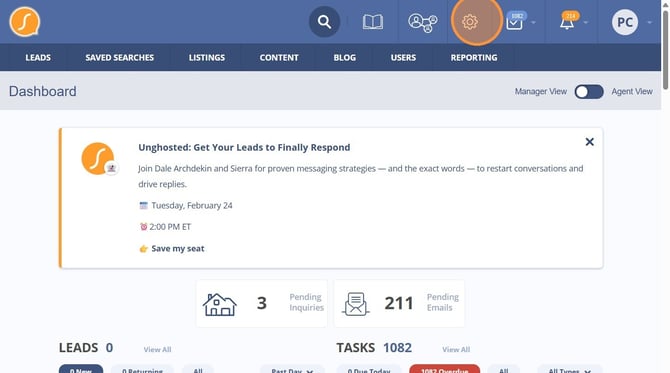
From your main dashboard, navigate to the Gear icon in the top right, and then select Property Sites from the dropdown menu.
.jpg?width=670&height=374&name=sierra-interactive-single-property-sites%20(5).jpg)
Pro-tip
Set up your Default Settings first to have your branding auto-populate for every new site.
2. Start Your New Site
On the Property Sites page, click the Add New Site button to open the template editor.
.jpg?width=670&height=374&name=sierra-interactive-single-property-sites%20(6).jpg)
3. Fill Out the Site Details
The editor is organized into tabs. Work through each one, making sure to click the SAVE button at the bottom of each tab before moving to the next.
Layout Settings
Choose your layout, upload your logos, and set your brand colors.
You MUST save your layout settings before proceeding.- Listing Information: You can pull property details directly from the MLS® with an MLS® number or enter them manually. This is also where you'll add open house details.
.jpg?width=670&height=374&name=sierra-interactive-single-property-sites%20(13).jpg)
- Description & Hero: Write a catchy title and a compelling description. For the Hero section, upload a stunning cover photo or even a video background to make a great first impression.
.jpg?width=670&height=374&name=sierra-interactive-single-property-sites%20(14).jpg)
.jpg?width=670&height=374&name=sierra-interactive-single-property-sites%20(17).jpg)
- Tours & Media: Upload up to 100 images for your Photo Tour, embed codes for your Video Tour, and a link for a 3D Tour. You can also upload floor plans.
.jpg?width=670&height=374&name=sierra-interactive-single-property-sites%20(22).jpg)
- Neighborhood: Showcase your local expertise by adding videos, images, and descriptions of the area.
.jpg?width=670&height=374&name=sierra-interactive-single-property-sites%20(33).jpg)
- Agent Info & Access: Add your contact details and assign visibility permissions to other agent-level users on your team if needed.
.jpg?width=670&height=374&name=sierra-interactive-single-property-sites%20(36).jpg)
.jpg?width=670&height=374&name=sierra-interactive-single-property-sites%20(37).jpg)
- Lead Routing & Tracking: Choose whether to use your existing lead routing rules or assign all leads from this site to a specific agent. You can also add tracking codes, like a Facebook Pixel, to monitor your ad performance.
.jpg?width=670&height=374&name=sierra-interactive-single-property-sites%20(41).jpg)
4. Publish Your Site
Once you've filled out all the details and used the Preview tab to confirm everything looks great, navigate to the Publish tab and click the Publish button. Your site is now live!
Domain Options for Your Site
.jpg?width=670&height=374&name=sierra-interactive-single-property-sites%20(44).jpg)
You have three flexible options for your site's web address. You'll set this up in the Domain Mapping tab.
Option 1: Use a Sierra Subdomain (Easiest)
This is the quickest way to get your site live. You can use a subdomain provided for free
If you choose this option, you will not be able to create an unbranded tour for the MLS
Option 2: Register a New Domain
For a memorable and marketable URL (e.g., 123MainStreetTour.com), you can register a new domain directly through the Sierra tool.
Option 3: Use a Domain You Already Own
If you own a domain through a third-party registrar like GoDaddy, you can use it by updating its A records to point to Sierra's servers.
How to Create an Unbranded Version for the MLS
Many MLS® boards require an unbranded version of your marketing for compliance. Here’s how to create one.
For Domains Purchased Through Sierra:
Simply add "tour." before the domain name.
- Branded: http://555propertylane.com
- Unbranded: http://tour.555propertylane.com
For Third-Party Domains:
Log in to your domain provider (like GoDaddy or Namecheap) and add a new A Record with the following settings:
- Host: tour
- Points to: 173.192.101.249
Best Practices for Success
Impress Sellers with Professionalism: Use high-quality photos and a video tour to show potential sellers the premium marketing you provide. This is a powerful tool to help you win your next listing.
Market the Open House: If you have an open house scheduled, make sure it's featured prominently. The site will automatically remove the details after the event date has passed.
Use a Unique Domain for High-End Listings: For luxury properties, consider investing in a custom domain (www.123OceanViewDr.com) to elevate the marketing and impress the seller.
Streamline Your Workflow with Defaults: Go to Manage Single Property Sites > Default Settings to set your brand colors and logos. This ensures consistency and saves you time on every new site you build.
Troubleshooting & FAQs
Issue: My unbranded tour version isn’t loading.
Fix: If you purchased the domain through a third party, double-check that you have added the required A Record for the "tour" host.
Issue: Leads from my site aren't going to the right agent.
Fix: Go to the Lead Routing / Tracking tab for that specific property site. Confirm that you've either selected your default lead routing rules or assigned the leads directly to the correct agent.
Can agents on my team create their own sites?
Yes, if you grant them the correct permissions. Edit their user profile and enable the two permissions related to Single Property Sites.
Do I need to buy a new domain for every property site?
No. The most cost-effective method is to purchase one standalone domain (e.g., GreatPropertiesForSale.com) and have our support team configure it for subdomains. You can then create sites like 123CanterLane.GreatPropertiesForSale.com at no extra cost.