
Table of Contents
- Why Connect Google Analytics
- Step-by-Step Instructions
- Best Practices
- Troubleshooting Common Issues
- FAQs
Why Connect Google Analytics
Connecting Google Analytics 4 (GA4) to your site takes the guesswork out of performance. It gives you a clear, reliable view of how your website is doing, so you can make data-driven decisions that save time and attract more qualified leads. With insight into how visitors behave, you can optimize content, sharpen your marketing campaigns, and double down on what actually drives closings and revenue.
With GA4 connected, you can see at a glance:
-
Where your traffic originates: organic search, paid ads, social, direct
-
Which pages keep visitors engaged and which cause them to drop off
-
Which actions lead to conversions: form submissions, saved searches, listing views
-
How your marketing campaigns perform and trend over time
Before You Begin
- You need a Google account to access Google Analytics
- Sierra requires only the Measurement ID from GA4 — not a full tracking script
- ⚠️ Google Tag Manager (GTM) is not supported on Sierra sites. Use Sierra's native GA integration only
- Only connect one GA4 property per Sierra site to avoid duplicate data
Step-by-Step Instructions
Step 1: Create a GA4 Property and Get Your Measurement ID
- Go to analytics.google.com and sign in
- Click the gear icon (Admin) in the lower left
- Under Property, click Create Property and follow the prompts
- When asked to choose a platform, select Web
- Enter your Sierra website URL and a property name, then click Create and continue
- A Web Data Stream will be created automatically — open it
- Copy the Measurement ID at the top of the page. It will look like:
G-XXXXXXXXXX
⚠️ Copy only the Measurement ID (G-XXXXXXXXXX). Do not paste the full GA script tag into Sierra.
Step 2: Add Your Measurement ID to Sierra
- In your Sierra CRM, click the Gear Icon in the top navigation
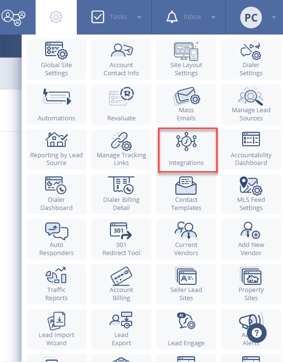
- Go to Integrations → Google Analytics
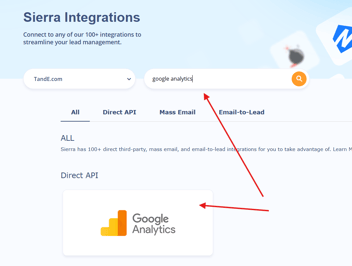
- Paste your Measurement ID into the provided field
- Click Save
That's it. Sierra handles the rest of the implementation automatically.
Step 3: Set Up Conversion Tracking
GA4 tracks every user interaction as an event. To measure what matters most, like a lead submitting a contact form, you need to mark those events as conversions.
- In GA4, go to Reports → Engagement → Events
- Find the event you want to track as a conversion (e.g.,
lead_submit,generate_lead) - Toggle Mark as conversion next to the event name
💡Follow Google's guide on marking events as conversions here.
Tips:
- GA4 can take 24–48 hours to begin showing event and conversion data after initial setup
- Use GA4 DebugView to verify events are firing before data populates in reports
Best Practices
Connecting your account is just the beginning. Use these best practices to gather data that helps you grow your business.
- Use one GA4 property per site. Multiple properties attached to the same site will inflate your data and make reporting unreliable.
- Mark the right events as conversions. Focus on actions that signal real intent: form submissions, saved searches, property inquiries — not page views.
- Check your Acquisition reports regularly. Understanding where traffic comes from helps you double down on what's working and cut what isn't.
- Identify high-engagement pages. Pages where visitors spend more time are your best performers so use them as a model for new content.
- Link Google Ads after creating your GA4 property. If you run paid campaigns, link your Ads account to GA4 to track which ads are generating leads.
Troubleshooting Common Issues
⚠️GTM is not supported on Sierra sites, use native GA integration only.
- GA4 isn't recording data
Verify you entered the Measurement ID (G-XXXXXXXXXX), not the GA4 Property ID (a plain number). These are different. Re-check the Web Data Stream settings in GA4 to confirm. - Conversions aren't showing up
Confirm the event is firing correctly using DebugView, then verify it's been toggled on as a conversion in Engagement → Events. Allow up to 48 hours for data to appear. - You pasted the full GA script instead of the Measurement ID
Remove the script. Go to Gear Icon → Integrations → Google Analytics, clear the field, paste only theG-XXXXXXXXXXID, and save.
FAQs
- How do I remove or change my GA4 Measurement ID in Sierra?
Go to Gear Icon → Integrations → Google Analytics, clear the current ID, and click Save (or paste a new one and save). - Can I link Google Ads to GA4?
Yes, but linkage must be redone after creating your GA4 property. Learn how here. - How do I find my Measurement ID?
It’s listed in your GA4 Web Stream settings. Format: G-XXXXXXXXXX. - What's the difference between the Measurement ID and the Property ID?
The Measurement ID starts withG-and lives inside a Web Data Stream, this is what Sierra needs. The Property ID is a plain number shown in GA4 Admin settings and is not used for Sierra's integration.