
Connecting all the different tools you use to run your business can be a major headache. When your lead sources aren't synced with your CRM, you risk letting potential clients fall through the cracks and waste valuable time on manual data entry. Sierra Interactive’s Integrations Manager solves this by bringing all your third-party services into one central hub.
Table of Contents
- What Integrations Are and Why They Matter
- How to Access the Integrations Manager
- The Three Types of Integrations
- What You Can Connect to Sierra
- How to Give Team Members Access
- FAQs
Why Integrations Are and Why They Matter
If you're paying for leads from Zillow, running Facebook ads, or using a tool like Follow Up Boss alongside Sierra, those platforms don't automatically know about each other unless you connect them.
Integrations are the connections between Sierra and the other tools in your business. When they're set up, leads from outside sources arrive in Sierra automatically, get assigned to the right agent, and get enrolled in a follow-up sequence without anyone entering data by hand.
Without integrations, that same process requires manual work every time a lead comes in. Manual work introduces delays, and delays cost deals.
The bottom line: Every lead source you pay for should be connected directly to Sierra.
How to Access the Integrations Manager
All of Sierra's integrations are managed from one place: the Integrations Manager.
- Log in to your Sierra admin account.
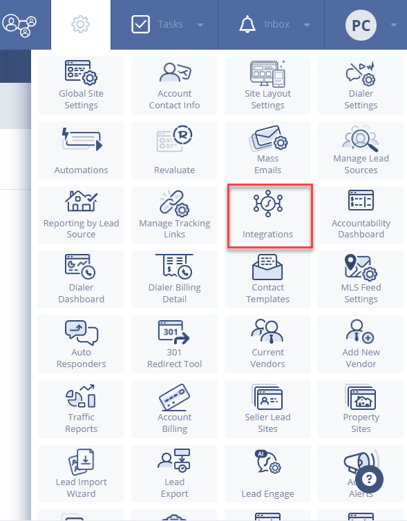
- Click the gear icon in the top navigation bar.
- Select Integrations from the dropdown.
From there, you can search for a specific tool or filter integrations by type. Once an integration is active, it automatically becomes available as a lead source in your Lead Routing Rules.
⚠️ By default, only the Primary Manager has access to the Integrations Manager. See How to Give Team Members Access below if you need to share access.
The Three Types of Integrations
Sierra organizes integrations into three categories. Understanding the difference helps you know what to expect when you connect a new tool.
-
Direct API: This is the most powerful connection type. API stands for Application Programming Interface — think of it as a live, two-way bridge between Sierra and another platform. When a lead registers on Zillow, they appear in Sierra within seconds. When you update a lead in Sierra, that change can reflect in the connected tool. Most major lead sources and CRM tools use this type.
-
Mass Email: These integrations route your platform-wide emails (i.e. market reports or newsletters) through a trusted delivery service to keep them out of spam folders. SendGrid is Sierra's supported option for this.
-
Email-to-Lead: Email-to-Lead integrations have been deprecated and are no longer actively supported. Existing setups remain available as-is.
What You Can Connect to Sierra
Sierra supports integrations across a wide range of tools. Below is a quick overview by category, with links to the dedicated setup article for each.
Paid Lead Sources
-
Zillow — Automatically imports Zillow leads with tags applied by lead type
- Realtor.com — Direct API for Connections Plus leads; see the article for other lead types
- Facebook Lead Ads — Pulls Facebook form submissions directly into Sierra
Seller Lead Tools
- Fello — Syncs seller and home valuation leads from Fello into Sierra
- Shilo — Connects Shilo-generated seller leads to Sierra's CRM
CRM Sync
- Follow Up Boss — Two-way sync of leads, agents, tags, and communication between Sierra and FUB
- Ylopo — Automatically capture Ylopo leads, tags, and activity notes
Advertising and Analytics
- Meta (Facebook) Pixel — Sends Sierra website visitor data back to Facebook to improve ad targeting
- Google Analytics — Tracks traffic, behavior, and conversions on your Sierra website
- Google Ads — Passes lead conversion data back to Google for campaign optimization
Mass Email
- SendGrid — Routes platform-wide emails through SendGrid for reliable delivery
Expand What Sierra Can Do
- Zapier — Connects Sierra to 1,000+ apps using custom trigger-and-action workflows
- API Nation — Third-party connector for tools Sierra doesn't natively support (Google Contacts, Mailchimp, KW Command, and more); note that API Nation is a paid third-party service separate from your Sierra subscription
- Sierra API — For developers or technical teams building custom integrations
Other Integrations
- Homebot — Connects Homebot's home value reports to Sierra for seller lead identification
- BombBomb — Adds video email capability inside Sierra's email editor
⚠️ All integrations are account-level. Each integration can only be set up once per Sierra account.
Best Practices for a Seamless Workflow
- Automate Your Follow-Up: Once you connect a new lead source, immediately build a lead routing rule for it. This ensures new leads are instantly assigned to an agent and added to a relevant action plan, so no lead ever sits idle.
- Keep Your Data Clean: Periodically review your lead sources in the Manage Lead Sources settings. If you stop using a service, deactivate its integration to keep your reporting and filters clean and accurate.
- Use Forwarding for All-in-One Inboxes: If a lead source doesn’t let you add a second notification email (your new parser address), just set up a forwarding rule in your own email client (like Gmail or Outlook). This automatically sends a copy of the lead notification to Sierra without any extra work.
How to Give Team Members Access
By default, only the Primary Manager can access the Integrations Manager. To grant a Manager-level user access:
- Navigate to Users > Select the Manager you want to give access to
- Find the Permissions section.
- Toggle Can access Integrations Manager / enable integrations to Yes.
FAQs
-
Do I need a Sierra website to use integrations? Not for most of them. Direct API and Email-to-Lead integrations connect to Sierra's CRM, not your website. They work even if you're using a different provider for your front-end site.
-
Can I have multiple integrations active at the same time? Yes. There's no limit to how many integrations you can have active simultaneously.
-
I connected an integration, but leads aren't showing up. What should I check? First, confirm the integration is active in the Integrations Manager. Then go to Gear > Manage Lead Sources and verify the source is toggled on. If both look correct, send a test lead from the external platform to confirm the connection is live.
-
Do I need to do anything after activating an integration? Yes, setting up a Lead Routing Rule is an important next step. Once an integration is active, it becomes a selectable source in your routing rules, where you can assign leads to agents, apply tags, and enroll them in Action Plans automatically. An integration without a routing rule means leads arrive in Sierra but nothing happens to them.
-
I don't see the tool I'm looking for. What should I do? If your tool isn't listed, Zapier or API Nation are good starting points for building a custom connection. You can also reach out to Sierra Support to ask about options.