
This integration lets you manage your schedule directly from a lead's profile, ensuring every appointment is automatically synced for you, your team, and your clients.
Table of Contents
-
Why This Feature Matters
-
How to Connect Your Google Calendar to Sierra
-
How to Schedule and Customize Appointments
-
Best Practices for a Streamlined Schedule
-
FAQs
Why This Feature Matters
When your calendar and your CRM are disconnected, small scheduling mistakes turn into lost deals. You double-book a showing, forget to confirm an appointment, or lose track of a lead because the follow-up lived in one app and the calendar event in another.
Sierra's Google Calendar integration fixes this by making your CRM and your calendar the same tool. Every appointment you book in Sierra syncs to Google Calendar automatically, sends your client an invite, and creates a tracked record in the lead's history — all in one step.
-
Book showings while still on the phone with a lead.
-
Send clients an automatic calendar invite without any extra steps.
-
Track every appointment and its outcome directly in the CRM.
-
Give team leaders visibility into agent appointment activity without manual reporting.
How to Connect Your Google Calendar to Sierra
Getting started only takes a moment. Follow these steps to connect your calendar.
1. Navigate to Your Profile Settings
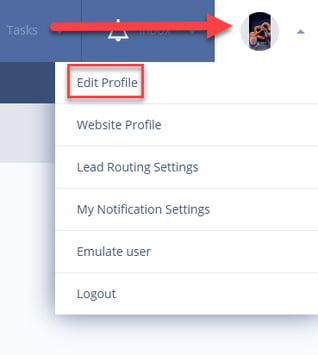
- From the Sierra admin dashboard, click on your profile icon in the top right corner and select Edit Profile.
- In your profile, find and click the Connect Calendar tab.
2. Sign In and Grant All Permissions
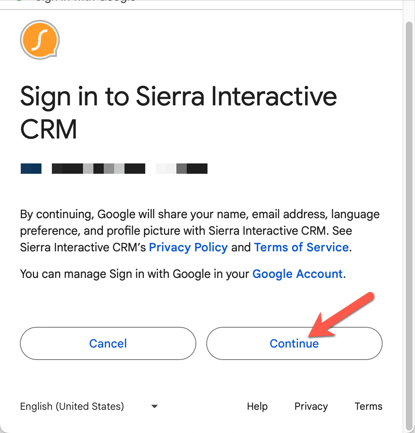
- Follow the on-screen prompts to sign in to the Google account you use for your business calendar.
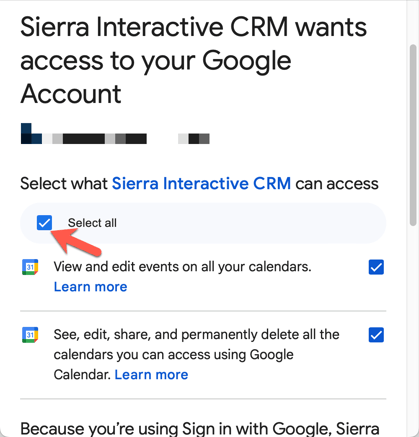
- Google will ask you to grant Sierra permission to access and manage your calendar. You must "Select all" and grant all permissions here, or the integration will not function correctly.
- Click Continue to finalize the connection. Your calendar is now synced!
💡Still need more help? Submit a ticket to the Sierra Support team for additional guidance.
What Permissions Sierra Requires
Sierra requests the following Google Calendar permissions to enable the integration:
- Viewing and editing events on all your calendars.
- Seeing, editing, sharing, and permanently deleting all calendars you can access through Google Calendar.
How to Schedule and Customize Appointments
Once your calendar is connected, you can manage appointments directly from any lead's profile page.
To schedule an appointment in Sierra, open the lead's profile, click the Appointments tab, fill in the details, and save. The appointment syncs to your Google Calendar and your client receives an invite automatically.
1. Open the Appointments Tab
- Navigate to the profile of the lead you wish to schedule a meeting with.
- Click the Appointments tab to open the scheduling tool.
2. Enter Appointment Details
- Fill in the necessary information, including:
- Day and Time: When the appointment will take place.
- Location: The address or meeting link.
- Appointment Type: Choose from a default list or create your own custom types.
- Participants: Add the lead and any team members who need to attend.
- Notes: Add internal notes for your team or external notes that the client will see.
3. Log the Outcome
After the appointment is complete, you can log its outcome to maintain a clean record and for future reporting.
This outcome is saved in the lead's history and in the Task Manager, helping you track progress with each client.
- Go to the Task Manager or open the lead's profile and click Lead History.
- Find the appointment and click into it.
- Select the appropriate outcome.
- Add brief notes while the details are still fresh.
- Click Save. The outcome is now attached to the lead's profile.
💡Log the outcome and create the next follow-up task before you close the lead's profile. This two-step habit keeps your pipeline moving without relying on memory.
4. Customize the Appointment
Sierra appointments are fully customizable. You can create custom appointment type names that appear on both your calendar and your client's invite, and add internal or external notes to every appointment.
When creating or editing an appointment, type a custom name directly into the Appointment Type field instead of selecting from the default list. The name you enter becomes the event title on Google Calendar and on the invite your lead, customer, or client receives.
💡Standardize your appointment type names across your team. A consistent set like "Buyer Consultation," "First Showing," "Second Showing," "Listing Presentation," and "Offer Review" makes your calendar easier to read at a glance and makes your reporting significantly more useful over time.
Using internal and external notes
- Internal Notes: Visible only to you and your team. Use for context like "Lead is pre-approved up to $600k" or "Confirm showing window with listing agent before appointment."
- External Notes: Included in the calendar invite your client receives. Use for the property address, parking details, or a short agenda.
Best Practices for a Streamlined Schedule
- Always book appointments from the lead's profile in Sierra, not directly in Google Calendar. Only appointments booked through Sierra are linked to the lead's history and tracked as Tasks in the CRM. Events added directly to Google Calendar do not appear in Sierra.
- Grant all Google Calendar permissions during setup. Partial permissions are the most common cause of sync failures. If your calendar stops syncing, disconnect and reconnect and make sure you click Select All.
- Use descriptive, consistent appointment type names. These names appear on the client's invite and in your reporting.
- Set default reminders in Google Calendar. Appointment reminders are managed by Google Calendar, not Sierra. Configure default notifications so every event is covered automatically.
- Log outcomes immediately after every appointment. The outcome log is most useful when completed right after the meeting while details are fresh.
FAQs
-
Why isn't my Google Calendar syncing with Sierra?
The most common cause is incomplete permissions. Disconnect and reconnect your calendar, and make sure you click Select All on the Google permissions screen. If the issue continues after reconnecting, contact Sierra Support. -
What permissions does Sierra need to access my Google Calendar?
Sierra requires permission to view and edit events on all your calendars, and to see, edit, share, and delete calendars you can access through Google Calendar. You must grant all permissions for the integration to function correctly. -
How do I schedule an appointment in Sierra?
Open the lead's profile, click the Appointments tab, fill in the details, and click Save. See Section 3 above for the full walkthrough and field reference. -
How do I book a showing for a lead in Sierra?
Open the lead's profile, click the Appointments tab, and create a new appointment. Set the Appointment Type to something like "Showing — [address]", add the location, date, time, and participants, and save. -
Can I add notes to an appointment that my client won't see?
Yes. Use the Internal Notes field for anything meant only for you and your team. Use the External Notes field for information that will be included in the client's calendar invite. -
How do I add a team member to an appointment?
Add them in the Participants field when creating or editing the appointment. They will receive a calendar invite and the event will appear on their Google Calendar, provided they also have Google Calendar connected to their Sierra account. -
Who can see the appointments I schedule on a lead's profile?
The assigned agent, collaborators, and manager-level users can view appointments on a lead's profile, provided they also have Google Calendar connected to their Sierra account. -
Do I need Google Calendar connected to see appointments on a lead's profile?
Yes. Appointments are stored in Google Calendar and displayed in Sierra. You must have Google Calendar connected to your Sierra account to view appointments on the Lead Detail Page. -
Where do appointments show up in Sierra?
Appointments appear as Tasks in the Task Manager and as entries in the lead's Lead History. -
What shows as the appointment title on Google Calendar?
The Appointment Type is used as the event title on Google Calendar. This is also what your client sees on the invite they receive. -
How do I log the outcome of an appointment?
Find the appointment in the Task Manager or the lead's Lead History, click into it, select the outcome, add any notes, and save. -
How do I set reminders for my appointments?
Appointment reminders are managed by Google Calendar, not Sierra. Open the event in Google Calendar, click Edit, and configure notifications under the Notifications section. For a full guide, see Managing Sierra Appointment Reminders and Notifications. -
Can I schedule appointments from a call list?
Not at this time. Appointments are scheduled from the lead's profile page using the Appointments tab.