
Table of Contents
Why This Feature Matters
Organizing your leads with custom tags significantly improves segmentation and automation. Here’s why it’s crucial:
- Problem Solving: In a fast-paced real estate environment, managing leads efficiently is challenging. Tags help differentiate leads based on their status or needs.
- Value to You: By utilizing tags effectively, you can save time, improve lead follow-ups, and increase your chances of closing deals.
Real-World Examples
- A real estate agent applies tags like “First-Time Buyer” or “Investor” to classify leads and tailor their follow-up strategies.
- Teams that use color-coded tags quickly spot priority leads, resulting in faster response times.
Step-by-Step Instructions
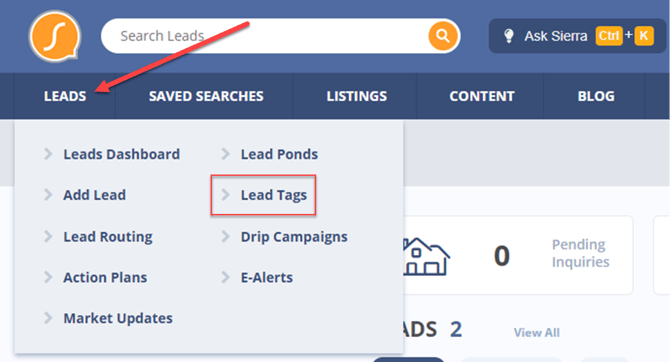
1. Access the Tags Manager
-
Go to the Leads dropdown menu
-
Click on Lead Tags
2. Add a New Tag
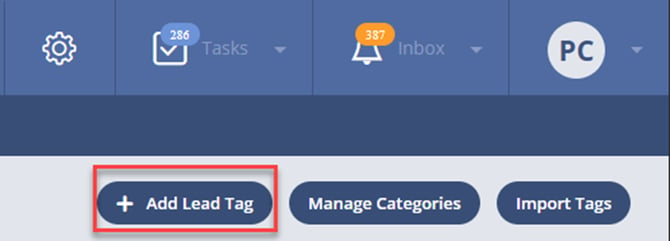
-
Click + Add Lead Tag
-
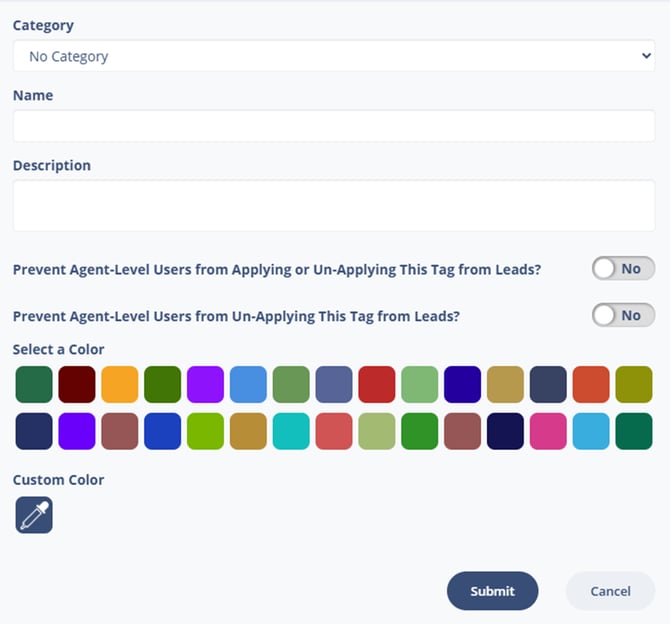
Provide a name
-
Optional:
-
Add it to a category
-
Enter a description
-
Prevent Agent-level users from un-applying it
-
Choose a color (including custom colors)
-
3. Edit or Delete Existing Tags
-
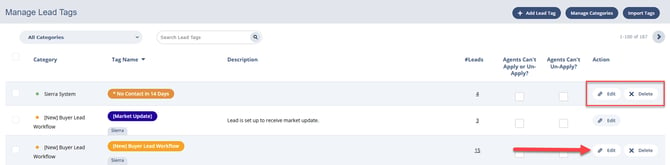
Click Edit to update a tag’s name, category, description, access settings, or color
-
Click Delete to remove a tag
-
If leads are already tagged, you’ll be prompted to reassign them to another tag
-
You’ll also receive a warning if the tag is used in any Smart Filters
-
4. Manage Tag Categories
-
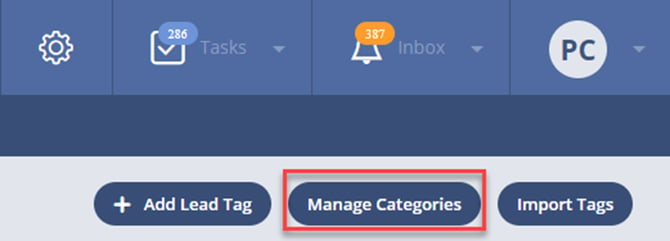
Click Manage Categories
-
Add a new category by clicking + New Category
-
Enter a name (required), and optionally a description and color
-
-
Click Edit to modify existing categories
-
Click Delete to remove a category
-
Note: Deletion cannot be undone
-
5. Search Tags and View Usage
-
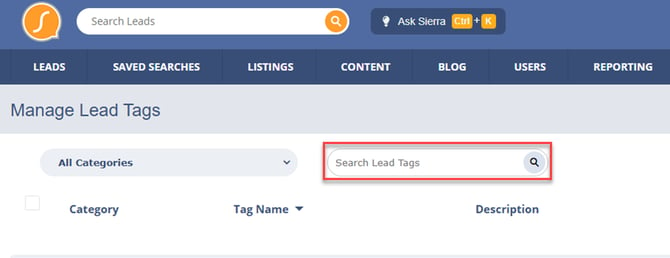
Use the Search Lead Tags box to find tags
-
Filter by category using the dropdown next to the search bar
-
View how many leads have a tag by checking the #Leads column
-
Click the number to view those specific leads
-
6. Tagging Automation Options
-
Automatically apply tags to leads who register an account
-
Tags can also be assigned through:
-
Lead Routing Rules (see: Lead Routing and Distribution – Account Level)
-
Tracking Links (see: How to Create a Tracking Link and Squeeze Page)
-
Contact Forms (see: Route Leads by Contact Form Tags)
-
7. Manual Tag Management
-
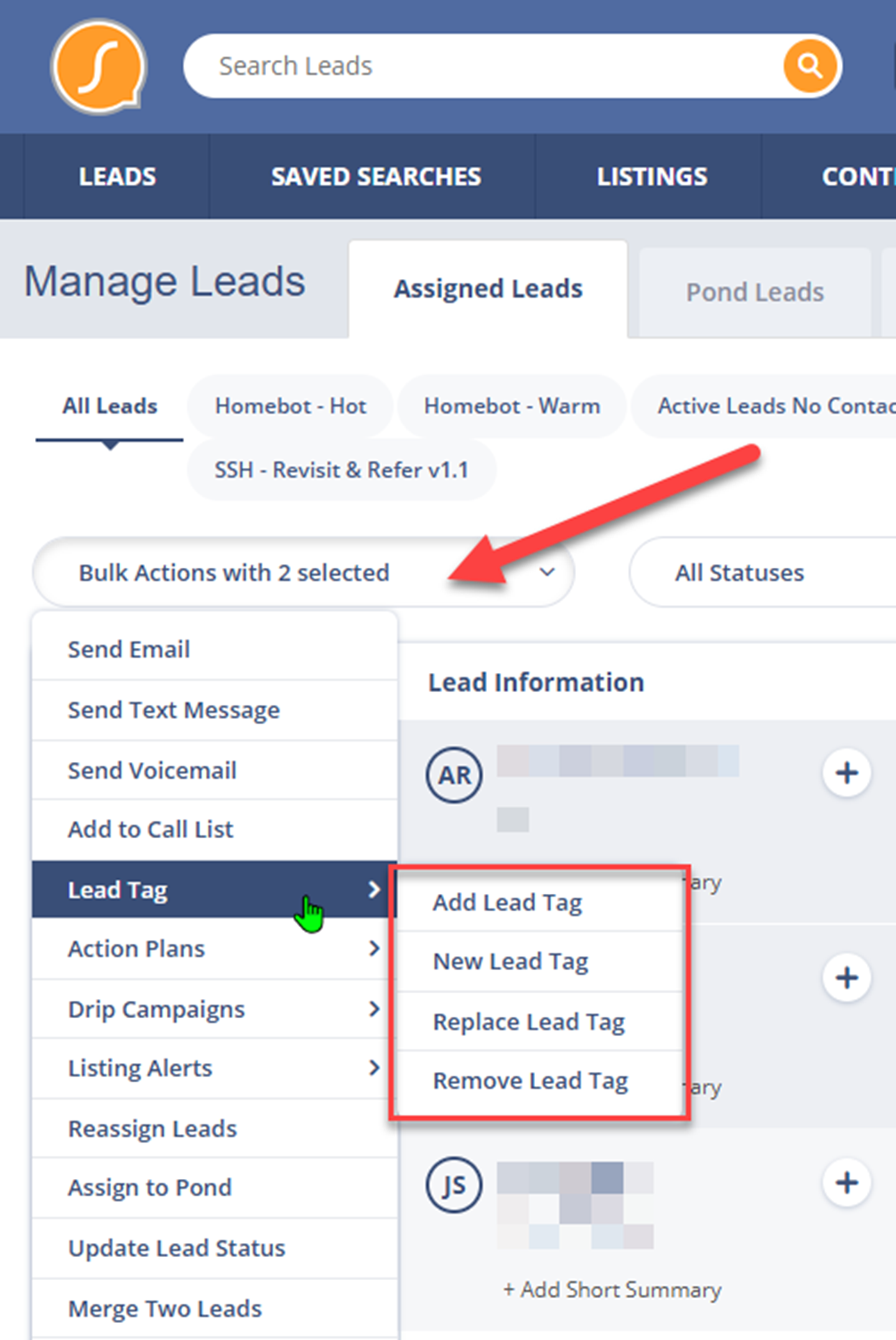
In the Lead Dashboard, select leads and use the Tags menu to:
-
Add Lead Tag
-
New Lead Tag
-
Replace Lead Tag
-
Remove Lead Tag
-
-
In a Lead’s Detail Page, manage tags from the Summary tab
-
Tags restricted via “Agents Can’t Un-Apply?” will not be removable or visible to Agents unless already applied
-
Best Practices
-
Use descriptive tag names and categorize them for easier filtering
-
Apply color-coding to visually differentiate lead types or stages
-
Avoid duplicate tags by searching before adding a new one
-
Limit Agent-level permissions to prevent critical tag removal
Troubleshooting Common Issues
Issue: Can’t undo tag deletion
Solution: Confirm before deletion. Consider reassigning leads before deleting a tag.
Issue: Agent can’t apply or remove a specific tag
Solution: Check the “Agents Can’t Un-Apply?” setting in the tag’s configuration.
FAQs
Q: Can I recover a deleted tag or tag category?
A: No. Tag deletions are permanent and cannot be undone.
Q: Will Agent-level users see restricted tags?
A: Only if the tag is already applied to a lead. Otherwise, they won’t see or use those tags.
Q: Can I reassign leads to another tag when deleting a tag?
A: Yes, you’ll be prompted to reassign tagged leads to a different tag during deletion.