
Why This Feature Matters
The Dialer Billing Detail page is designed to give you visibility into how your team uses calling, texting, and voicemail features, without requiring you to interpret raw billing data.
Sierra reports Dialer usage based on the timeframe you select. Because of this, some values will change when you adjust the date range. This is expected behavior and does not indicate an issue with your account.
Understanding how to read this page helps you monitor usage confidently and avoid misinterpreting reporting data as billing problems.
Table of Contents
- How to Access Dialer Billing Details
- Understanding the Dialer Billing Columns
- Dialer Usage Allotments by Package
- What Happens If You Exceed Your Included Amounts
- Notifications and Monitoring Usage
- Best Practices for Reviewing Dialer Usage
- FAQs
How to Access Dialer Billing Details
To view your Dialer Billing Details:
- Log into your Sierra Client Admin Area (CAA)
- Click the Gear icon in the top navigation
- Select Dialer Billing Detail from the dropdown menu
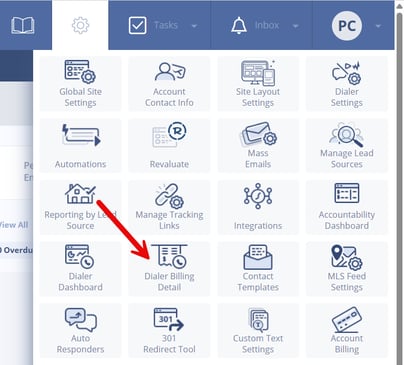
From this page, you can filter usage by:
- Status
- Date range
- Agent
Understanding the Dialer Billing Columns
Voice and Messaging Activity
These columns show voice and messaging activity during the selected date range:
- Outbound mins. – Total minutes spent on outgoing calls
- Inbound mins. – Total minutes spent on incoming calls
- Outbound texts – Number of texts sent
- Inbound texts – Number of texts received
- MMS / Group Text – Multimedia or group texts sent or received
- Voicemail Drops – Ringless voicemail drops used
These numbers will go up or down when you change the date range. This is expected.
Recorded Minutes vs. Avg. Recording Storage
This section explains the most common source of confusion on the page.
Recorded Minutes
Recorded Minutes shows how many minutes of calls were recorded within the selected timeframe.
It reflects recording activity, not how much storage you’re using.
When you change the date range:
- The Recorded Minutes value will change
- No recordings are deleted
- Past billing does not change
Average Recording Storage
Average Recording Storage is the average amount of recorded call storage used during the selected timeframe. It:
- Is not a lifetime total
- Is not a fixed “remaining balance”
- Will change as you adjust the reporting window
Because new recordings are added over time and the system calculates an average over the chosen date range, changing the timeframe will naturally change this number.
Important Clarification About Date Ranges
Changing the date range:
- Does not remove or delete any recordings
- Does not retroactively change billing
- Only changes how usage is summarized for reporting
Source of Truth for Billing
The Dialer Billing Detail page shows a reporting view of usage based on the date range you select. The usage shown there is an estimate of activity for that reporting window.
Dialer usage is:
- Billed in arrears
- Reconciled with our third-party carrier, Twilio
Because of this reconciliation process:
- The date range you see in the CAA may not line up exactly with your invoice period
- Your invoice in the Billing Portal (Chargebee) shows the final, reconciled usage totals
Your invoice is the source of truth for billing.
If you see differences between the CAA usage view and your invoice, this is expected and is due to timing and reconciliation, not a billing error.
Dialer Usage Allotments by Package
Dialer usage allotments depend on your Sierra package.
Starter Package (With Dialer Add-On)
If you are on the Starter package and have added the Dialer, you receive the following default allotments:
- Up to 1,500 voice minutes per month
(incoming + outgoing calls) - Up to 1,500 SMS text segments
(incoming + outgoing) - Up to 100 MMS text segments
- Up to 250 ringless voicemail drops
- Up to 10,000 minutes of recorded phone call storage
Essential Package
Clients on the Essential package receive the same default Dialer allotments as Starter with Dialer:
- 1,500 voice minutes
- 1,500 SMS text segments
- 100 MMS text segments
- 250 ringless voicemail drops
- 10,000 minutes of recorded storage
Growth Package
Clients on the Growth package receive higher Dialer allotments:
- Up to 5,000 voice minutes per month
- Up to 15,000 SMS text segments
- Up to 1,000 MMS text segments
- Up to 500 ringless voicemail drops
- Up to 35,000 minutes of recorded phone call storage
Important Note About Text Messages
Text message usage is calculated in segments, not characters. Long messages, emojis, GIFs, and special characters may increase segment usage.
What Happens If You Exceed Your Included Amounts
If usage exceeds the included allotments for your package, additional usage is billed in blocks as shown on the Dialer Billing Detail page:
- $30.00 per 1,000 voice minutes
- $20.00 per 1,000 SMS text segments
- $25.00 per 500 MMS text segments
- $10.00 per 100 ringless voicemail drops
- $15.00 per 10,000 minutes of recorded storage
These blocks reflect how usage is summarized for billing purposes. You can monitor your progress toward these thresholds directly on the Dialer Billing Detail page.
Dialer billing is calculated as a total across all enabled users, not per user.
Notifications and Monitoring Usage
The Primary Manager will receive:
- An email notification when you reach 60% of your included usage
- Another notification at 90%
- A monthly emailed receipt outlining billing and usage
You can review detailed usage at any time on the Dialer Billing Detail page.
Best Practices for Reviewing Dialer Usage
-
Use longer date ranges to understand trends
-
Expect numbers to change when adjusting timeframes
-
Focus on totals rather than daily fluctuations
-
Treat averages as directional insight, not fixed storage value
-
Contact Support if something appears inconsistent
FAQs
-
Why does Avg. Recording Storage changes when I change the date range?
Because it reflects an average over the selected timeframe, not a fixed storage total. -
Does Recorded Minutes equal storage used?
No. Recorded Minutes shows recording activity, not total stored recordings. -
Did my recordings get deleted when numbers went down?
No. This is a reporting view change, not a deletion. - Does changing the timeframe affect billing?
No. Billing is based on actual usage, not reporting filters.