
The Lead Import Wizard allows you to upload leads into Sierra CRM in bulk using a CSV file. This is the fastest and most reliable way to move leads from another system, spreadsheet, or vendor into Sierra without manual data entry.
Whether you’re migrating thousands of leads or importing a small list, the wizard helps you map fields correctly, manage duplicates, and assign leads automatically.
Table of Contents
- Why Use the Lead Import Wizard
- What You Need Before Importing
- Step 1: Prepare Your CSV File
- Step 2: Access the Lead Import Wizard
- Step 3: Accept the Terms & Conditions
- Step 4: Upload Your CSV File
- Step 5: Review & Match Fields
- Step 6: Configure Import Options & Duplicate Handling
- Fixing or Reverting an Import
- Best Practices
- Troubleshooting Common Issues
- FAQs
Why This Feature Matters
Manually entering leads is slow, error-prone, and hard to scale. The Lead Import Wizard helps you:
-
Upload hundreds or thousands of leads at once
-
Assign leads to agents, ponds, or lenders automatically
-
Preserve custom data using Import Notes
-
Control how duplicates are handled
-
Keep your CRM clean and organized
Before You Start
Before opening the Lead Import Wizard, make sure:
-
Your file is saved as a .CSV (Comma Separated Values) file
-
Any agents you plan to assign leads to already exist as users in Sierra
-
You have permission to contact all leads in the file
⚠️ Large imports: If your CSV contains a large number of leads (for example, 50,000+), split it into smaller files before uploading. Import each file separately, there's no limit on how many batches you run. To split a CSV, open it in Excel or Google Sheets, cut rows into separate files, and save each as its own .csv.
Step-by-Step Instructions
💡For a short video tutorial visit here.
Step 1: Prepare Your CSV File
Your CSV file should contain one lead per row, with column headers in the first row.
Accepted File Format
- File type: .csv
- Excel: Save As → CSV (Comma delimited)
- Mac Numbers: Export → CSV
Supported Column Headers
If your column headers exactly match the field names below, Sierra will auto-map them during import.
Contact Information
- First Name, Last Name, Full Name
- Email (must be unique as a primary email), Secondary Email
- Phone, Secondary Phone, Phone Status
Dates
- Registered Date (MM/DD/YYYY)
- Date of Birth
- Home Anniversary Date
Assignment
- Assigned Agent
- Assigned Buyer's Agent
- Assigned Listing Agent
- Assigned Pond
⚠️ Use only one assignment method: either Assigned Agent OR Assigned Buyer's Agent + Assigned Listing Agent — not both.
Lead Details
- Lead Source
- Lead Type
- Buyer Agent Status
- Listing Agent Status
Address
- Street Address, City, State, Zip Code, County
Engagement & Metadata
- Average Price
- Number of Visits
- Number of Saved Listings
- Short Summary (128 characters max)
- Tags (comma-separated)
Custom Fields
Any data that doesn't match a supported field can be stored automatically in the Import Note so nothing is lost.
Step 2: Access the Lead Import Wizard
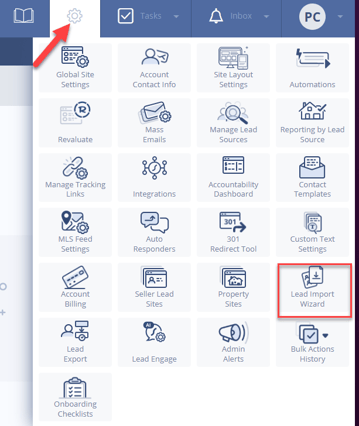
- Click the Gear icon
- Select Lead Import Wizard
Permissions
- Primary Managers have access by default
- Manager or Agent-level users must be granted access under Users → Profile → Permissions
Step 3: Accept the Terms & Conditions
Before importing, you must confirm that:
- You have permission to contact all uploaded leads
- The list is not purchased, scraped, or harvested
- You comply with applicable privacy and communication laws
Step 4: Upload Your CSV File
- Choose the site (if applicable)
- Click Upload a CSV File
- Select your file
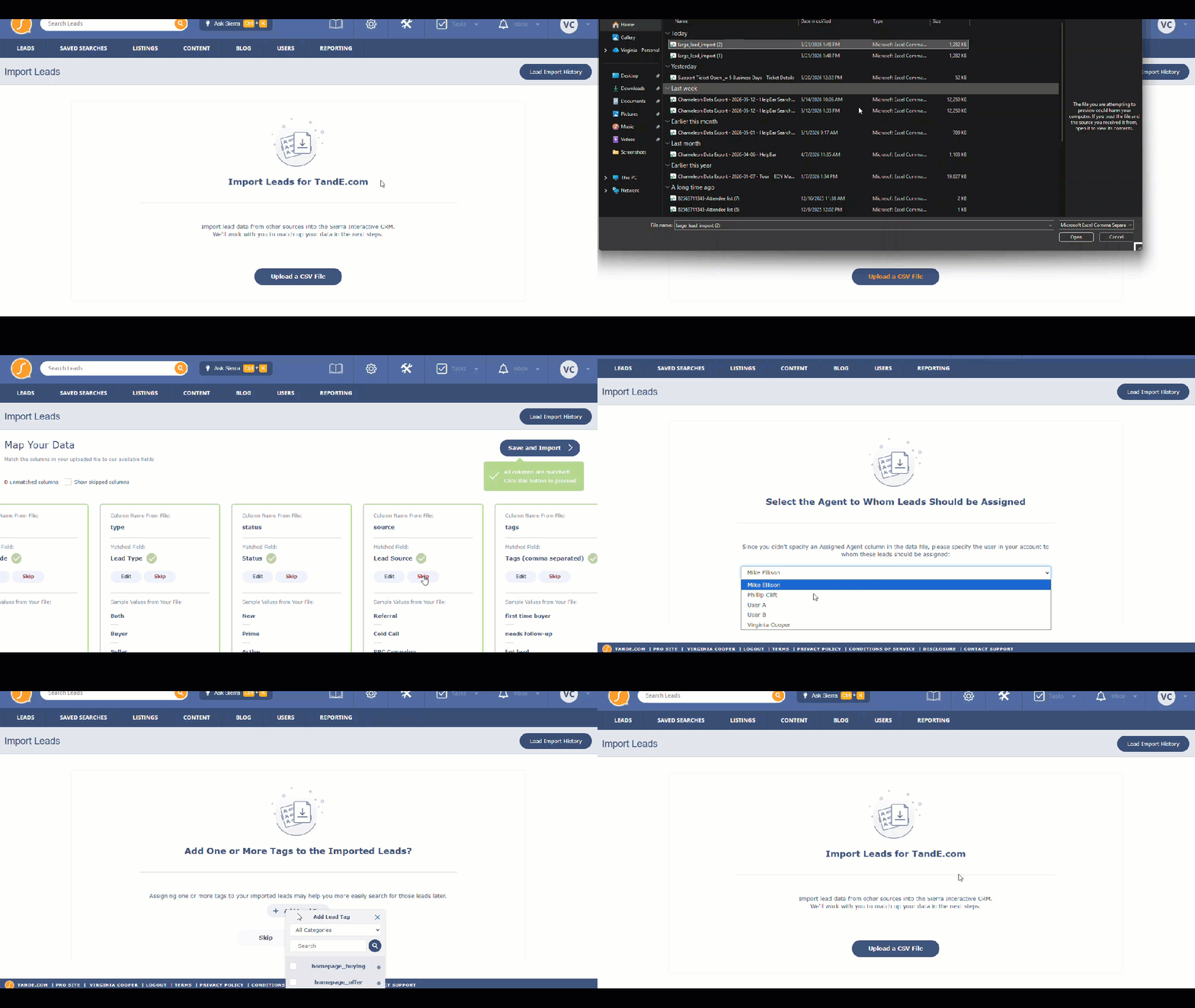
Sierra will automatically attempt to match your CSV columns to supported CRM fields.
Step 5: Review & Match Fields
- Review all mapped fields carefully
- Click Edit to manually assign any unmatched columns
- Click Skip to exclude columns you don't want imported
Any skipped or unmatched data can be stored in the Import Note so nothing is lost.
Step 6: Configure Import Options & Duplicate Handling
After field mapping, you can:
- Assign all leads to an agent, a pond, or a lender
- Apply tags to every imported lead
- Choose how to handle duplicates: Don't Import Duplicates or Import Duplicates
Duplicate Handling
If you choose Import Duplicates, here's exactly what happens — and what doesn't:
- No duplicate lead record is created. Sierra recognizes the existing lead and updates that record instead.
- Only blank fields are filled in. Existing contact data is never overwritten. For example, if a lead's secondary phone number is empty and your import includes one, it will be added — but if the field already has a value, it stays as-is.
- Agent assignment does not change. If a lead is already in your CRM and assigned to an agent, importing that lead again will not reassign ownership — even if the import file lists a different agent. This is especially important when onboarding a new agent and importing their sphere of influence (SOI): any contacts already in your system will stay with their current assigned agent.
⚠️ Note on email addresses: No two leads can share the same primary email address. If an imported lead's email matches an existing lead's primary email, Sierra will match to that record rather than creating a new one. However, the same email address can appear as the secondary email on multiple lead profiles.
Fixing or Reverting an Import
If something goes wrong:
- Go to Gear icon → Lead Import Wizard → Lead Import History
- Locate the import batch
- Click Remove Imported Leads
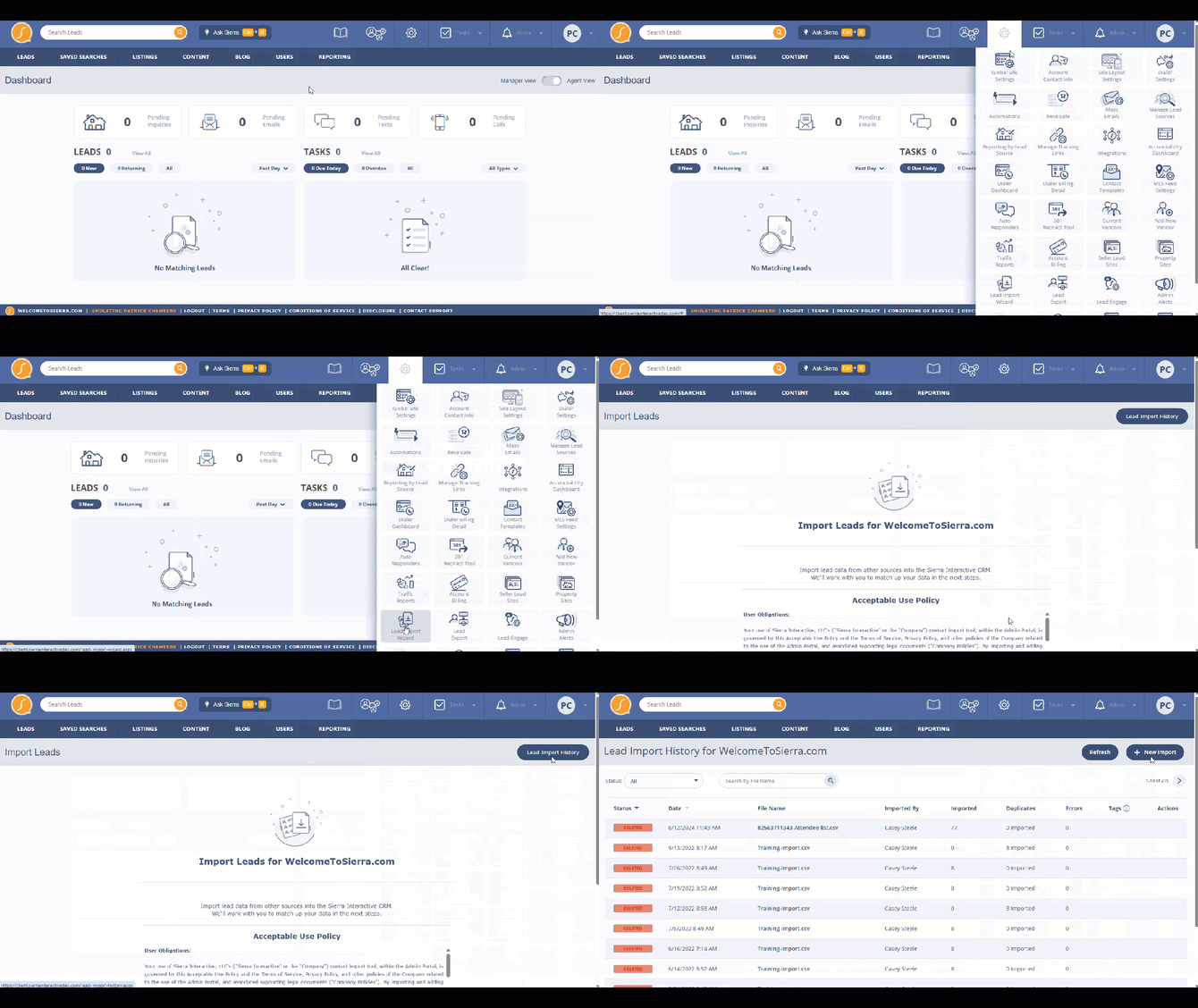
📝 This removes only the leads from that specific import batch, not all leads in your CRM.
Best Practices
- Clean your CSV before uploading, remove duplicates and validate email addresses
- Use consistent tags for routing and filtering leads after import
- Always assign leads to a user or pond if agent matching isn't possible
- Store extra data in Import Notes rather than forcing unsupported fields
- If you're onboarding a new agent with SOI leads, review existing lead ownership before importing as duplicates will stay with their current assigned agent
Troubleshooting Common Issues
- Leads not assigned correctly Solution: Confirm assigned agents exist in Sierra and that their names in your CSV match exactly as they appear in the platform.
- Import failed or missing data Solution: Check file formatting and date formats (dates must be MM/DD/YYYY). Confirm headers match supported field names exactly.
- Unexpected duplicates in your CRM Solution: Select Don't Import Duplicates during import setup, or remove the batch from Lead Import History if already imported.
- Import file is too large or you receive a size limit notification
Split your CSV into smaller files and import each one separately. For example, a 50,000-lead file can be broken into five files of 10,000 leads each. Each batch imports independently, so there's no loss of data across runs.
FAQs
- Can I import leads with the same email address?
Yes, if you choose Import Duplicates, Sierra will match to the existing lead record and only fill in blank fields. No new lead record is created and no existing data is overwritten. See the Duplicate Handling section in Step 6 for the full breakdown. - Can I apply tags to all imported leads?
Yes. You can add one or more tags during the final configuration step before import. - Do imported leads get saved searches set up?
No. Saved searches are not created automatically via import. - What happens to data that doesn't match a supported field?
Any unmatched column data can be captured in an Import Note on each lead record, so nothing is permanently lost.