
Table of Contents
- What Linked Leads Does
- Who Can Use Linked Leads
- How to Link Two Leads
- CC Linked Leads on Emails
- BCC Linked Leads on Listing Alerts
- Remove or Edit a Linked Relationship
- Best Practices
- Troubleshooting Common Issues
- FAQs
What Linked Leads Does
Linked Leads lets you associate two existing lead records to reflect a real-world relationship — spouses, co-buyers, family members, or business partners. Once linked, you can:
- CC the linked contact on emails you send from the CRM
- CC the linked contact on listing alerts sent to the primary lead
- See the relationship label on each lead's detail page
- Keep shared context visible without merging records
This is most useful for households where two people are involved in the buying or selling decision but have separate lead records.
Who Can Use Linked Leads
| User Type | Can Link |
|---|---|
| Manager-level users | Any leads in the account |
| Agent-level users | Only leads they are assigned to as buyer or listing agent |
Agent-level users can see the name and relationship label of a linked lead outside their assignments, but cannot view that lead's contact details or navigate to their lead page.
How to Link Two Leads
⚠️ Both leads must already exist in your account before you can link them. You cannot create a new lead from this screen.
- Navigate to Leads > Leads Dashboard.
- Open the lead detail page for one of the two leads you want to link.
- Locate the Linked Leads section.
- Hover over the section and click Edit (pencil icon).
- Click + Add Linked Lead.
- Search for and select the second lead.
- Choose a relationship type (e.g., Spouse, Partner, Sibling, Parent, Child).
- If you want this contact to receive the primary lead's listing alerts, toggle on CC Linked Leads on Listing Alerts.
- Click Add Linked Lead.
The linked relationship will appear on both lead records.
CC Linked Leads on Emails
When composing an email from a lead's detail page, you can copy a linked contact on that message.
- Open a new email from the lead's record.
- Check the box for CC Linked Leads.
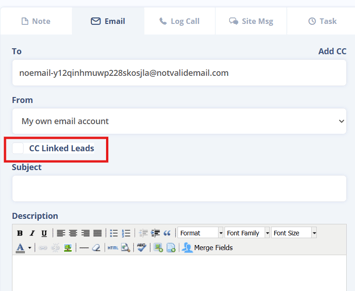
- Select which linked leads to include, or include all.
- Add any additional addresses using Add CC if needed.
BCC Linked Leads on Listing Alerts
You can enable a linked lead to receive copies of listing alerts that are sent to the primary lead.
This setting is toggled on during the linking step. You can also adjust it later by editing the linked relationship.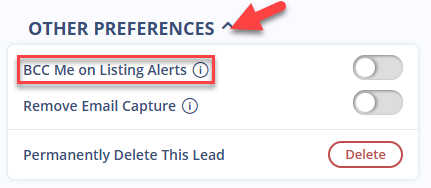
Remove or Edit a Linked Relationship
-
Return to the Linked Leads section.
-
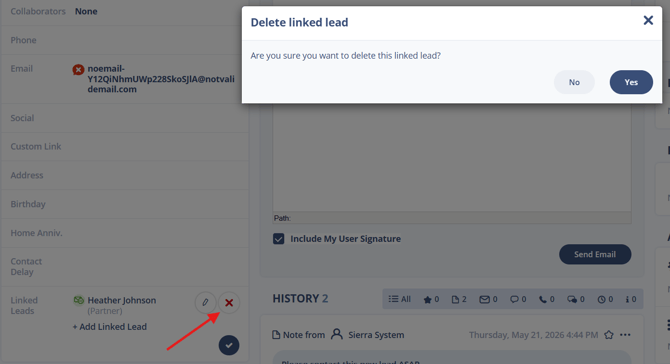
Hover over the section and click the pencil (edit) icon.
-
Click the red X next to the linked lead you want to remove.
-
In the confirmation overlay, confirm that you want to delete the linked lead.
Best Practices
- Link spouses or co-buyers early in the relationship so both contacts receive relevant listing alerts from the start.
- Use consistent relationship labels across your team so records stay clean and searchable.
- Remember that linking reflects a relationship, it doesn't merge records or share tasks, notes, or Action Plans between leads. Each record remains independent.
Troubleshooting Common Issues
- Can't find the lead I want to link.
The lead must already exist in your account. If you're an agent, you can only link leads assigned to you. Check your permission level and the lead's assignment. - CC Linked Leads checkbox is unavailable when composing an email.
You may not have permission to email that linked lead, or they may not be assigned to you. Hover over the checkbox for a specific reason. - Linked lead is not receiving listing alerts.
Confirm that CC Linked Leads on Listing Alerts is toggled on in the linked relationship.
FAQs
-
Can I link a lead to more than one other lead?
Yes, there's no limit to the number of linked leads per record. -
Does linking leads share their notes, tasks, or Action Plans?
No. Linking reflects a relationship between records but does not merge them. Notes, tasks, and Action Plans remain separate on each lead's record. -
Can an agent see a linked lead outside their assignment?
Partially. Agents can see the linked lead's name and relationship label, but cannot view their contact details or access their lead page. - How do I add another email address to a lead's property search alerts?
The easiest way to do this is by using Linked Leads. Link the second contact to the primary lead, then toggle on CC Linked Leads on Listing Alerts during the linking step. The linked contact will be copied on any listing alerts sent to the primary lead.