
Are you a Primary Manager or Manager? Looking to set up Lead Ponds instead of working them? Visit: Setting Up and Managing Sierra Lead Ponds (Manager Guide)
Overview
Lead Ponds in Sierra make it easy for teams to collaborate on unassigned leads. Instead of routing every new lead directly to one agent, you can hold them in a shared “pond” — giving multiple team members a chance to review, claim, and work those leads quickly.
This guide explains what Lead Ponds are, how they function, and how agents and managers use them day to day.
Table of Contents
What Lead Ponds Are
A Lead Pond is a shared space in your Sierra CRM where multiple agents can access a pool of leads that haven’t yet been assigned to anyone. You might think of it as a “waiting room” for new or unclaimed leads — visible to a group, but owned by no one until claimed.
Common use cases include:
- New inbound internet leads
- Inside sales or ISA teams
- Long‑term nurture or re‑engagement pools
- Reassigned or unclaimed opportunities
Why They’re Useful
Lead Ponds give your team flexibility and accountability.
- Faster Response Times: Any available agent can grab a new lead instead of waiting for it to be assigned.
- Fair Distribution: Everyone in the pond has equal access, so lead volume stays balanced.
- Team Collaboration: Managers can easily see who’s engaging with pond leads and how quickly they’re being claimed.
- Built-in Transparency: Every claim and follow-up is tracked within the lead record for full visibility.
Accessing Lead Ponds
You’ll find all shared Lead Ponds under your Leads tab.
- Navigate to Leads > Leads Dashboard.
- Select the Ponds view at the top of the page.
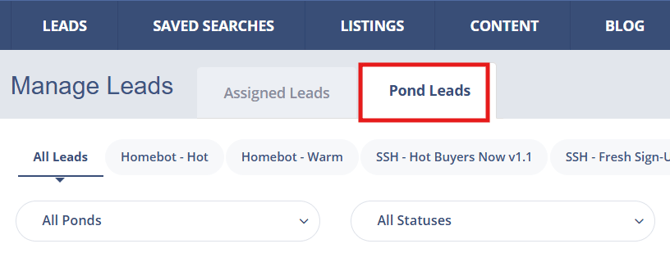
- Choose a specific pond from the dropdown to see all leads currently available.
💡 If you don’t see any ponds listed, your manager may not have granted access yet. Contact your team leader to confirm your permissions.
Understanding Lead States
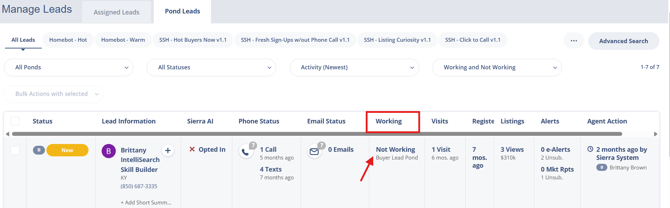
| State | What it Means | Who Can See It |
|---|---|---|
| Not Working | The lead is unclaimed and open to everyone in the pond | All agents in the pond |
| Working | The lead has been claimed by an agent and is being actively worked. It is hidden from other agents. | That agent + managers |
| Pending Approval | The agent has requested to claim the lead, but manager approval is required before ownership transfers. |
Agent + managers |
Important: If a claim request is submitted, the time limit no longer applies while the request is pending. The lead remains locked until a manager approves, denies, or the agent returns it to the pond.
Agents can resubmit a claim request if a previous request was denied or needs to be reconsidered.
Working Pond Leads
Starting Work on a Lead
Any permitted contact action—such as calling, texting, or emailing—moves a lead into Working status and temporarily locks it.
While working a lead:
- The lead counts toward your maximum working lead limit
- Other agents cannot access the lead
- You are expected to follow up promptly
Claiming a Lead
Claiming converts a shared lead into an owned lead. Depending on team settings you may be able to claim immediately, or you may need to submit a claim request for manager approval
When you find a lead you want to work:
- Open the lead from the pond list.
- Perform a permitted contact action.
- Click Claim Lead in the top-right corner.
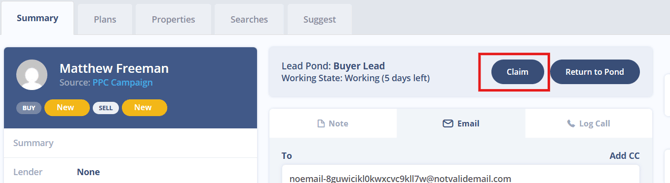
- If approval is required, the lead will move to Pending Approval until your manager reviews it.
Once approved (or immediately, if no approval is needed), the lead becomes part of your personal pipeline under My Leads.
Returning a Lead to the Pond
If you can no longer work a lead, you can manually return it so other agents can follow up.
To return a lead:
- Open the lead record.
- Click Return to Pond.
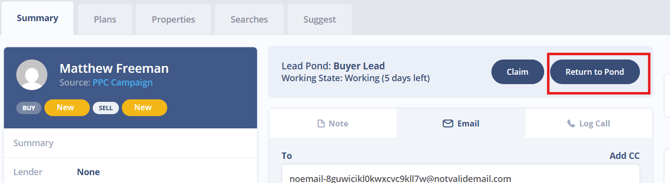
- Confirm the action. The lead moves back to Not Working and becomes visible to all pond agents again.
Leads also return to the pond automatically when:
- The working time limit expires.
- A manager reassigns the lead.
What Agents Can Do (Based on Permissions)
Agent permissions are controlled by managers and may vary by pond. Depending on your access, you may be able to:
- Add or remove tags
- Edit listing alerts or saved searches
- Add leads to call lists (bulk actions place leads into Working)
- Contact leads via approved channels (call, text, email, onsite message, voicemail)
Any allowed communication places the lead into Working status.
Best Practices
- Work only leads you intend to follow up on immediately.
- Avoid holding leads without activity — Working status is temporary, not ownership.
- Claim a lead promptly if you intend to own it; return it to the pond if you don't plan to follow up.
- Return leads you cannot work so other agents can act on them.
- Check your working lead limit before starting a bulk action — adding leads to a call list counts against it.
Troubleshooting Common Issues
- Leads appear unavailable or I can't open one.
You may be at your maximum working lead limit. Return or claim a current lead to free up capacity before opening others. - The Claim Lead button is missing.
The lead may already be in Working or Pending Approval status. Check the lead state or contact your manager. - I submitted a claim request but nothing has happened.
The lead remains locked until a manager approves or denies the request. If it's been a while, follow up with your team leader. You can also return the lead to the pond and resubmit your request later. - Approval is taking a long time and I'm worried the lead will expire.
The working time limit is paused while a claim is pending, so the lead won't expire on you. Reach out to your manager to expedite the review.
FAQs
-
Why can’t I see a lead another agent is working?
Working leads are hidden to prevent duplicate outreach. Once the agent claims or returns the lead, it will become visible again. -
Does Working mean I own the lead?
No. Working status is temporary and only locks the lead while you're actively engaging with it. Ownership transfers only after the lead is claimed. -
Why did a lead disappear from my view?
It may have been claimed by another agent, returned to the pond, or reassigned by a manager. Check with your manager if you believe it was claimed in error or reassigned unexpectedly. -
Can I resubmit a claim request if it was denied?
Yes. Claim requests can be resubmitted if circumstances change. - What happens if I never manually return a lead?
If you don't return it, the lead will automatically go back to the pond once your team's working time limit expires.