
Summary
The Sierra Admin Inbox is where you manage all incoming lead communication in one place. It allows you to review, respond to, and organize messages from multiple channels so you can maintain fast response times and consistent follow-up.
This guide explains how to use the Inbox efficiently, how communication is organized, and best practices for maintaining a clean and manageable workflow.
Table of Contents
Why the Admin Inbox Matters
The Inbox is often where your highest-intent leads appear first. Buyers and sellers who send inquiries, texts, emails, or call your Sierra numbers are actively attempting to connect with you.
Consistently managing your Inbox helps you:
- Respond quickly to new opportunities
- Keep conversations organized
- Prevent missed or duplicated follow-ups
- Maintain visibility into communication history
- Support team accountability
Related Resources: Build a Daily Workflow That Works in Sierra, Using the Sierra Task Manager Effectively, Mastering the Sierra
Accessing the Admin Inbox
The Inbox is always available from the top navigation bar in the Sierra admin area.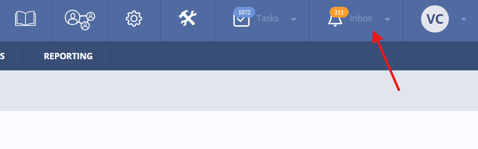
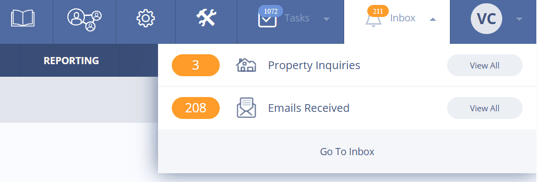
Selecting the Inbox icon displays a summary of all inbound communications by category. From this menu, you can:
- Select View All to open a specific communication category
- Select Go To Inbox to open the full Inbox page
Inbox Communication Categories
The Admin Inbox organizes communication into four primary tabs.
Property Inquiries
Includes:
- Request for information submissions
- Schedule showing requests
Each inquiry displays:
- Lead name and status
- Property details
- Any notes or comments submitted by the lead
You can reply directly using email templates or custom responses.
Emails
Displays all incoming email communication from leads.
From this tab you can:
- View full conversation history
- Reply using templates or custom messaging
- Manage active vs archived conversations
Text Messages
Functions similarly to the Emails tab but for SMS communication.
You can:
- View entire text conversations
- Reply directly from the Inbox
- Use saved text templates
Phone Calls
Displays inbound calls received through Sierra Dialer numbers.
This tab includes:
- Call date and time
- Caller identification when available
- Voicemail playback
- Ability to return calls directly
Calls from unknown numbers may appear if Sierra cannot match caller ID to an existing lead. These calls can still be returned and logged normally.
Send vs Send and Archive
When responding to communications, you will typically choose between two options:
Send
- Sends your reply
- Keeps the conversation active in your Inbox
- Best used when additional follow-up is expected soon
Send and Archive
- Sends your reply
- Removes the conversation from the active Inbox
- Keeps full communication history available
Archiving does not delete communication. It simply removes items from your active working list.
Understanding Inbox Counts
Inbox notification counts show the number of communications received. However, items inside each tab are grouped by lead.
This means:
- Multiple messages from one lead may appear as a single Inbox item
- The displayed count inside the tab may differ from notification totals
Manager View vs Agent View
Manager-level users can toggle between two viewing modes.
Agent View
Displays only communications assigned to the logged-in user.
Manager View
Displays all Inbox communication across the account.
Agent-level and lender-level users will only see communications assigned to them.
Working with Archived Conversations
Once all active items have been addressed, you can switch between:
- Active Items
- Archived Items
Archived view allows you to:
- Review past communication
- Verify follow-up quality
- Maintain team oversight
Archived conversations can still be opened and reviewed at any time.
Archiving from the Lead Detail Page
You can also archive communication directly from the Lead Detail page. This allows you to complete follow-up tasks without returning to the Inbox, helping streamline workflow when working inside individual lead records.
Inbox Setup Requirements
Some Inbox categories depend on proper account configuration.
To ensure accurate Inbox visibility:
- Email accounts must be connected at the user level
- Sierra Dialer must be activated at both account and user levels
If connections are incomplete, certain communication categories may not appear or may display inaccurate counts.
What Good Inbox Management Looks Like
Strong Inbox management typically includes:
- Responding to all new communications daily
- Archiving conversations once follow-up is complete
- Avoiding leaving items active unintentionally
- Maintaining clear and professional communication history
FAQs
- Why do I see calls from unknown leads?
These calls occur when Sierra cannot match caller ID to a saved lead record. You can still return and log these calls normally. - Can I review conversations after archiving?
Yes. Archiving only removes items from the active view. All communication history remains available. - Why are some Inbox categories missing?
Confirm your email connection and Dialer setup at both the account and user level.