
Summary
The Task Manager helps you track, organize, and complete follow-up activities across your database. It provides visibility into upcoming tasks, overdue commitments, and automation-driven outreach.
This guide explains how tasks are organized, how to complete different task types, and how to use Task Manager views and filters to prioritize your workload.
Table of Contents
Why the Task Manager Matters
Consistent follow-up is one of the strongest predictors of lead conversion. The Task Manager ensures that scheduled communication and reminders are visible, organized, and actionable.
Using the Task Manager helps you:
-
Track daily follow-up commitments
- Stay organized across multiple leads
- Maintain accountability for scheduled outreach
- Monitor automation-generated activities
- Support team visibility and performance tracking
Accessing the Task Manager
The Tasks button is always visible in the top navigation bar of the Sierra admin area.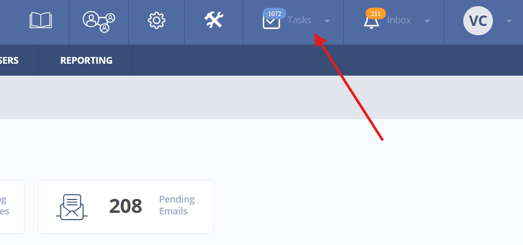
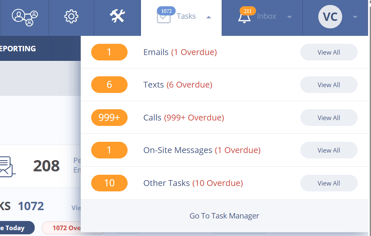
Selecting the Tasks icon displays a summary of activities grouped by type. From this menu, you can:
- Select View All for a specific category
- Select Go To Task Manager to open the full Task Manager page
Task Categories
Tasks are grouped into five primary tabs:
- Emails
- Text Messages
- Phone Calls
- On-Site Messages
- Other Tasks
Understanding the "Other" Category
The Other tab includes tasks without a defined communication type, such as:
- Appointment reminders
- Personal follow-up notes
- General reminders
These tasks must be completed manually.
Manually Created Tasks vs Action Plan Activities
By default, Task Manager displays all tasks in a combined view. You can use the task filter to display specific task types.
All Tasks
Displays both manual tasks and automation-generated tasks.
Manually Added Only
Displays tasks created directly by users.
Added via Action Plan Only
Displays tasks generated by automation workflows.
Separating these views can help prioritize manual follow-up versus automated communication tracking.
Summary View vs Detailed View
Each task tab allows you to toggle between two viewing formats.
Summary View
Provides a quick snapshot including:
- Lead name
- Communication counts
- Lead registration date
- Most recent login
- Task description
- Task due date
Overdue tasks appear highlighted for visibility.
Detailed View
Includes all Summary View information plus additional engagement insights, such as:
- Total website visits
- Properties viewed
- Average property price
- Communication history statistics
- Task assignment source
- Lead short summary notes
Detailed View helps prioritize leads based on engagement and behavior patterns.

Viewing Completed and Future Tasks
By default, Task Manager displays tasks that are:
- Due today
- Past due
You can also filter to view:
- Completed tasks
- Tasks scheduled for future dates
Viewing future tasks can help agents prepare for upcoming workloads or manage scheduling conflicts.
Manager-level users can restrict agent access to future or completed task views through Global Site Settings.
Manager View vs Agent View
Manager-level users can toggle between:
Agent View
Displays tasks assigned only to the logged-in user.
Manager View
Displays tasks assigned across the entire account.
Agent-level and lender-level users will only see tasks assigned to them.
Managers can also filter tasks by user assignment to review workload distribution or performance.
Completing Tasks
Each task type includes an action that allows you to complete the task directly from the Task Manager.
Email Tasks
Include a Send Email button that opens a messaging overlay. If associated with an Action Plan, the template may load automatically.
Text Message Tasks
Include a Send Text button that allows direct reply and template selection.
Call Tasks
Allow you to:
- Initiate calls using the Sierra Dialer
- Add leads to a call list for batch calling
On-Site Message Tasks
Allow you to respond to website-based communication. These act as pop-up messages that are triggered across your site to engage your site visitors.
When a communication task is completed, Sierra automatically marks the task complete.
"Other" Tasks
Tasks in the Other category do not include action buttons. These tasks must be manually completed.
To complete an Other task:
- Open the Actions menu
- Select Mark Complete
What Good Task Management Looks Like
Effective Task Manager usage typically includes:
- Clearing overdue tasks daily
- Completing or rescheduling tasks scheduled for the current day
- Reviewing upcoming tasks regularly
- Monitoring automation-generated tasks
- Maintaining accurate task completion history
FAQs
- Why does a task still appear overdue after I completed the action?
Some tasks must be manually marked complete, especially tasks categorized as Other. - Can tasks be reassigned from the Task Manager?
Tasks must be reassigned from the Lead Detail page. - Why are some tasks automatically completed?
Communication-based tasks such as emails, texts, and calls complete automatically after the action is performed.