
Table of Contents
Overview
Content Labels allow you to group related pages and display them dynamically across your site using a single component. Instead of manually linking pages one by one, you can apply a label once and automatically generate organized link sections anywhere you choose.
For example, you can group multiple neighborhood pages under a label like “Downtown Madison WI Neighborhoods” and display them together on a single page—helping visitors quickly find relevant content and explore more of your site.
👉For more info on adding neighborhood pages visit: Create a Neighborhood Page
Why This Feature Matters
A well-organized website helps visitors find information faster, improves SEO through stronger internal linking, and keeps users engaged longer.
Using Content Labels effectively allows you to:
- Simplify site navigation
- Highlight related content across pages
- Reduce manual updates when adding new pages
- Create visually engaging content sections
Step-by-Step Instructions
1. Apply Content Labels to Pages
Before you begin: Make sure the pages you want to group are already created in the Content Manager.
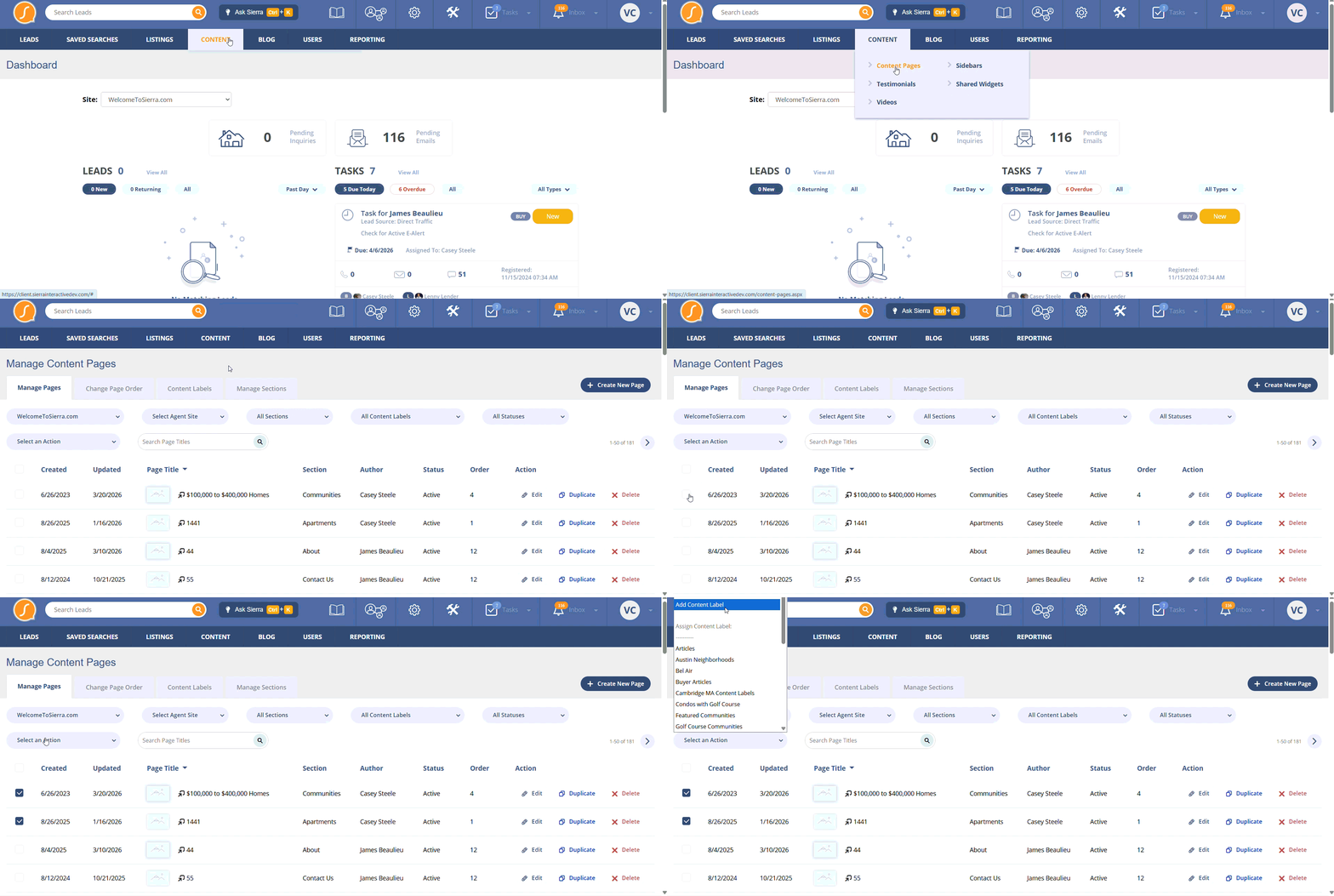
Apply Labels in Bulk
- Go to Content → Content Pages
- Select the Manage Pages tab
- Check the boxes next to the pages you want to label
- Open the Select an Action dropdown
- Click Add Content Label (or choose an existing label)
Apply Labels Individually
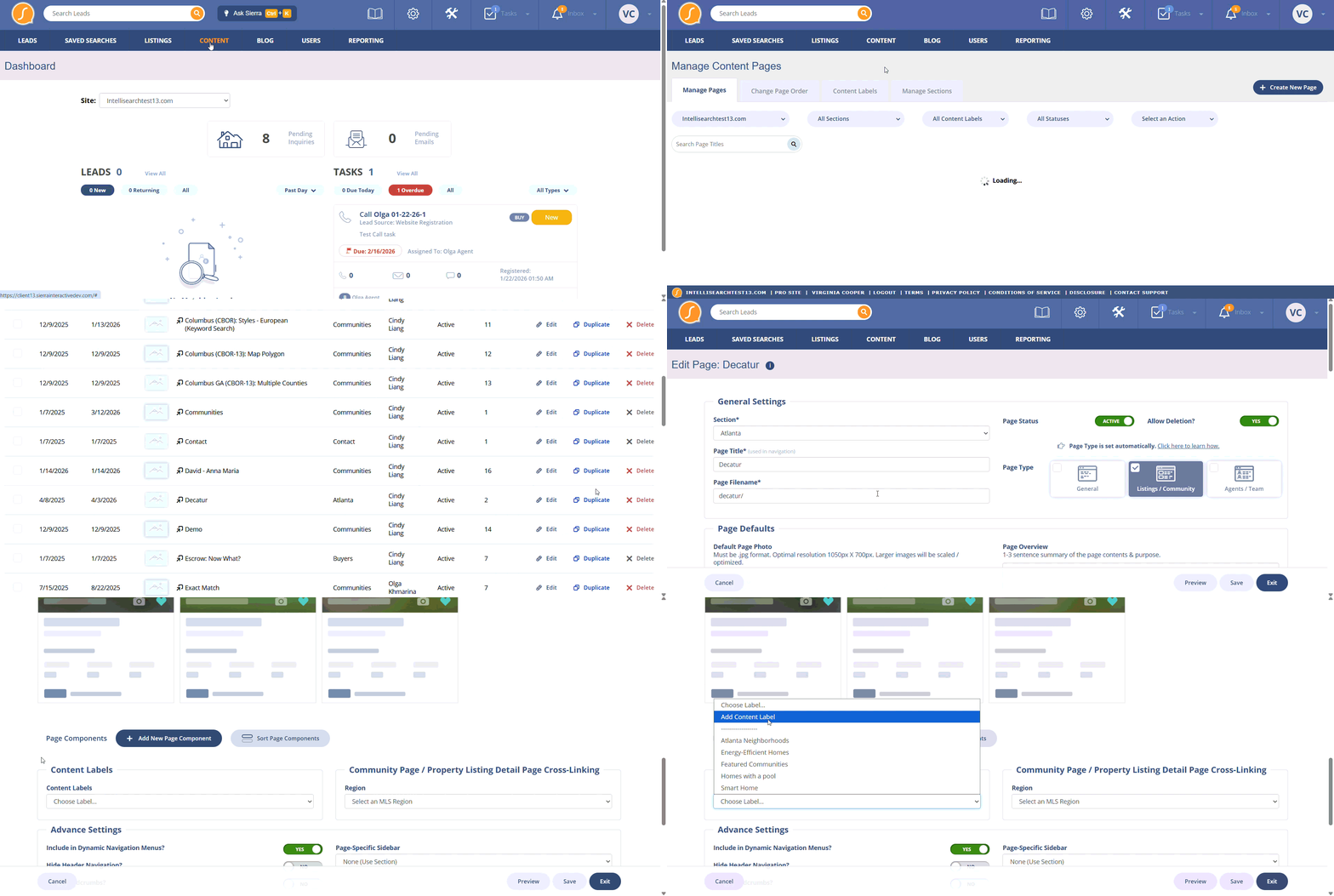
- Go to Content → Content Pages
- Click Edit on a specific page
- Scroll to the Content Labels section
- Select an existing label or create a new one
- Save your changes
2. Add a Content Label Component to a Page
- Open the page where you want the labeled links to display
- Scroll to the bottom and click + Add New Page Component
- Select Links from Content Label
- Choose the label you want to display
- Add a title for the section
- Save your changes
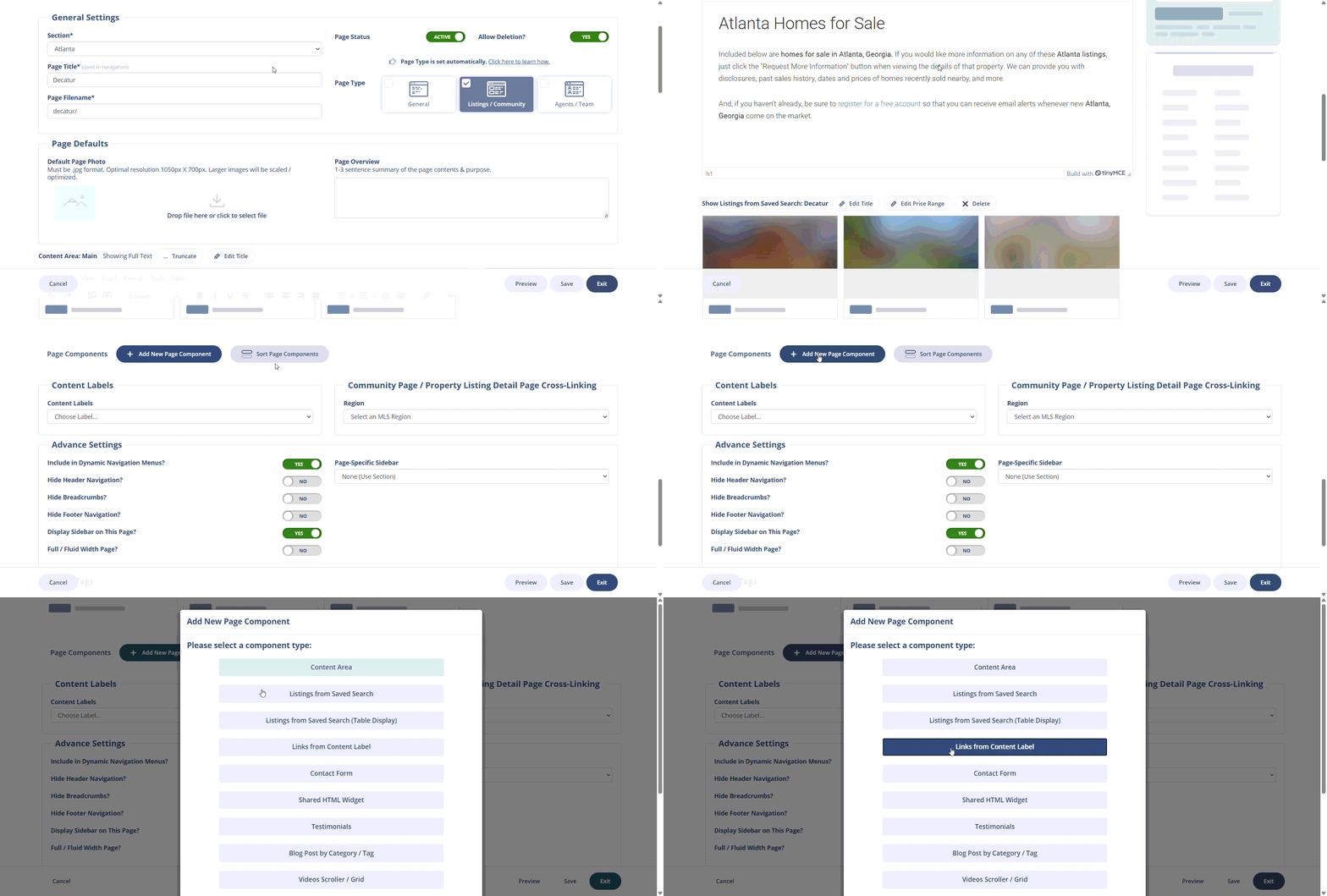
Once added, the page will automatically display links to all pages assigned to that label.
3. Choose a Display Style
When adding the component, you can control how the links appear:
- Links Only
Displays a simple list of page links - Links with Photo Background
Displays each link with an associated background image - Links with Photo and Description
Displays links with both an image and a short description for each page
⚠️ Note: The display style cannot be edited after creation. To change it, delete the component and add it again.
4. Add Images and Descriptions (Optional but Recommended)
To enhance how your Content Label section appears:
- Default Page Photo → used as the background image
- Page Overview → used as the description text
You can set these within each content page under the Page Defaults section.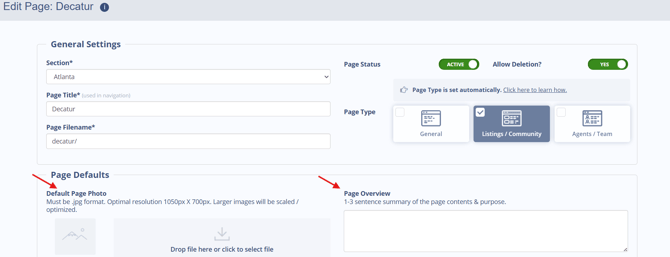
Best practice:
- Use high-quality images for better visual appeal
- Keep descriptions short (1–3 sentences) and informative
If no image is added, a default image may be used automatically.
5. Reorder the Component on the Page
- Click + Sort Page Components
- Drag and drop the Content Label component into position
- Click Click Here When Finished
- Save your changes
6. Use Content Labels in Blog Posts
Content Labels aren’t limited to content pages, you can also use them in blog posts.
To add one:
- Create or edit a blog post
- Click + Add New Post Component
- Select Links from Content Label
- Choose your label, add a title, and select a display style
- Save your post
This is a great way to link related pages directly within blog content.
Best Practices
- Name Labels Clearly: Use descriptive, keyword-friendly names to improve SEO and organization
- Avoid Overlapping Labels: Keep labels focused to prevent duplicate or confusing groupings
- Use Visual Enhancements: Add images and descriptions to create a more engaging experience
- Plan Your Structure: Think about how pages should be grouped before applying labels at scale
Troubleshooting & Common Questions
Troubleshooting Common Issues
-
Content Label links are not displaying.
Ensure that pages are correctly labeled and the "Links from Content Label" component is added to the page.
-
Images or descriptions are missing
Check that each page has a Default Page Photo and Page Overview added - Need to change display style
Delete the component and re-add it with the desired style - Labels are difficult to manage
Review and consolidate labels to remove duplicates or unused ones
FAQs
- Do I need to manually update links when adding new pages?
No. As long as the new page has the correct label, it will automatically appear in the component. -
Can I apply multiple labels to a single page?
Yes, a page can have multiple labels, allowing it to appear in different related groups.
-
Can I edit or remove a content label after it has been applied?
Yes, you can rename or remove labels at any time through the Content Manager.