
Table of Contents
Why This Feature Matters
Shared HTML Widgets allow you to create reusable content blocks using custom HTML code that can be inserted into multiple content pages across your website.
This is especially useful if you want to:
- Add custom embeds (forms, calendars, videos, maps, etc.)
- Maintain consistent calls-to-action across multiple pages
- Update one piece of code that automatically updates everywhere it is used
- Reuse advanced formatting or design elements
Instead of copying and pasting code into individual pages, Shared Widgets allow you to manage that content in one central location.
Who Can Access Shared Widgets
To create or edit Shared HTML Widgets, you must:
- Log into the Sierra Client Admin Area (CAA)
- Have appropriate content editing permissions
If you do not see the Shared Widgets option, your user role may not have access.
How Shared Widgets Work
Shared Widgets function as reusable content blocks:
- If you update the widget in the Shared Widgets area, the change will automatically apply everywhere the widget is used.
- You do not need to edit each individual page.
This makes it easy to maintain consistency across your site.
Important Considerations
- Sierra does not create or modify custom HTML code on your behalf.
- Clients are responsible for ensuring that any third-party scripts or embedded tools comply with applicable privacy, tracking, and platform policies.
- Poorly formatted or incompatible HTML may affect how content renders on your site.
- Some third-party embeds may not function correctly if restricted by the provider.
If you are unsure about the functionality of a specific script, consult the provider of that tool.
Step-by-Step Instructions
Step 1: Access Shared Widgets
- Log into your Sierra Client Admin Area (CAA).
- Select Content from the top navigation menu.
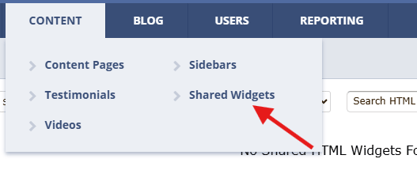
- Choose Shared Widgets from the dropdown menu.
- Click Create New Shared Widget in the top right corner.

Step 2: Create Your Widget
- Enter a clear and descriptive Widget Name in the Title field.
- On the widget creation screen, select the widget type as JavaScript/Style Code.
- Paste your code into the Content area.
- Click Submit to save your widget.
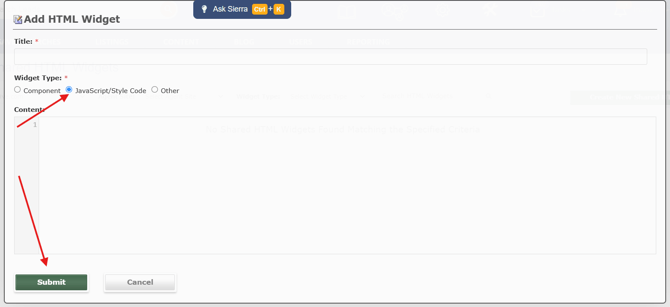
The widget is now available to insert into your content pages.
Step 3: Insert a Shared Widget into a Content Page
- Navigate to the content page you want to edit.
- Open the page in the Content Editor.
- Select Add New Page Component.

- Choose Shared HTML Widget as the component type.
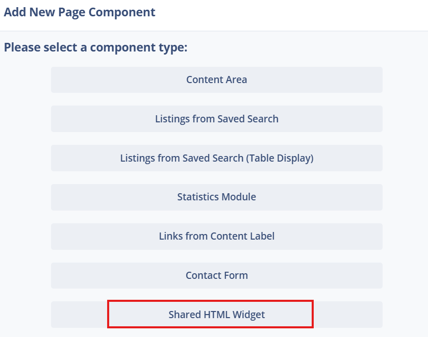
- Select the Shared Widget you created, then click Submit to insert it.
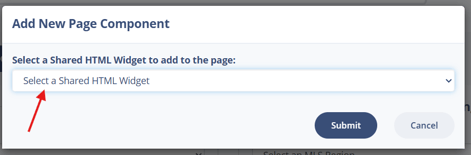
- Save or publish the page.
Once inserted, the widget will display on the live page.
Adding code directly to a page instead? If you want to add HTML, CSS, or JavaScript to a single page without creating a reusable widget, skip the Shared Widget setup. Instead, add a new Page Component, choose Content Area (instead of Shared HTML), and paste your source code there. This adds the code to that one page only and won't update anywhere else.
Best Practices
- Use clear naming conventions so you can easily identify your widgets later.
- Test custom HTML code in a staging or draft page before widespread use.
- Keep custom scripts organized and documented internally.
- Use Shared Widgets for content that appears on multiple pages.
- Avoid inserting overly complex scripts unless necessary.
Troubleshooting & Common FAQs
Troubleshooting Common Issues
My widget is not displaying correctly
- Confirm the HTML code is valid.
- Check for missing closing tags.
- Verify that the third-party embed is active.
My update did not reflect on all pages
- Confirm you saved changes in the Shared Widgets section.
- Clear your browser cache and refresh the page.
I do not see the Shared Widgets option → Confirm you are logged in with a user role that includes content editing permissions.
FAQs
Does Sierra offer website customization services?
Improve your site’s performance, engagement, and user experience with a wide range of website customization options. Sierra’s in-house team performs all work, billing hourly with a one-hour minimum.
-
Can I use JavaScript inside a Shared Widget?
You may add custom code using the HTML Source Editor. However, functionality depends on compatibility and third-party provider policies. -
Will updating a widget automatically update all pages?
Yes. Any changes made to a Shared Widget will update wherever that widget is used. -
Can Sierra troubleshoot custom HTML code?
Sierra can assist with general platform questions but does not provide development support for custom-coded scripts. - Can I delete a Shared Widget?
Yes. However, removing a widget will remove it from all pages where it is currently used. - Can I use an iframe to embed a widget from a third-party tool?
iFrame embeds may work in some contexts, but are not guaranteed to render on all page types. Blog posts and certain content page layouts may strip iframe tags. If your embed isn't displaying, test it on a standalone content page and verify that the third-party provider allows iframe embedding. - What's the difference between a Shared Widget and adding code directly to a page?
A Shared Widget is reusable, one update applies everywhere it's inserted. Adding code directly to a page (via a Content Area component) only affects that single page and must be updated manually wherever else it's used.