
Summary
The Lead Detail Page is your command center for managing contacts in your CRM. This guide highlights its key features, workflows, and best practices to help you streamline follow-ups, improve engagement, and close more deals.
Table of Contents
Overview of the Lead Detail Page
The page provides a full snapshot of each lead’s activity, preferences, and history. Navigating and acting on this information quickly can boost response time and conversions.
Click into a lead either through the Leads Dashboard or using the search bar at the top-left of the page.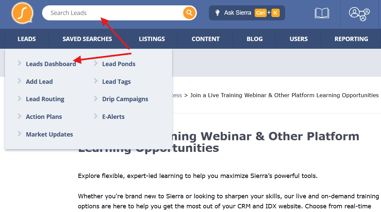
Lead Actions Menu (Upper Right Corner)
In the top-right corner of the Lead Detail Page, you'll find two helpful tools for managing lead workflow:
- Fish Icon Menu → Click the fish icon to take quick action with this lead:
- Add to Buyer Lead Pond – Assign the lead to a shared team pool for agent follow-up.
- Add to Recruiting – Move the lead into your recruiting pipeline (if used).
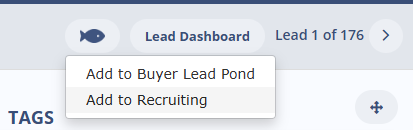
- Leads Dashboard Button → Click Leads Dashboard to return to the main lead dashboard view, where you can see and filter all leads in your CRM.
Tab Navigation (Top of Page)
At the top of the Lead Detail Page, you'll see the following tabs:
-
Summary → Contact info, tags, tasks, communication history, AI activity
-
Plans → Track action plans, drip campaigns, automation status
-
Properties → View saved, viewed, or requested listings
-
Searches → See and set up Market Updates or E-Alerts, view searches performed by the lead
-
Suggest → Send curated property lists
How to Use Each Tab
Summary Tab
The Summary tab is the default view on the Lead Detail Page and remains pinned on the left side as you navigate to other tabs. Think of it as your home base for quickly understanding where a lead stands and what action to take next.
What You’ll See in the Summary Tab
-
Contact Snapshot (Top Section) → Lead name, status, assigned agent/lender, and collaborators. Edit details quickly using the pencil icon.
-
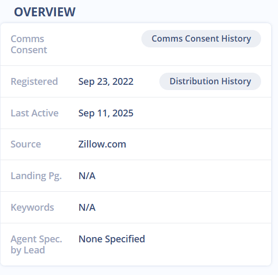
Activity Overview → Registration date, last active timestamp, landing page, and any keywords tied to registration. This gives context on how the lead found you and how recently they’ve engaged.
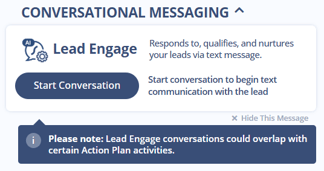
- Lead Engage Activity → If enabled, you’ll see AI-driven actions (messages sent, tasks created) to avoid duplicate outreach.
- Communication Preferences & Consent → Check if the lead has opted into texts, emails, or calls. You can toggle channels on/off to ensure compliance and avoid wasted effort.
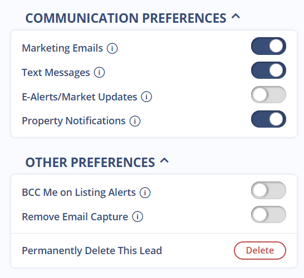
- Tags, Tasks, and Transactions (Right Column) → Add or view tags, check task assignments, and log transaction details as deals progress.
-
Communication Timeline (Middle Panel) → See every touchpoint (emails, texts, calls, notes, site messages) in a single feed. Use the toolbar filters to narrow the view by type. Add new notes, log calls, or assign tasks directly from this panel.
Best Practice: Start each day here to quickly review activity, check consent, and tag leads for easier filtering.
Plans Tab
Use the Plans tab to track and automate your follow-up.
-
View all active, completed, or scheduled actions (emails, texts, tasks).
-
Filter by type, status, or assigned user (yourself, teammates, or Sierra system).
-
Add or adjust Action Plans and Drip Campaigns.
Best Practice: Use automation for routine outreach, but assign manual steps to ensure personal touches aren’t missed.
Properties Tab
The Properties tab shows what homes a lead is engaging with.
-
See listings they’ve viewed, saved, or requested info/showings for.
-
Sort by activity date, views, or price.
-
Filter between All, Saved, Info Requests, Showing Requests.
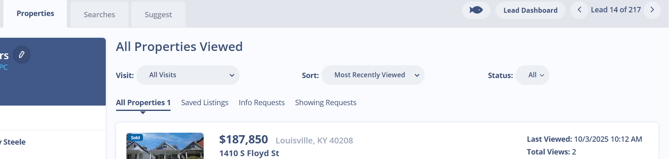
Best Practice: Reference recent property activity in your outreach. If a lead is saving listings but not contacting you, use that as a re-engagement opportunity.
Searches Tab
Understand what your lead is actively looking for.
-
Review their search criteria and site visits.
-
Convert searches into E-Alerts or Market Updates.
Best Practice: Use this tab to personalize outreach with properties that align closely with their saved searches.
Suggest Tab
Send personalized lists of homes that go beyond automated alerts.
-
Create a list, name it, add properties, and email directly to the lead.
-
Edit or delete lists as needed.
Best Practice: Use Suggest in tandem with the Properties and Searches tabs to anticipate what they’ll want next.
To learn more visit: How to Suggest Listings to Leads in Sierra
Best Practices for Using the Lead Detail Page Effectively
To get the most out of the Lead Detail Page, adopt a daily workflow that ties all tabs together:
-
Start in Summary → Review contact details, last activity, and tags.
-
Check Plans → Confirm automation is running and manual steps are assigned.
-
Look at Properties and Searches → Spot trends in interest and tailor your outreach.
-
Use Suggest for personal touches → Curate lists that show you’re paying attention.
-
Tag and update consistently → Make leads easier to filter and prioritize across the team.
FAQs
- Can lenders access the same Lead Detail Page?
Yes, lenders with CRM access can view the same information to help coordinate financing conversations. - Are E-Alerts updated in real time?
Yes. Any changes you make in the Searches Tab take effect immediately. - What does “Link Leads” do?
It pairs two related leads so their activities and communications can be managed together. - Can I see when a lead last opened an email or clicked a link?
Yes. Email engagement is tracked in the activity feed, showing open and click timestamps. - How do I reassign a lead to another agent?
Click the Reassign button next to the assigned agent name at the top and select the new agent from the dropdown. - Are text messages logged automatically?
Yes, if the Sierra Dialer is connected and you're texting from the platform, messages log in the activity feed. - Can I edit a lead’s contact information directly on the Lead Detail Page?
Yes. Click the pencil icon next to the lead’s name, email, or phone number in the Summary tab to make edits. - Where do I see what communication has already been sent to the lead?
The middle panel on the Summary tab displays the full communication timeline—including emails, texts, notes, and calls. You can also filter the view to focus on a specific type of message. - How do I know if Lead Engage (Sierra AI) has interacted with a lead?
If Lead Engage is enabled for the account and the lead is opted in, the Sierra AI section in the Summary tab will show recent AI-generated messages and actions. - Can I use multiple tabs at once?
While only one main tab is open at a time, the Summary tab remains pinned on the left column. This allows you to reference lead info while navigating Plans, Properties, Searches, or Suggest.