
Overview
The Manage Leads page (also called the Leads Dashboard) is your central workspace for tracking, organizing, and acting on your leads. From this page, you can view lead activity, update contact information, send communications, manage tasks, and monitor engagement.
Table of Contents
Why This Feature Matters
Effective lead management helps you:
-
Respond quickly to new inquiries
-
Keep follow-up consistent and organized
-
Personalize outreach based on behavior and status
-
Maintain accurate, up-to-date lead records across your team
Without a centralized system, leads can be missed, duplicated, or forgotten — which directly impacts conversion and client experience.
Access the Manage Leads Page
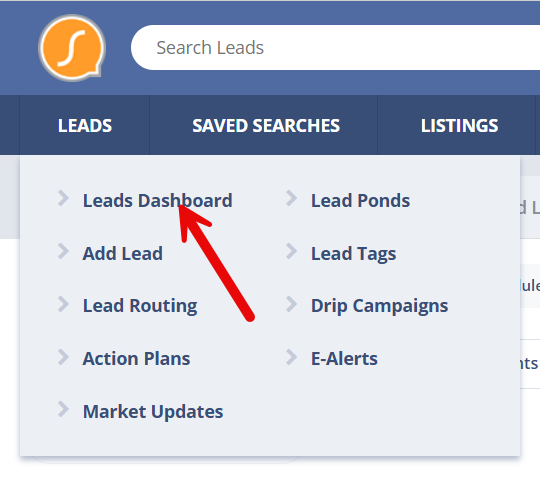
Go to Leads > Leads Dashboard from the top navigation.
The page is mobile-responsive and can be used on desktop, tablet, or smartphone.
Each row represents a lead, and each column provides a different type of information or action related to that lead.
Column Overview
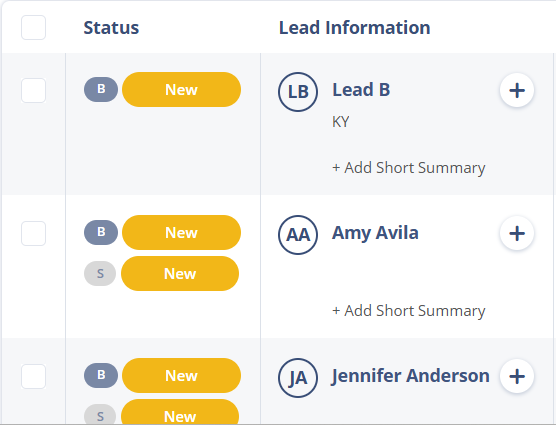
1. Lead Information Column
This column shows the lead’s name and provides quick-action tools.
-
Click the lead’s name to open the full Lead Detail Page in a new window.
-
Click the plus (+) icon next to the name to:
-
Add a tag
-
Add a note
-
Send an email
-
Log a call
-
Add a task
-
Send an on-site message
-
Permanently delete the lead (Primary Managers only)
-
The “Permanently delete lead” option is only available to Primary Managers. Deleting a lead is permanent and cannot be undone.
2. Phone & Email Status Column
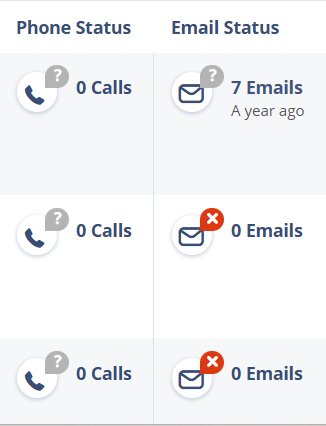
These columns show communication history and validity.
Phone status includes:
-
Total calls logged
-
Last call date
-
Phone status (Unknown, Valid, Wrong, etc.)
Click the phone icon to manually update the phone status after a call.
Email status includes:
-
Number of manual emails sent
-
Last email date
-
Email status (Unknown, Bounced, Spam reported, etc.)
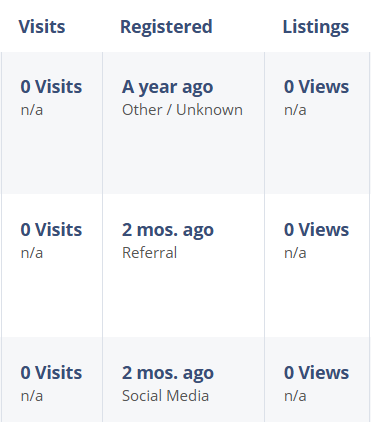
3. Visits, Registered, and Listings Columns
-
Visits — How many times the lead visited your site and when
-
Registered — Where and when the lead first registered
-
Listings — How many listings the lead viewed, whether any were saved, and if they matched their criteria
These columns help you understand engagement and intent at a glance.
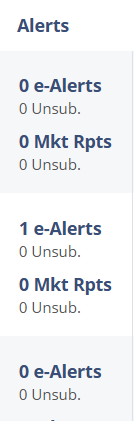
4. E-Alerts Column
-
Shows the number of active email alerts currently sending listing updates
-
Does not include saved searches that are inactive
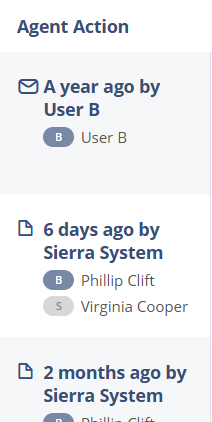
5. Agent Action Column
Displays the most recent activity for the lead, such as:
-
Email sent
-
Note added
-
Call logged
Includes the date and the name of the team member who performed the action.
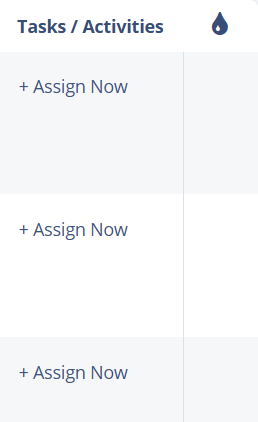
6. Task Column
Shows the next scheduled task for the lead:
-
Red = Overdue
-
Orange = Due today
-
Green = Upcoming
Click a task to edit it or mark it complete.
7. Drip Campaign Column
Indicates whether the lead is currently enrolled in any drip or nurture campaigns.
Best Practices
-
Update phone and email statuses after each interaction to keep records accurate.
-
Use tags and lead types to segment leads for targeted follow-up.
-
Check the Task column daily to stay on top of your pipeline.
-
Review the Agent Action column to monitor activity and ensure consistent follow-up.
Troubleshooting Common Issues
- Inaccurate lead location
Locations are based on IP and may not always be precise. Use for general reference only.
- Email status says “Bounced”
This is automatically flagged when our welcome email bounces. Confirm address with the lead and update if needed. - I can't find a lead / My lead is gone
The lead still exists in the system. To locate it, search for the lead's email address using the search bar in the top left corner of the CAA. Keep in mind that agent-level users can only search for leads that are assigned to them. If the email address does not appear in your search results, the lead is likely assigned to a different agent. Contact your Primary Manager or Manager and ask them to search for the email address. They will be able to see the lead and let you know who it is currently assigned to.
FAQs
- Can I edit the lead directly from this page?
Yes, many actions (emails, calls, notes, tasks) can be taken right from the Manage Leads page.
- What does a red task mean?
It indicates the task is overdue and needs urgent attention.
- Can I see what another team member last did with a lead?
Yes, the Agent Action column includes the name of the person who performed the last activity. - Why can't I find a lead when I search?
Agent-level users can only see leads assigned to them. If a search returns no results, the lead may be assigned to another agent. Ask your Primary Manager or Manager to search the email address and confirm the assignment.