
Table of Contents
- How IntelliSearch Works
- Step-by-Step Instructions
- Best Practices
- The Business Advantage for You
- Troubleshooting Common Issues
- FAQs
Overview
IntelliSearch bridges the gap between MLS data and how people naturally search for homes. Instead of relying on MLS codes and dropdowns, you can use everyday keywords like “in-ground pool,” “bonus room,” “ADU” or “open concept kitchen.”
These searches work across Saved Searches, E-alerts, Market Updates, and your website’s property search, helping you attract more motivated buyers and surface listings that match what clients are actually looking for.
Most buyers think in lifestyle or feature language, not MLS terms. Traditional search tools often miss these nuances, causing visitors to leave your site. IntelliSearch fixes this by letting you and your clients search naturally.
Real-world examples:
-
An Austin team highlights “rooftop decks” and “walk to bars” to connect with urban buyers.
-
A suburban agent creates searches for “large backyard” and “mother-in-law suite” to attract families seeking more space.
By matching how buyers naturally search, IntelliSearch helps you appear in more organic searches, keep visitors engaged longer, and capture higher-quality leads ready to take the next step.
How IntelliSearch Works
What IntelliSearch Looks At
IntelliSearch searches across the parts of MLS data that matter most to buyers:
-
MLS Public Remarks
-
MLS data fields
-
Standard property attributes
Note: Intellisearch does not search private or agent-only remarks.
How IntelliSearch Understands Keywords
IntelliSearch is built to interpret natural language, so it automatically recognizes:
-
Synonyms and variations (e.g., RV parking vs. R.V. parking)
-
Common typos (e.g., pool vs. poool)
-
Multi-word concepts (e.g., mother-in-law suite, open concept, bonus room)
Where IntelliSearch Appears & How It Behaves
IntelliSearch powers Saved Searches, E-alerts, Market Updates, the Suggest List, and website property search (this replaces the old “Advanced Search” page on websites.)
It’s also designed to work seamlessly:
-
Works across all MLS regions
-
Supports multi-source searches
- Supports custom map areas, including building a saved search by radius.
-
Improves existing saved searches without overwriting them
-
Regular MLS Matrix search remains available
How criteria display depends on your MLS setup:
-
Single MLS region: You’ll see a “View All” link showing the full list of criteria.
-
Multiple MLS regions: Use the keyword search bar; as you type, matching options will appear in a dropdown.
👉To learn more about IntelliSearch check out these articles:
Step-by-Step Instructions
Part I: How to Build an IntelliSearch Saved Search
-
Go to your Sierra CRM → Click on Saved Searches.

-
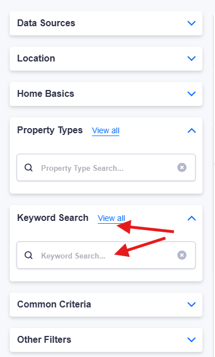
Enter natural language keywords.
-
Use phrases like “energy efficient,” “handyman special,” or “lake views.” This mirrors how buyers actually search.
-
-
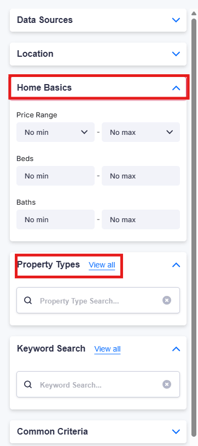
Add in traditional filters if needed.
-
Narrow by price, bedrooms, or location to get precise results.
-
-
Preview and adjust.
-
Look at the listings returned. Tweak keywords to expand or narrow the pool.
-
-
Save the search.
-
This saved search can power IDX pages on your website that rank for these popular keywords, driving SEO traffic.
-
Part II: How to Use IntelliSearch in E-Alerts and Market Updates
-
Navigate to the Leads tab → Click Leads Dashboard → Click on the lead's name to open up the Lead Detail page.

-
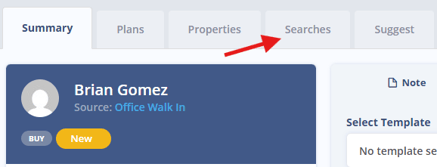
Click on the Searches tab.
-
Choose to create or edit an E-alert or Market Update.

- Use IntelliSearch to add natural keywords that match the lead’s wishlist, like “open concept kitchen” or “near golf course.”
- Save and assign to keep the lead engaged with listings that truly fit their lifestyle
For more information on E-alerts & Market Updates check out these articles: How Market Updates Drive Seller Engagement & How Else Can I Use E-Alerts Beyond Just Sending Listings to Buyers?
Best Practices
-
Think like a buyer: If a lead mentioned they want “home office space,” use that as a keyword instead of just “3 bedrooms.”
-
Test multiple phrases: Try “mother-in-law suite,” “guest house,” or “ADU” to see what your local MLS data supports.
-
Use lifestyle-focused saved searches on your website: A team near ski resorts created pages for “mountain views” and “ski-in ski-out,” capturing dream-home traffic that competitors missed.
- Skip hashtags or keyword stuffing: No need to create dozens of variations.
For example, Entering “RV parking” will also find R.V. Parking or RV/Boat parking automatically.
The Business Advantage for You
IntelliSearch helps your Sierra website perform better in two major ways:
1. Improved Lead Conversion
-
Visitors see listings that match their actual wishlist
-
Search feels intuitive and conversational
-
Buyers stay on your site longer
-
Higher-quality leads convert faster
2. SEO Gains Without Extra Work
IntelliSearch naturally supports:
-
Long-tail keyword ranking
-
Better matching for niche searches
-
Improved dwell time & higher click-through rates
-
More relevant IDX pages powered by keyword-based saved searches
By connecting visitors with exactly what they came for, your site becomes a powerful organic traffic engine running even when you’re offline.
Troubleshooting Common Issues
-
Saved search returns too few results?
Try simpler or broader keywords, or remove conflicting filters. For example, “large backyard” might work better than “huge backyard.” -
IDX page isn’t ranking well?
Make sure your page also has supporting content, good metadata, and internal links that reinforce the theme.
FAQs
- Can I use keywords and standard MLS filters together?
Yes. You can layer keywords on top of structured filters like location, price, or property type to refine searches even further. See more here - Does this work on agent subdomains?
Absolutely. IntelliSearch powers both your main and agent-specific websites. - Can I include and exclude terms in the same search?
Not yet – but this is on our roadmap. We’re exploring the ability to include and exclude terms (e.g., include “Fixer,” exclude “Not a Fixer”) within the same query. - Will properties show a “match percentage” for partial results?
Match scoring and visual indicators are being explored for a future release. - How do property alerts work with IntelliSearch?
Property alerts function as normal and will adapt as IntelliSearch evolves. - Does IntelliSearch pull data from other sources like Airbnb or VRBO?
Not at this time. However, our product team is exploring integrations for short-term rental data in future updates. - Will IntelliSearch affect my saved searches?
Your existing saved searches will stay exactly as they are. IntelliSearch will simply enhance them by using its exact and partial match logic to deliver more accurate results.