
Table of Contents
- Why This Feature Matters
- Before You Begin
- Step-by-Step Instructions
- Best Practices
- Troubleshooting Common Issues
- FAQs
Why This Feature Matters
Website accessibility ensures every visitor, including those using screen readers, keyboards, or other assistive tools, can navigate and use your site effectively. Sierra includes built-in accessibility tools on every website to help you:
- Demonstrate a good faith effort toward accessibility compliance
- Support visitors who rely on screen readers, keyboard navigation, or other assistive technology
- Offer transparency about your accessibility initiatives through a dedicated accessibility page and feedback channel
Before You Begin
- Widget settings (placement, icon type, size, enable/disable) can only be changed by the Primary Manager on your account.
- The default accessibility page and its content are there to support your compliance efforts. Don't delete or modify the default text without consulting legal counsel first.
- Disabling the widget may reduce accessibility for your visitors and increase liability risk. This isn't recommended.
Step-by-Step Instructions
1. Find Your Site's Accessibility Page
Every Sierra website includes a bold Accessibility link in the site footer by default. This link directs visitors to:
yourwebsite.com/accessibility/
This page outlines your accessibility commitment and gives visitors a way to share feedback or report issues.
2. Locate the Accessibility Widget
The accessibility widget appears in the bottom-left corner of most frontend pages on your live site. It lets visitors customize their browsing experience, including:
- Contrast adjustments
- Font size changes
- Alt text support for images
To open the widget's menu, click the icon and allow it a moment to fully load.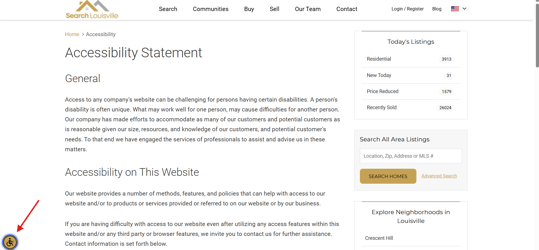
3. Modify Widget Settings (Primary Manager Only)
To adjust how the widget looks and behaves:
- Click the Gear Icon
- Go to Global Site Settings
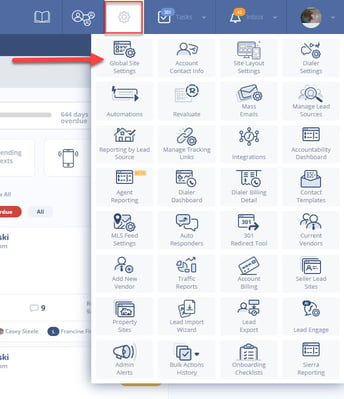
- Scroll down and locate the Accessibility Widget section
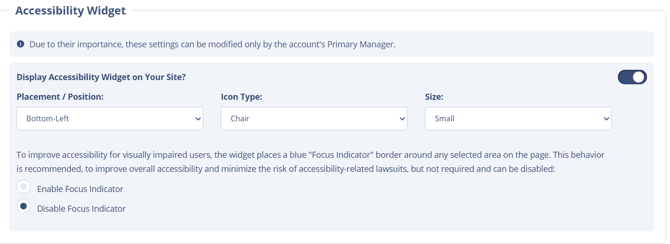
From here, you can customize:
- Placement and position on the page
- Icon type and size
- Enable or disable the widget (disabling isn't recommended)
- Focus indicator — adds a visible blue outline around focused elements to help visually impaired visitors navigate by keyboard
4. Create Accessible Content on Your Site
Widget settings cover the tools, but the content you publish matters just as much:
- Add alt text to all images
- Caption videos or provide transcripts
- Keep text and background contrast high enough to read easily
- Avoid broken links, which can disrupt screen reader navigation
Best Practices
- Keep the default accessibility page language in place unless an accessibility consultant advises a change.
- Test your site periodically with a tool like WAVE to catch issues early.
- Keep color contrast and readability in mind any time you design or update a page.
Troubleshooting Common Issues
-
The accessibility widget isn't appearing on my site.
Confirm you're viewing your live site rather than a staging or preview link, and check that the widget hasn't been disabled in Global Site Settings. -
The /accessibility/ link is broken or leads to an error.
Restore the default accessibility content page, or contact Sierra Support for help.
FAQs
-
Can I disable the accessibility widget?
Yes, but only the Primary Manager can do so, and it isn't recommended since it may reduce accessibility for visitors and increase liability risk. -
Can I edit the text on the accessibility page?
Technically yes, but consult legal or professional counsel before making changes. -
Does the widget meet WCAG standards?
The widget's provider states compliance with WCAG 2.1 guidelines, and it's widely used to support accessibility best practices. -
What does the focus indicator do?
It adds a visible blue outline around the element currently in focus, making it easier for visitors navigating by keyboard to see where they are on the page.