
Summary
The Sierra Content Editor makes it easy to upload, manage, and place images within your content using drag-and-drop tools and bulk image uploads. This allows you to quickly add visuals to blog posts, landing pages, and other site pages.
Table of Contents
- Why This Feature Matters
- Step-by-Step Instructions
- How to Bulk Upload Images
- Supported Image Types & Recommendations
- Best Practices
- Troubleshooting & Common Questions
Why This Feature Matters
Images are essential for real estate content. Property photos, neighborhood visuals, and lifestyle imagery help visitors better understand listings and local areas.
Adding images strategically can also improve readability and help keep visitors engaged longer.
Step-by-Step Instructions
Step 1: Open the Content Editor
Create a Content Page or Blog Post, or open an existing page for editing.
If you are creating a blog post, see How to Create and Manage Blog Posts for the full publishing workflow.
If you are creating a content page, see Using the Content Editor to Create Content Pages
Step 2: Add Images
You can add images in several ways within the editor:
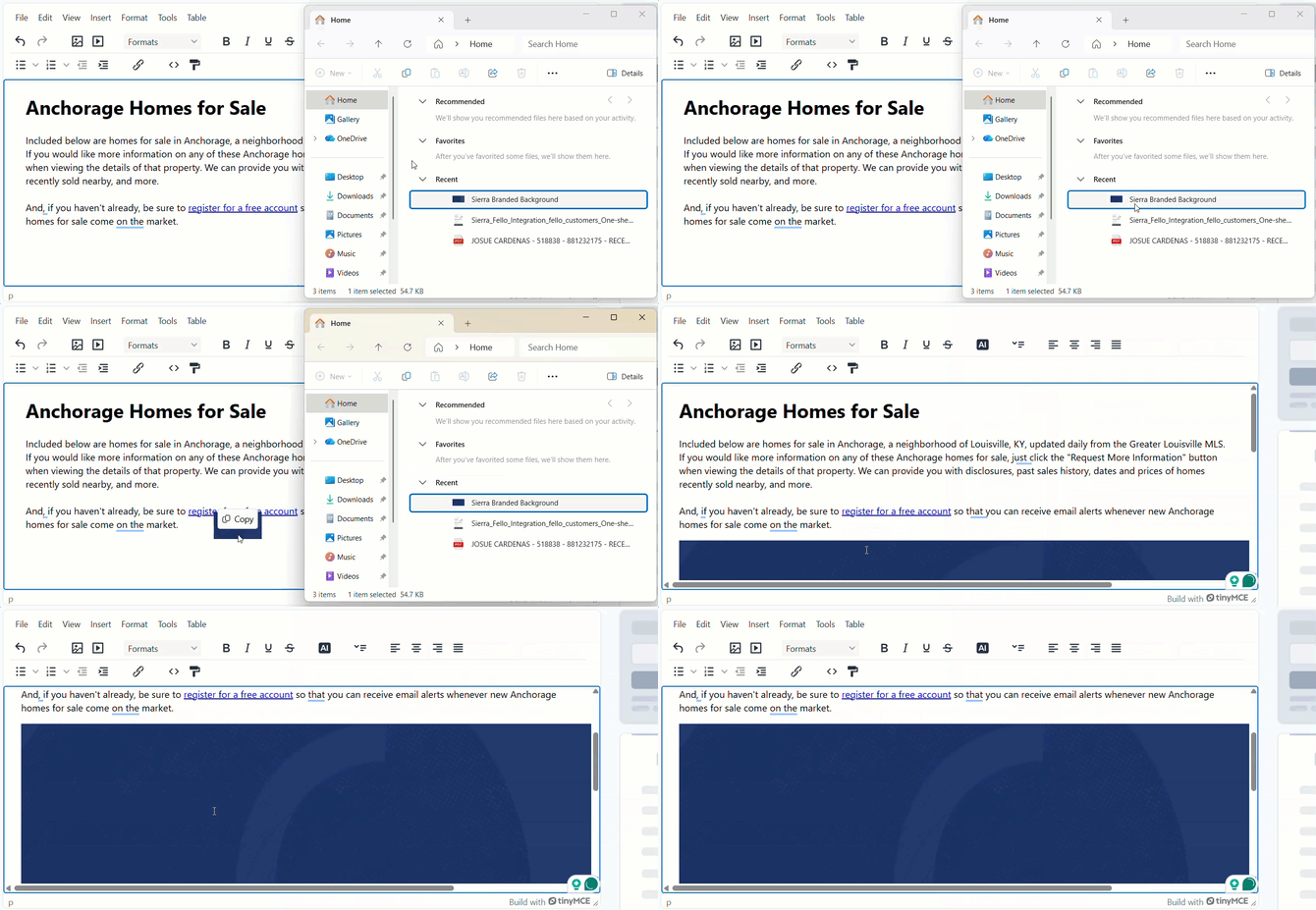
Drag and Drop
- Drag an image directly from your computer into the editor.
- The image will automatically upload and appear in your content.
Bulk Upload
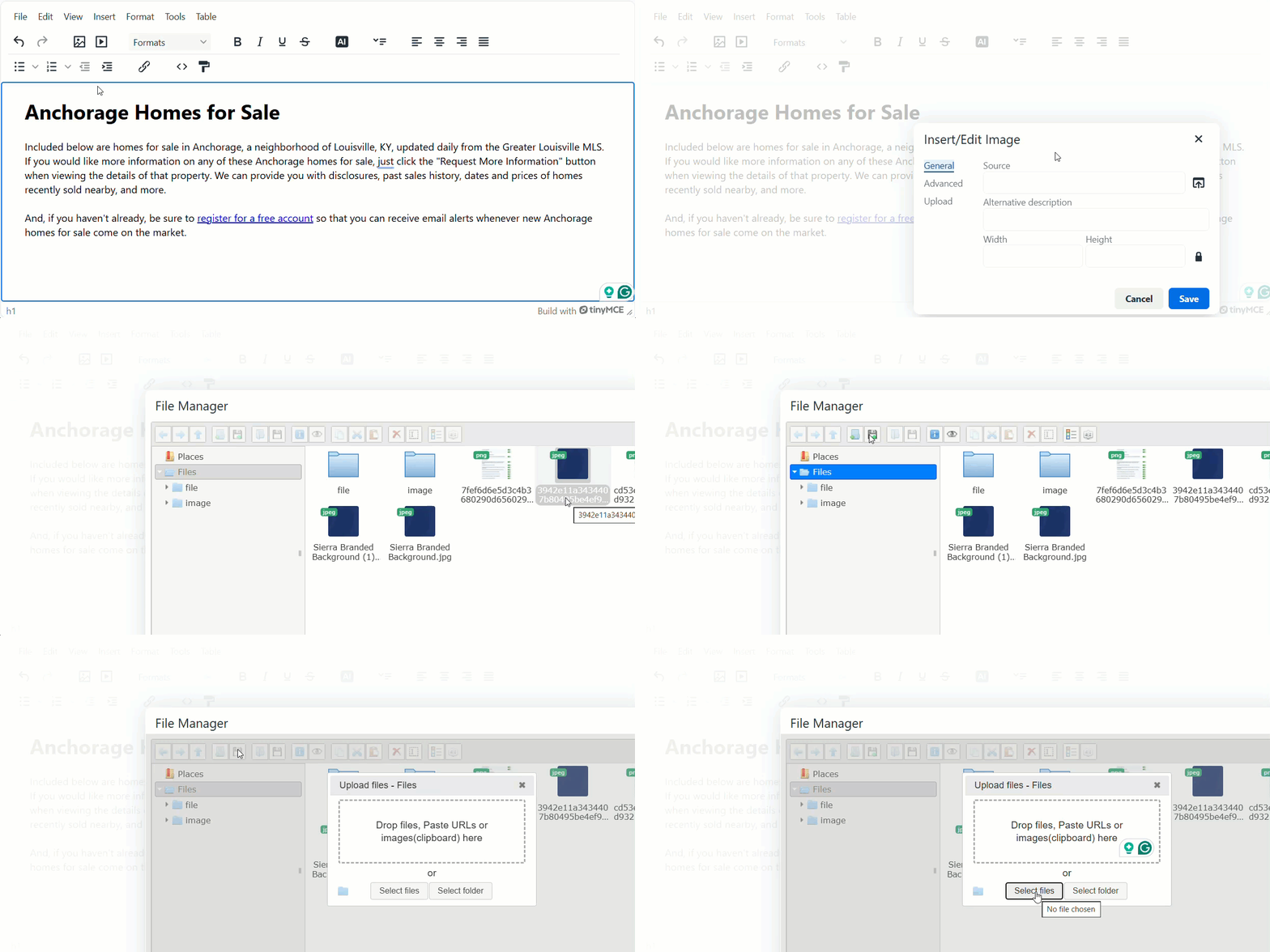
- Upload multiple images at once to save time when working with image-heavy pages.
Insert from Media Library (File Manager)
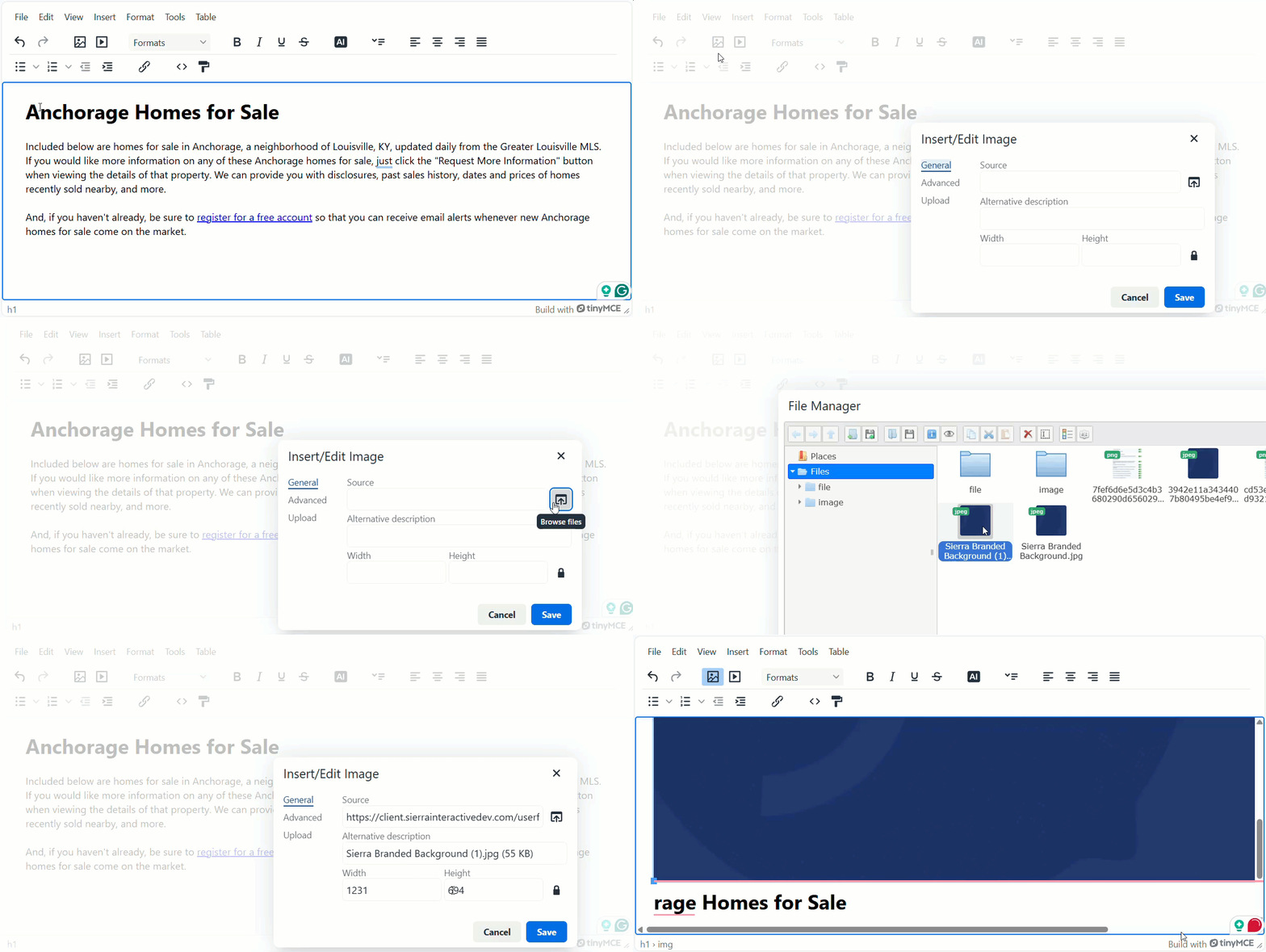
- Select previously uploaded images and insert them directly into your content.
Step 3: Position and Resize Images
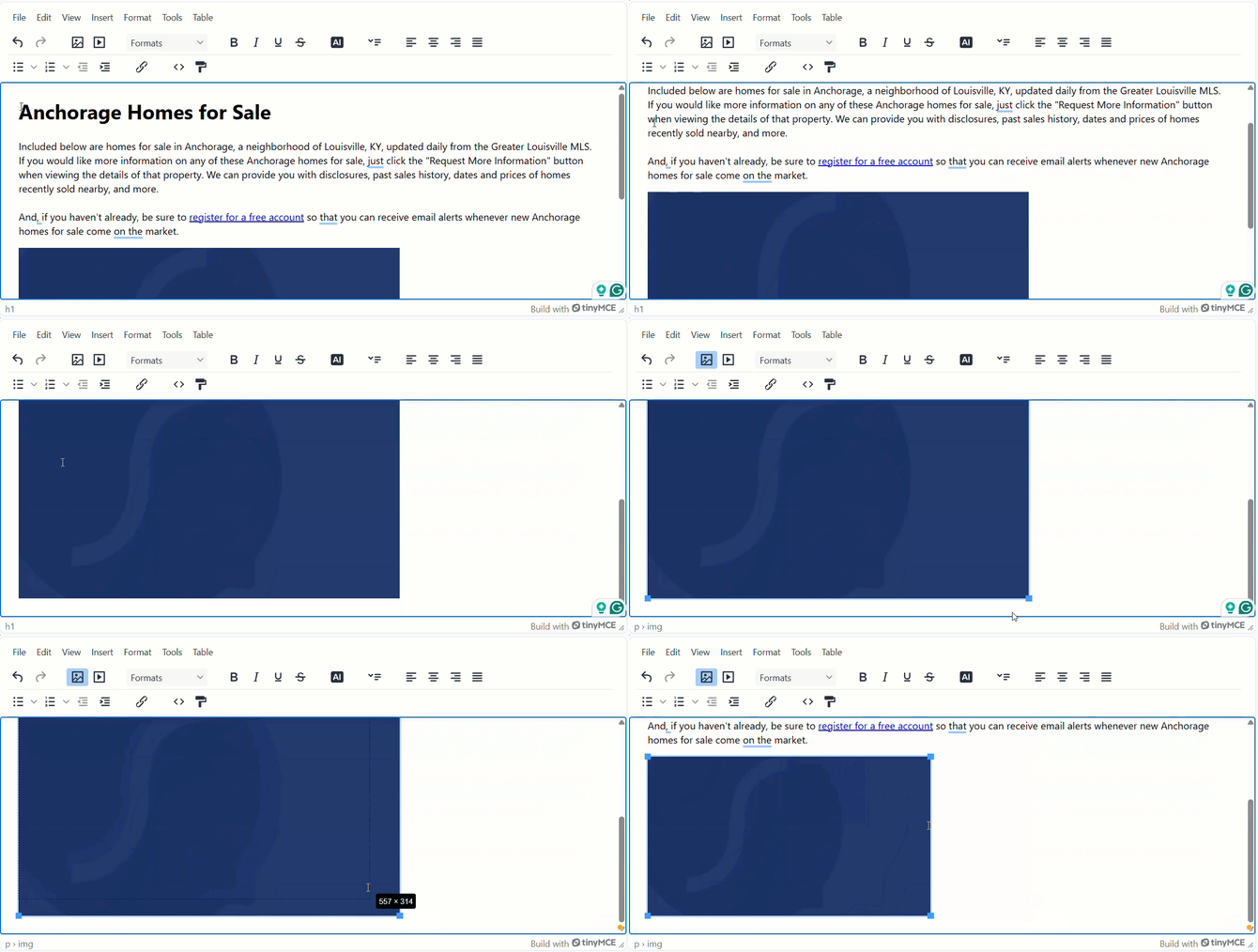
Once an image has been inserted into the editor, you can easily adjust how it appears on the page:
- Click the image within the editor
- Resize the image as needed
- Move the image to better align with your content
Placing images near the text they support helps improve readability and visual flow.
How to Bulk Upload Images
Bulk uploading is especially useful when creating pages with many visuals, such as:
- Blog posts
- Community pages
- Neighborhood guides
- Market updates
- Property highlight content
To bulk upload images:
- Open a Content Page or Blog Post in the Content Editor
- Locate the image or media area within the editor
- Select the option to upload images
- Choose multiple image files from your computer
- Upload them together
Once uploaded, as shown above, the images will be available to insert directly into your content. You can place them where they fit best within the page and reorder them as needed.
Supported Image Types & Recommendations
Supported file types:
- .jpg
- .jpeg
- .png
- .gif
Recommended image practices:
- Use 250px for a text-wrap layout or 500px for a full-width display.
- Choose an image alignment class: img_box_left (floats left), img_box_right (floats right), or img_box_center (centered).
- Compress images before uploading to improve page load speed
- Use descriptive filenames (example: austin-downtown-condos.jpg)
- Avoid spaces in filenames when possible
Optimizing images before uploading can help your pages load faster and provide a better user experience.
Best Practices
- Use high-quality images that load quickly
- Place images near relevant text for context
- Avoid overcrowding pages with too many visuals
- Maintain consistent image sizes across similar pages
- Use landscape images for better layout in most page sections.
- Preview your page before publishing to ensure images appear as expected.
Troubleshooting & Common Questions
-
My image is too large or too small
Click the image within the editor and adjust its size. Resize the file if needed before uploading. -
Images appear out of order
Drag the images to reposition them within the editor until they appear correctly. -
My image won't upload
Possible causes: unsupported file type, image file size is too large, or temporary internet connection issue.
Solutions: convert the image to .jpg or .png, resize or compress the image, and try uploading the image again
FAQs
- Can I upload multiple images at once?
Yes. The Content Editor supports bulk image uploads so you can add multiple images at the same time. - Does image placement affect SEO?
Images can improve engagement and readability, which can help keep visitors on your site longer. While images alone do not directly impact rankings, well-structured content with visuals often performs better overall. - Where is the file manager?
Sierra doesn't have a separate file manager page. All previously uploaded images live in the Media Library, which you can only access from inside the Content Editor. Open a Content Page or Blog Post for editing, then choose Insert from Media Library to see and reuse everything you've uploaded before.