
Table of Contents
Why This Feature Matters
Admin Alerts are crucial for improving communication within your team. They address the common problem of miscommunication and information overload by allowing for targeted messaging. By keeping everyone aligned, you can enhance teamwork and productivity.
- Event Reminder: Send a reminder about an upcoming team meeting to ensure everyone arrives prepared.
- Process Update: Notify your team about changes in procedures to eliminate confusion.
- Feature Rollout: Announce the launch of new platform features that can help enhance agent efficiency.
Step-by-Step Instructions
Only Primary Managers can create and publish Admin Alerts
(Note: Future updates may allow additional Manager-level permissions)
1. Access the Admin Alerts Page
-
Click the Gear icon in the upper-right corner
-
Select “Admin Alerts” from the tile menu
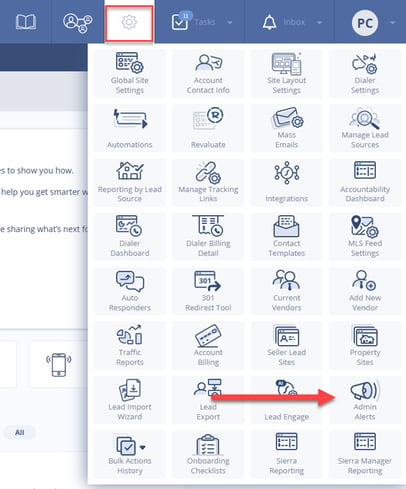
2. Create and Publish an Admin Alert
-
Click Create Alert
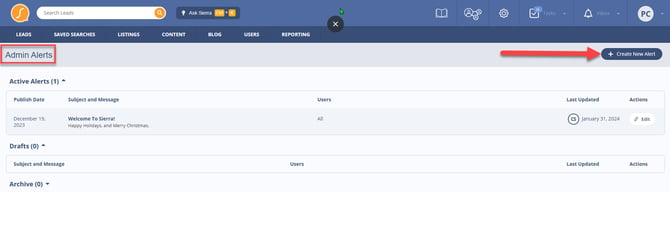
-
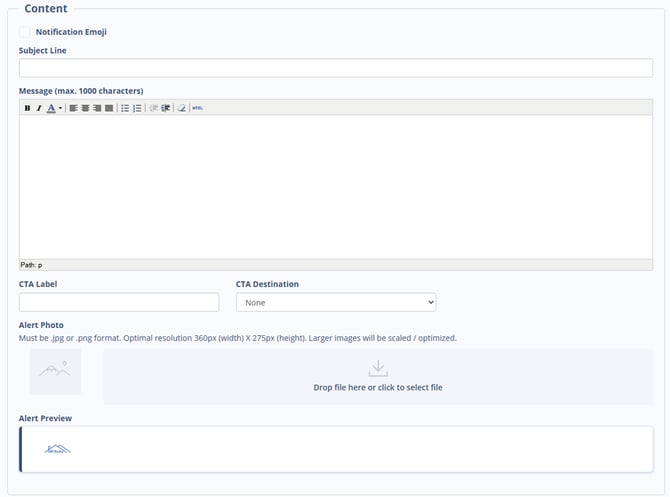
Fill in the following fields:
-
Subject Line
-
Alert Content (the body of your message)
-
Call-to-Action Label (optional)
-
URL/Link (optional)
-
Emoji (displays next to logo)
-
Image Upload (Optional): JPG or PNG, optimal size 360x275px (dashboard alerts only)
-
-
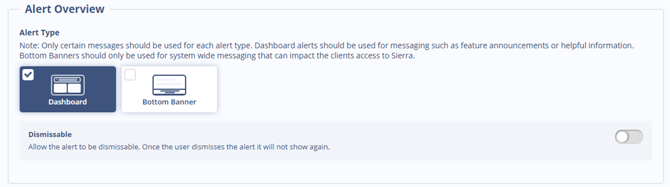
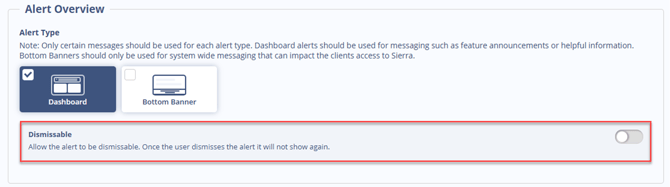
Choose where the alert will appear:
-
Dashboard/Home Page
-
Footer (Persistent Across Pages Until Dismissed)
-
-
Select alert behavior:
-
Dismissable or Not Dismissable
-
Duration (how long the alert remains visible)
-
-
Target some or all users on the account
-
Click Publish to send the alert live
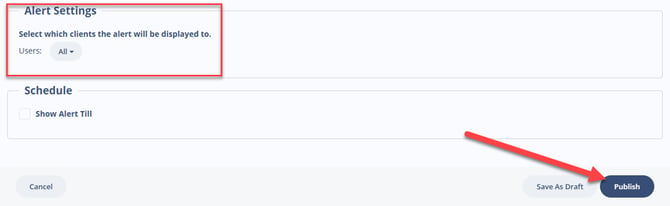
📝 If a Sierra system alert is active, your Admin Alert will appear on top.
3. Manage Existing Alerts
-
On the Admin Alerts page, view your alerts by status:
-
Active
-
Drafts
-
Archived
-
Best Practices
-
Use Admin Alerts for time-sensitive or high-visibility messages
-
Keep messages clear and brief—think one focus per alert
-
Use images for visual engagement (dashboard alerts only)
-
Target only relevant users when necessary for clarity
-
Schedule expiration dates to keep content fresh
Troubleshooting Common Issues
-
Alert image not displaying correctly
Ensure the file is .jpg or .png and matches the recommended dimensions of 360px by 275px -
Users didn’t see the alert
Confirm it was targeted to the correct users and is active (not saved as a draft)
FAQs
-
Can Agent-level users post Admin Alerts?
No, only the Primary Manager can currently create Admin Alerts. -
What’s the difference between a dashboard alert and a footer alert?
Dashboard alerts appear on the homepage. Footer alerts follow users across pages until dismissed. -
Can I edit an alert after publishing?
Yes, go to the Admin Alerts Dashboard to edit, archive, or create new alerts.