
Table of Contents
Overview
The Agent Manager and Agent / Team Widget gives you full control over how your team appears on your website. These tools allow you to manage agent profiles and agent sites, organize agents using tags, and display them across your content pages in a flexible, customizable way.
With this setup, you can showcase the right agents to the right audiences, highlight each agent’s expertise and local knowledge, and maintain consistent branding throughout your site. You’ll also reduce administrative work by allowing agents to manage their own profiles while keeping your agent sites and subdomains functioning correctly.
Setup and Configuration
1. Access the Agent Manager
Who Can Access
- Primary Managers – full access by default
- Manager-level Users – access based on permissions.
- If you need access, ask the Primary Manager to update your permissions by going to the Users tab > Edit User > Scroll down to Permissions
How to Access
- Go to the Users dropdown in your admin panel
- Select Agent Sites

If you do not see the Agent Sites option & you have permission, contact Sierra Support for assistance.
2. Add Agents, Agent Profiles, or Agent Sites
⚠️ Important: If you are creating a new agent site from scratch, you must select a user account to attach it to. Be very careful when choosing an existing user. Once the agent site is saved, it is permanently associated with that user and cannot be reassigned later.
Add an Agent or Agent Site
- Click + Add Agent Site
- Select either New Agent or Existing User Account
- If you select Existing User Account, the agent's name and contact details auto-populate from their user profile.
- Fill in the required information
- Click Save and Exit
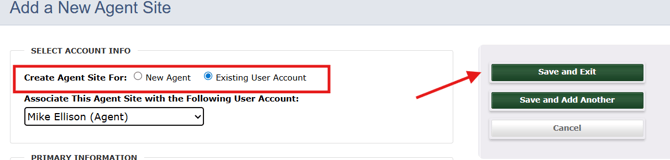
⚠️ Important: Only use MLS boards/feeds the user is a member of when selecting Enable Agent Site Search Tools. Using boards the agent isn't a member of can cause MLS compliance issues.
Add a Profile Without a Site
Use a Profile Only agent when you want to display someone on your team pages without creating a full subdomain or agent site.
- Click + Add Profile
- Profile-only entries are labeled PROFILE ONLY in the Agent Manager
Convert a Profile-Only Agent to a Full Agent Site
You can later convert a Profile Only agent to a full agent site by editing the profile and selecting Convert to Agent Site. Agents can start with a simple profile and upgrade to a full site later, preserving all their information.
- Edit a PROFILE ONLY agent entry
- Select Convert to Agent Site
- Associate an existing user account or create a new one
- Remove the auto-generated 2-digit number from the URL field
- Click Save and Convert
3. Organize Agents Using Tags
By default, all agents or agent subdomains display on the About page in alphabetical order. To customize who displays where and in what order you will use tags.
Common tag examples: Buyer Agents, Seller Agents, Neighborhood Specialists, Leadership Team.
Step 1: Create Tags
- Go to Agent Manager → Manage Tags
- Click + Add New Tag
- Enter a name and click Save

Step 2: Apply Tags to Agent Profiles
- Open an agent profile, subdomain, or site profile
- Click Edit

- Scroll down to the Tags section
- Select and apply the relevant tag(s)
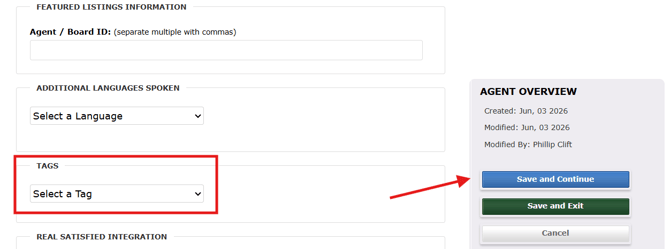
- Save the profile
4. Add the Agent / Team Widget to a Content Page
Who Can Add Widgets
- Primary Managers — can add widgets by default
- Manager- or Agent-level users — need one of the following permissions enabled:
- Can Author Content Pages and Saved Searches
- Can Administer Content Manager (All Pages and Saved Searches)
Add the Widget
Before adding the widget, make sure your agents are created and tagged in the Agent Manager. Tags determine which agents the widget displays.
- Open Content tab
- Edit an existing page or create a new one
- Click + Add New Page Component
- Select Agents / Team Members
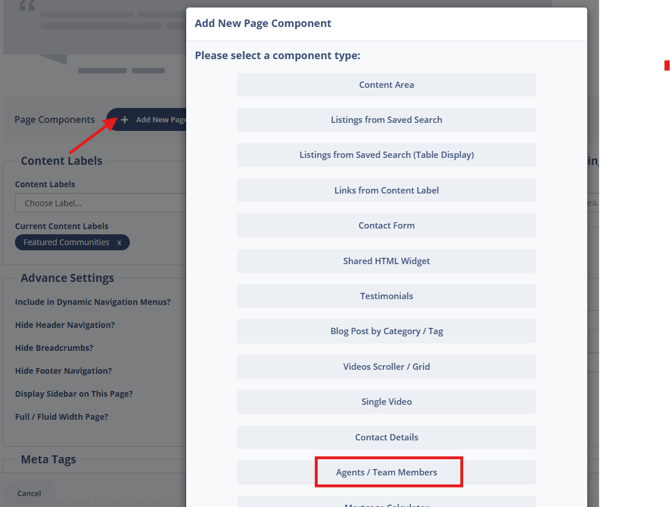
- Choose the relevant tag(s)
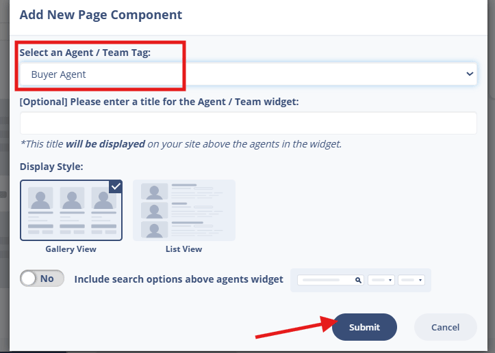
- Click Submit
💡Adding an Agent / Team Members component automatically changes the Page Type to Agents / Team, which optimizes the page for agent content.
Optional Features
- Add multiple widgets to one page to display different groups (e.g., Leadership Team + Buyer Specialists)
- Enable search functionality within the widget
- Reorder page components via Sort Page Components
⚠️ Important: A content page can contain either Active Listings widgets or Agent / Team widgets — not both. Mixing them on a single page is not supported.
5. Modify Agent Display Settings (Site-Wide)
Display settings control how Agent / Team widgets appear across your entire site. Changes apply globally and update all widgets in real time.
- Go to Users → Agent Site → Manage Agent Sites → Display Settings

- Select a display style:
| Style | Description |
|---|---|
| Original (Style A) | Gallery view and list view |
| Current (Style B) | Gallery view, list view, plus zoomed-in/out options |
Required Settings for Agent Subdomains
The following settings must remain in place for agent subdomains and agent sites to load correctly. If these are changed, agent subdomains may break.
- Do not set your homepage to "On Hold." This prevents agent subdomains from loading. If you don't want homepage copy displayed, delete the content instead of placing the page on hold.
- Do not change the Homepage Page Filename. It must remain
/. - The following pages and filenames must remain on the main site:
| Section/Page | Section Name | Page Filename |
|---|---|---|
| Home | (blank) | / |
| Contact | contact | /contact |
| Thank You | Contact | thank-you |
If you want "Home" to appear in your navigation, update it in the Section Manager and do not rename the homepage file itself.
Best Practices
- Keep agent profiles complete. Every profile should include a photo, bio, contact information, and Agent/Board ID (if applicable). Complete profiles improve SEO and ensure listings display the correct agent information.
- Tag agents before building content pages. The Agent / Team Widget pulls agents based on tags, so profiles need to be tagged before you add the widget — otherwise the widget will display no results.
- Use multiple widgets for flexible layouts. Add more than one Agent / Team Widget to a page to highlight different groups, such as Buyer Agents and Listing Specialists, without creating separate pages.
- Check subdomain settings after any site changes. Updating your homepage or navigation can inadvertently break required page filenames. Verify the settings in the Required Settings section above any time you make structural site changes.
Troubleshooting Common Issues
-
I don’t see the Agent Sites option in the Users menu.
This may be due to your configuration or permissions. Contact Sierra Support for assistance. -
Agents are showing in the wrong order on my About page.
Open the Agent Manager and use Change Agent Site Order to manually set the order. Also confirm the page is using an Agent / Team Widget rather than the default alphabetical display. -
I can't add both listings and agents to the same page. Content pages support either Active Listings Widgets or Agent / Team Widgets — not both. If you need both on your site, place them on separate pages.
-
Agents aren’t appearing on the correct content page.
Check tagging in the Sierra Agent Manager. The widget displays agents based on tags, so verify tags exist, tags are applied to the correct agent profiles, and the widget is set to the correct tag -
Agent listings or featured listings aren’t displaying correctly on an agent site.
This ID creates the Featured Listings Saved Search for the agent site, which controls which listings appear on the front-end site. If no Agent/Board ID is entered, the main site's Office ID is used instead. To fix this:- Open the agent site and confirm the Agent/Board ID field is populated
- Verify the Featured Listings Saved Search exists and is using the correct ID
- Check Global Site Settings to confirm featured listings are set to display the listing agent's information
FAQs
-
What’s the difference between an Agent Profile and an Agent Site?
An Agent Profile displays the agent's information on team or About pages but doesn't create a separate site. An Agent Site (or subdomain) is a standalone site with its own pages and branding.
-
Can I convert a Profile-Only agent into a full agent site later?
Yes. Open the agent entry in the Agent Manager and select Convert to Agent Site. -
Can Lenders have an Agent Site?
No, but they can have an Agent Profile. -
Will changing display settings affect all agent widgets?
Yes. Display Settings apply globally to every Agent / Team widget across your site. -
How do I show only certain agents on a content page?
Apply tags to the agents you want to display, then configure the Agent / Team Widget on that page to filter by those tags. -
Can agents manage their own information?
Yes. Associate their user account with their agent profile and they'll be able to manage their own information.