
Table of Contents
Why This Feature Matters
Sierra allows you to track a lead’s full journey—from first contact to a closed deal. Adding transactions is crucial; it enables detailed reporting, helps agents monitor performance, and supports better business insights. By using features like duplicate transaction tracking, your reports remain accurate, even when multiple lead records are involved in a single deal.
Step-by-Step Instructions
1. Add a Transaction
You can add a transaction in two ways:
-
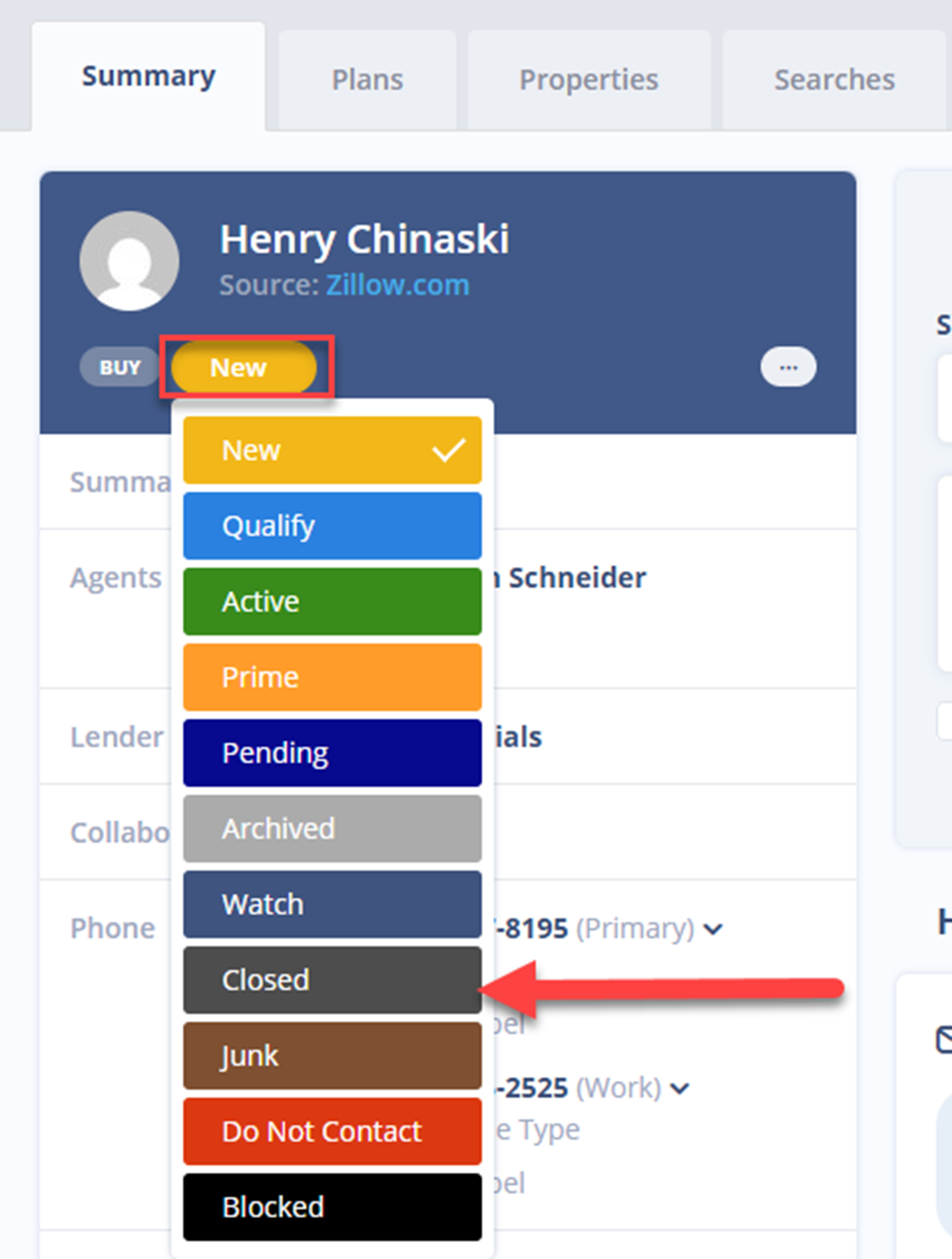
Change the Lead Status to “Closed”
-
From the Manage Leads page or Lead Detail Page, update the lead’s status to “Closed”
-
-
A Transaction Details overlay will appear
-
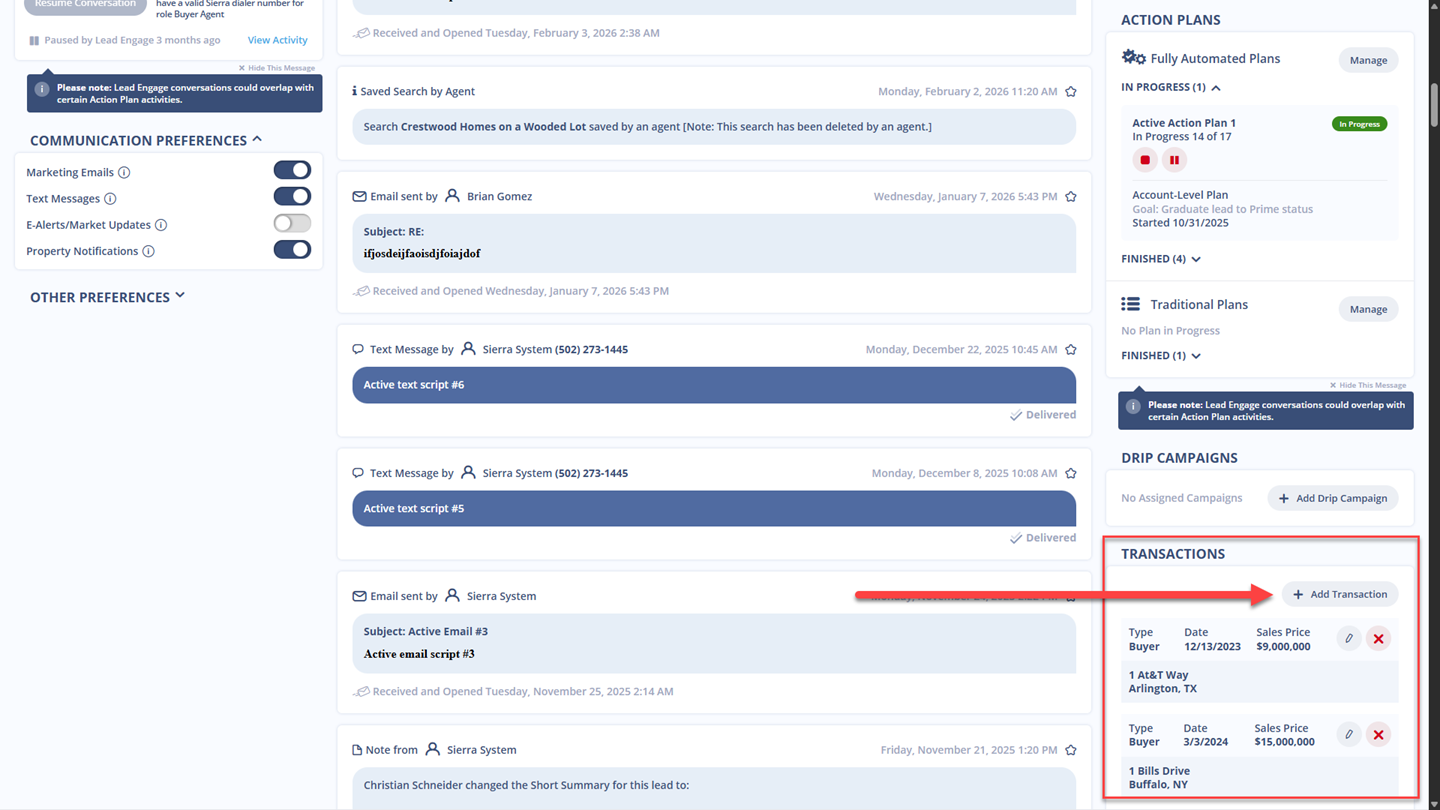
Click “Add Transaction” in the Lead Detail Page
-
This also triggers the Transaction Details overlay
-
In the overlay, you can enter:
-
Lead Type (Buyer or Seller)
-
Transaction Date
-
Transaction Amount
-
Agent (if you’re a Manager or Primary Manager)
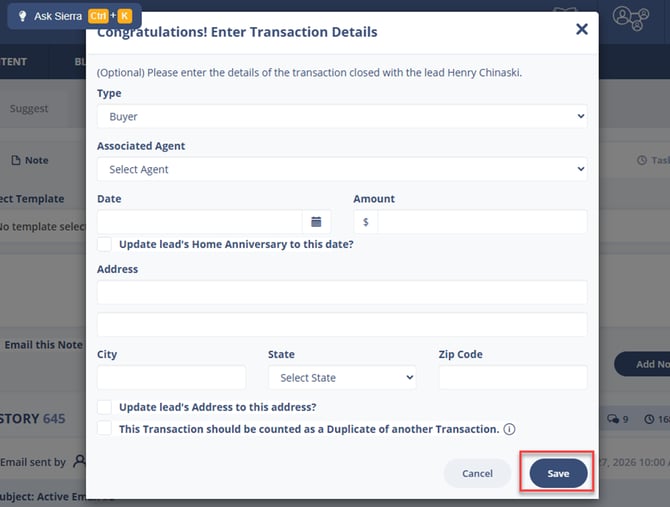
Note: Agent-level users cannot assign the “Associated Agent” field. This option is only available to Manager-level users or higher.
2. Where Transactions Appear
Once saved, transactions will display in the Transactions section of the individual lead’s detail page.
3. Marking a Transaction as a Duplicate
Sierra allows you to link multiple leads involved in a single deal using Linked Leads. If you want to record the transaction for each lead but avoid overcounting in reporting:
-
Add the transaction to each lead involved
-
Check the “Mark as Duplicate” box for any secondary records
This ensures:
✅ The transaction shows in all relevant lead records
❌ The transaction does not inflate Reporting by Lead Source or Agent Reporting
Best Practices
-
Always record the transaction on the primary lead involved in the deal
-
Use the Duplicate option when tracking linked leads involved in a single transaction
-
Double-check that transaction dates and amounts are correct before saving
Troubleshooting Common Issues
Problem: Agent dropdown not visible
-
Solution: Only Manager-level users or higher can assign agents to transactions
Problem: Duplicate transactions appear in reports
-
Solution: Use the “Mark as Duplicate” checkbox to prevent double counting
FAQs
Q: Can agents see the associated agent field?
-
A: No, only Managers and the Primary Manager can view or set the “Associated Agent” on a transaction.
Q: Why would I add a duplicate transaction?
-
A: To reflect activity across multiple lead records while avoiding inflated reporting.
Q: Where can I review past transactions?
-
A: In the Transactions section of each lead’s detail page.
Q: How do I find my transactions closed date?
-
A: This is located on the Transaction record itself in the bottom corner of the Lead Detail page. At this time, you cannot use an Advanced Search to search for Closed Dates.