
Overview
When creating or updating pages on your website, you may want precise control over how those pages appear to visitors. Content Page Settings in Sierra let you customize everything from navigation visibility to sidebars, page layout, and optimize metadata for conversational AI and SEO, ensuring each page supports your website’s goals.
These settings are accessible in the Page Editing screen and are grouped into General Settings, Advanced Settings, and SEO / Meta Settings.
Table of Contents
- Accessing Content Page Settings
- General Settings
- Page Default Settings
- Advanced Settings
- Metadata Settings
Accessing Content Page Settings
To view or edit a page’s settings:
- Navigate to the Client Admin Area (CAA).
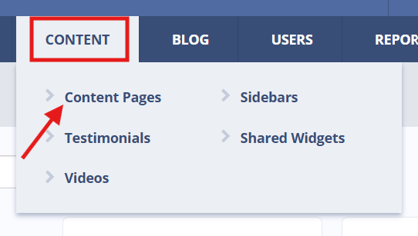
- Select the Content tab from the main header > Content Pages
- Choose one of the following:
- Click Create New Page to create a new page.
- Click the title of an existing page to edit it.
- The Page Editing screen will open. At the top, you’ll see General Settings, followed by Advanced Settings and SEO / Meta Settings.
General Settings
These are the required and core settings for every content page.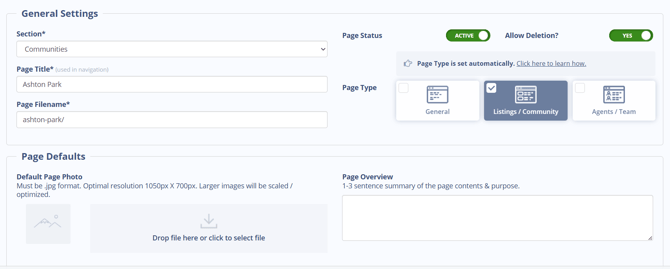
|
Setting |
Description |
Notes |
|
Section |
Select the section of your site where the page will live. |
Ensures the page appears in the correct part of your site. |
|
Page Title |
The title displayed to visitors. |
Used in the page header and navigation. |
|
Page Filename |
Automatically populated based on the page title. |
Can be edited if needed for URL purposes. |
|
Page Status |
Toggle between Active or On Hold. |
Pages set to On Hold are not live on the site. |
|
Page Type |
Automatically set based on page components. |
General: Default, no Listings or Agent/Team widgets. Listings / Community: When one or more Active Listings Widgets are added. Agents / Team: When one or more Agent/Team Members widgets are added. Note: Pages can contain either Listings Widgets or Agent/Team Widgets, not both, to maintain fast loading. |
Page Default Settings
These are settings that control the Thumbnail Image and enhance content labels.
|
Setting |
Description |
Notes |
|
Default Page Photo |
This image will be used as the Thumbnail when sharing this content page via a link. |
This can also be used with Content Labels to enhance their looks by incorporating images into your list of links. |
|
Page Overview |
Only displayed in the Content Label when set to “Display with Image and Description.” |
Only used in Content Labels and does not display anywhere else. |
Advanced Settings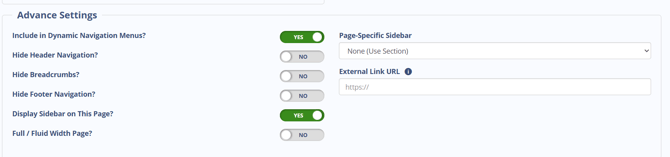
These settings control the appearance and behavior of individual pages.
|
Setting |
Description |
Notes |
|
Include in Dynamic Navigation Menus? |
Determines whether the page appears in the submenu for its section. |
Works when Submenu Type – Pages in Section is enabled in Section Manager. |
|
Hide Header Navigation? |
Controls whether the main site navigation is visible. |
Useful for landing pages or campaigns. |
|
Hide Breadcrumbs? |
Controls whether breadcrumb navigation is shown at the top of the page. |
Example: Home → Section → Page |
|
Hide Footer Navigation? |
Controls whether footer navigation elements are visible. |
Footer typically contains site-wide links. |
|
Display Sidebar on This Page? |
Determines whether the sidebar is visible. |
Sidebars can include links, forms, widgets, calls to action. |
|
Full / Fluid Width Page? |
Controls whether the page spans the full browser width. |
Useful for visual layouts or rich content pages. |
|
Page-Specific Sidebar |
Select which sidebar appears on the page, or choose none. |
Sidebars are created and managed via Sidebar Manager. |
|
Robots / Page Indexing |
Controls whether search engines crawl and index the page. |
Use to hide draft/internal pages or allow public pages to appear in search results. |
Metadata Settings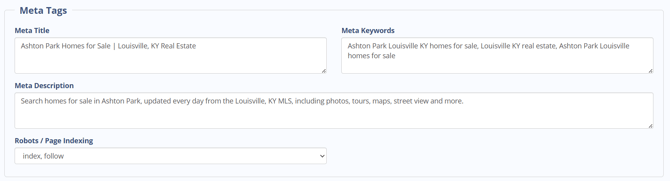
Treating these settings as optional is a missed opportunity. Metadata controls your site's digital signpost in Google search results and gives AI answer engines immediate context about your content.
Meta Title (Target: 50 to 60 characters)
Your title serves as the clickable headline in search results. Keep it concise, placing your primary neighborhood name or lifestyle feature near the front. Titles exceeding 60 characters get cut off by Google, which looks messy to searchers.
Meta Description (Target: 140 to 160 characters)
This brief summary sits beneath your title in search results and provides AI assistants with a quick snapshot of your page. Write a direct, engaging sentence that gives buyers a clear reason to click. Anything over 160 characters risks getting truncated on screen.
Meta Keywords (Target: 3 to 5 focused phrases)
Traditional search engines like Google ignore this field today. However, emerging AI search tools and specialized discovery agents may still scan explicit metadata tags to parse page topics quickly. Keep your entries brief and tightly aligned with the specific neighborhood features on that page.