
Table of Contents
Why This Feature Matters
Sierra Seller Lead Sites are designed to help real estate professionals effectively capture seller-specific leads. By utilizing customizable landing pages, you can address common challenges and tap into valuable business outcomes, such as:
- Attracting motivated sellers through tailored messaging
- Creating a consistent pipeline of homeowners considering listing their homes
- Saving time with automated lead routing and tagging
💡Only Primary Managers and Manager-level users can create Seller Lead Sites. If you do not have access to create then reach out to the Primary Manager to update your permissions under Users > Edit User Profile > Permissions.
Step-by-Step Instructions
1. Navigate to Seller Lead Sites
- Click the Gear icon in Sierra Client Admin Area (CAA) to open your settings.
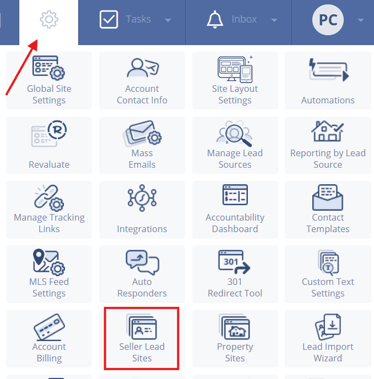
- Select Seller Lead Sites from the menu.
- Click Add New Site to begin building your first seller landing page.

2. Configure Your Site Settings
The setup is organized across tabs. Work through each one in order before publishing.
Branding and Content
This is where you control the look and feel of your site.
- Choose a background image: Use a high-quality local photo for best conversion results.
- Select your brand colors to match your existing marketing.
- Customize your headlines and messaging for both the initial screen and the instant estimate screen.
- Edit the footer text to include your contact info or legal disclaimers.
SEO / Meta Tags
These fields help your site appear in search results if you're driving organic traffic.
- Enter a meta title that includes your target location and value proposition (e.g., "Find Out What Your Denver Home Is Worth").
- Write a meta description: Keep it under 160 characters and action-oriented.
- Add relevant keywords focused on seller intent (e.g., "sell my home," "home value estimate").
Lead Routing / Tracking
This tab controls where leads go and how you track ad performance.
- Assign leads to a specific agent or set up round-robin distribution.
- Add new lead alert email addresses so the right people are notified instantly.
- Enable "Auto-Add Lead Tag with Submitted Zip Code" to automatically tag leads by location which is useful for routing and filtering.
- Add your tracking codes for Google Analytics, Google Ads, Facebook Pixel, or other platforms.
⚠️ Tracking works best on a domain you own. Google Analytics and ad pixel tracking may produce inconsistent or incomplete data on Sierra's free subdomain (onepageproperties.com). For reliable attribution and ad optimization, connect a custom domain you control. See Step 4 for domain options.
3. Preview Your Site
Before you publish, use this tab to review your site exactly as leads will see it.
- Click the Preview tab to open a live preview of your site.
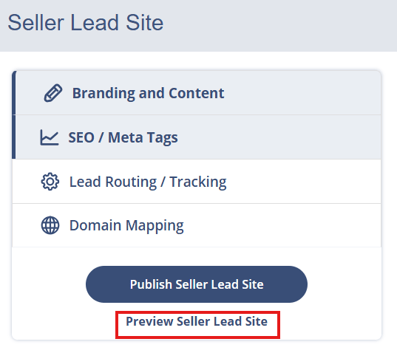
- Check your headline copy, background image, form layout, and footer on both desktop and mobile views.
- Go back to Layout Settings to make any adjustments before moving on.
You must first create the site before you can access Domain Mapping.
Domain Mapping
Choose how your seller site will be accessed on the web. You have three options:
| Option | Best For | Notes |
|---|---|---|
| Register a new domain | Dedicated campaigns | Purchased directly through Sierra |
| Use a domain you already own | Custom branding | Requires updating your DNS settings |
| Use a Sierra subdomain | Quick setup | Free, but tracking may be inconsistent (see note above) |
⚠️ If you plan to run paid ads or track conversions, a custom domain you own is strongly recommended over the Sierra subdomain.
4. Publish Your Site
Once all tabs are complete:
- Click Save at the bottom of each tab after making changes. ⚠️ Sierra does not auto-save between tabs. Save before navigating away or your changes will be lost.
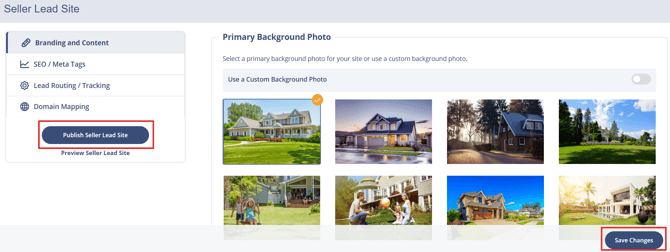
- Once all tabs are complete, click Publish to make your site live.
5. Understand the Auto-Applied Lead Tags
When a lead submits their information, Sierra automatically tags them based on their selected timeframe to sell. These tags flow into your Tag Manager and can power Lead Routing Rules and dashboard filters.
| Timeframe to Sell | Auto-Applied Tag |
|---|---|
| Yes, in 1–3 months | Sell in 1-3 Months |
| Yes, in 3–6 months | Sell in 3-6 Months |
| Yes, in 6–12 months | Sell in 6-12 Months |
| Not right now, I'm just curious | Sell Just Curious |
💡 Set up Lead Routing Rules for each tag right away, this ensures hot leads (1–3 months) get routed and followed up with immediately.
6. Secure Your Seller Lead Site
After publishing, if you want to run multiple seller lead sites without buying a new domain for each one, Sierra can configure subdomain support on a single standalone domain.
- Purchase a standalone domain (e.g., WhatsYourHomeWorth.com).
-
Submit a support ticket with:
- A request to enable subdomains for your Seller Lead Site
- Your domain registrar login credentials
- Sierra will configure the DNS settings to allow subdomain-based URLs.
Example subdomain URLs:
- 123CanterLane.WhatsYourHomeWorth.com
- 456FurlongDrive.WhatsYourHomeWorth.com
- 789ConestogaAve.WhatsYourHomeWorth.com
⚠️ Subdomain sites share the same root domain, so tracking and analytics will behave more consistently than the free Sierra subdomain — but a fully custom domain per site is still ideal for paid ad campaigns.
Best Practices
- Set up lead routing rules for each “time to sell” tag to streamline follow-ups.
- Add tracking codes early for Google and Facebook Ads to optimize performance. For best results, use a custom domain you own as tracking on Sierra's free subdomain (onepageproperties.com) may produce inconsistent or incomplete data.
- Use eye-catching custom images to enhance conversion rates.
- Keep form fields simple to increase submissions and lower drop-off rates.
- Follow up quickly with leads, especially those tagged to sell in the next 3–6 months for maximum engagement.
Troubleshooting & Common Questions
Troubleshooting Common Issues
-
Site not loading after publishing
Double-check DNS settings or submit a support ticket for domain help -
Leads not routing correctly
Ensure zip code tags or time-to-sell tags are used in lead routing rules
FAQs
- Can I edit my seller lead site after it's published?
Yes. Return to Seller Lead Sites in the CAA, make your changes in each tab, and click Save. Changes go live immediately, no need to republish. - Do I have to buy a domain for every seller site?
No. You can use subdomains if Sierra Support enables that option on a single standalone domain. See Step 6 for details. - Where do I view the leads who submitted through my seller site?
Leads appear in your Sierra CRM under your standard lead list. Each lead will have their auto-applied time-to-sell tag visible on their record and in the Tag Manager. - Can I use zip code tags in Lead Routing Rules?
Yes. Enable Auto-Add Lead Tag with Submitted Zip Code in the Lead Routing / Tracking tab. The submitted zip code is then available as a tag condition in your routing rules.