
Table of Contents
Why This Feature Matters
By using Contact Templates, your team can:
- Save time by reusing common messages.
- Ensure consistency across all users’ communication.
- Personalize at scale using Merge Fields (also called Global Variables).
- Keep outreach professional, while still feeling one-to-one.
Step-by-Step Instructions
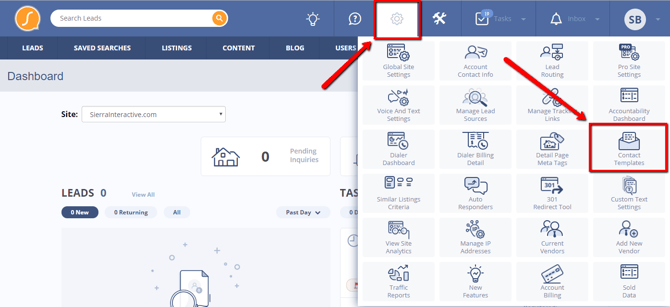
1. Access the Contact Template Manager
-
Click the Gear icon in the top-right corner
-
Select Contact Templates from the dropdown menu
2. Create a New Template
- On the Manage Contact Templates page, click Create New Template.
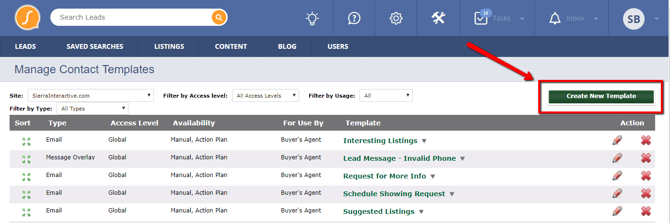
- In the template builder overlay, complete the following:
- Template Type: Select either Email or Text Message.
- Define Template Usage: Assign the template to a user role: Buyer's Agents, Listing Agents, or Lenders
- Set Template Availability: Choose where the template can be used: Manual Emails, Drip Campaigns, or Action Plans
-
- Template Name: Enter an internal name (visible only to your team).
- Subject (Email only): Add the subject line leads will see.
- Message: Write your email or text message content. Use Merge Fields to personalize.
-
Example:
Hello, {lead_first_name}! I’m {agent_first_name} {agent_last_name}.Leads will see:
Hello, Jane! I’m Anita House.
-
A character counter appears when creating text templates. Messages longer than 160 characters are split into multiple SMS segments but delivered as one thread. Keep text messages under 160 characters when possible to maximize deliverability.
- When finished, click Save.
3. Use Your Template When Messaging Leads
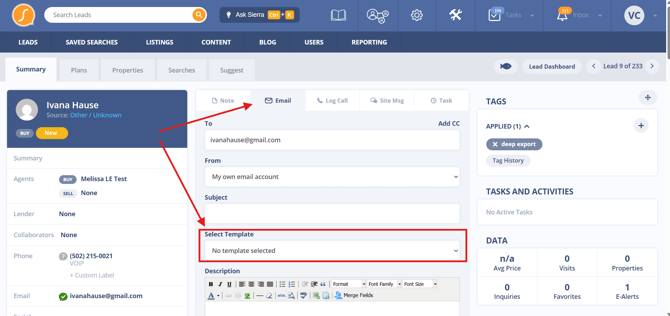
When composing an email or text from a Lead Detail Page, Inbox, or Mass Messaging view:
-
Open the Template dropdown.
-
Select the saved template you want to use.
-
The message will auto-fill with your template content, including merge fields.
Best Practices
- Use clear, descriptive names so templates are easy to find.
- Keep messages short and focused (especially texts).
- Personalize with 1–2 Merge Fields for best results.
- Review templates regularly to keep messaging fresh and relevant.
- Preview messages before saving to check formatting and variable accuracy.
- Use Global templates when standardizing outreach across your team for consistent messaging.
Troubleshooting Common Issues
- Template doesn’t appear when composing a message → Confirm the template is set to be available for that message type (Email or Text) and that the Access Level is set appropriately (e.g., Global)
- Merge Fields aren’t populating correctly → Make sure you’re using valid variable syntax (e.g., {lead_first_name}) and sending the message from a lead record with the required data
- User can't see or edit templates → Check their Global Account Permissions.
FAQs
- Can I use the same template for both email and text?
No, you’ll need to create a separate template for each type. Drip campaigns only support email templates.
- Can agents create their own personal templates?
Yes, agents can create personal templates that are only visible to them. To share templates, use the Global access setting.
- Where can I update or delete a template?
Go to Admin > Contact Templates. From there, you can edit, duplicate, or delete any templates you have permission to manage. Use the pencil icon to edit or the red X to delete.