
Why This Feature Matters
Cross-linking connects your property listing pages with your community content so visitors can easily explore neighborhood details without extra searching.
This helps you:
- Keep users engaged longer by surfacing relevant local info directly on listings
- Drive more traffic to community pages through internal linking
- Improve SEO by strengthening site structure and content connections
In short, it creates a smoother, more informative browsing experience for your leads.
Table of Contents
How to Set Up Cross-Linking
Follow these steps to connect a community page to related property listings:
1. Open the Page You Want to Link
- Log in to your Client Admin Area (CAA)
- Navigate to Content → Content Pages
- Select the community page you want to connect
2. Find the Cross-Linking Section
- In the page editor, scroll until you see:
“Community Page / Property Listing Detail Page Cross-Linking”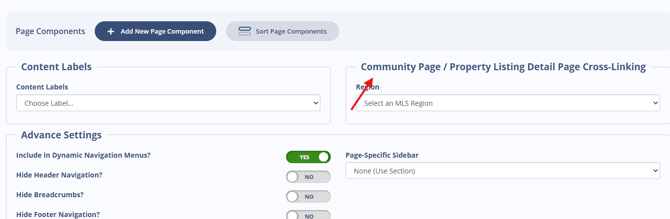
3. Search for the Community Name
- Start typing the name of the community in the input field
- A dropdown will appear with matching options grouped by type (Subdivision, City, County, etc.)
4. Select All Relevant Matches
- Choose the correct community name(s) from the list
- If there are variations (e.g., “Bear Hollow” vs. “Bear Hollow Subdivision”), select all applicable options. This ensures your page appears on every relevant listing, not just some of them.
5. Save Your Changes
- Click “Save and Exit” in the right-hand panel
Your cross-linking will now be applied.
Important Note About MLS Listings
The dropdown options are pulled from active MLS® listings.
- If a community name doesn’t appear, it likely means there are no active listings for it yet
- Once a listing becomes active, the option will appear automatically
Best Practices
To get the most out of cross-linking:
- Be thorough: Select all name variations to maximize coverage
- Keep it updated: Check back periodically as new listings may introduce new naming variations
- Use it consistently: Apply cross-linking to every community page to improve discoverability
Troubleshooting & Common Questions
Troubleshooting Common Issues
-
"Community name not showing in the dropdown"
Wait until at least one listing becomes active, then try again -
"Only some listings are linking correctly"
Go back and add any missing variations in the cross-linking section
FAQs
-
Can I link a page to multiple communities?
Yes. You can select multiple community names and variations to expand coverage. -
Why don’t I see the cross-linking feature?
Make sure you're editing a community content page. If the section is still missing, reach out to support. -
Does this work for cities or counties too?
Yes. You can link to subdivisions, cities, counties, and other location types, just select the correct option from the dropdown.