
Table of Contents
- What is Elfsight?
- Elfsight Pricing
- Important Limitations
- How to Add an Elfsight Widget to Your Page
- Best Practices
- Recommended Widgets for Real Estate Professionals
- Additional Resources
What Is Elfsight?
Elfsight is a third-party widget platform that lets you embed interactive, visually rich elements into your website without writing any code. Sierra's Elfsight integration makes it possible to add Elfsight widgets directly to your Content Pages and Blog Posts as a Page Component, unlocking a wide range of lead capture, social proof, and engagement tools.
For a general overview of Page Components in Sierra and all available component types, see Enhance Your Pages with Page Components.
Elfsight Pricing
Elfsight operates on a freemium model. Your account tier determines how many widgets you can create.
|
Plan |
Widgets Available |
Best For |
|---|---|---|
|
Free |
1 widget |
Testing a single widget type before committing |
|
Paid |
Multiple widgets |
Agents and teams wanting varied widget types across multiple pages |
If you plan to use more than one type of Elfsight widget across your site, a paid Elfsight plan is required. Review all available plans and pricing at elfsight.com/pricing.
Important Limitations
⚠️ Each Content Page or Blog Post supports a maximum of 5 Elfsight Page Components. Plan your page layout accordingly before adding widgets.
Additional limitations to keep in mind:
- The Elfsight Page Component is available on Content Pages and Blog Posts only. It is not available on other page types.
- Each Elfsight component requires a unique embed code from your Elfsight account.
- Free Elfsight accounts are limited to one widget type. If you need different widgets on different pages, a paid plan is required.
- Widget display and behavior are managed within your Elfsight account. Sierra does not control widget content or settings.
How to Add the Elfsight Page Component
Get Your Elfsight Embed Code
Before you can add an Elfsight widget to Sierra, you need to create the widget in your Elfsight account and retrieve its embed code.
- Go to elfsight.com and log in (or create a free account).
- From your Elfsight dashboard, click Create Widget.
- Browse the widget catalog and select the type you want (for example, Google Reviews, Instagram Feed, or FAQ).
- Customize the widget using Elfsight's settings (colors, layout, content source, etc.).
- Once satisfied, click Save or Publish in Elfsight.
- Click Install or Get Code on the widget.
- Copy the embed code snippet provided by Elfsight.
- Return to Sierra and paste this code into the Elfsight Page Component field as described in Section 4 above.
Add Elfsight On a Content Page
- Log in to your Sierra Client Admin Area (CAA).
- Click Content in the top navigation.
- Select Content Pages.
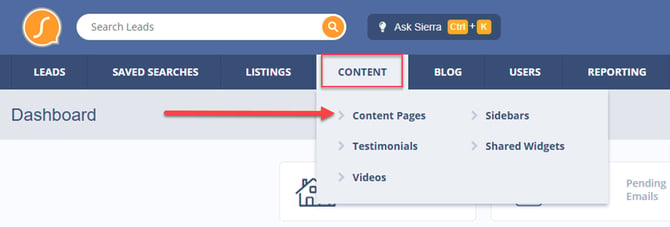
- Click Create New Page or open an existing page to edit.
- Scroll down and click + Add New Page Component.
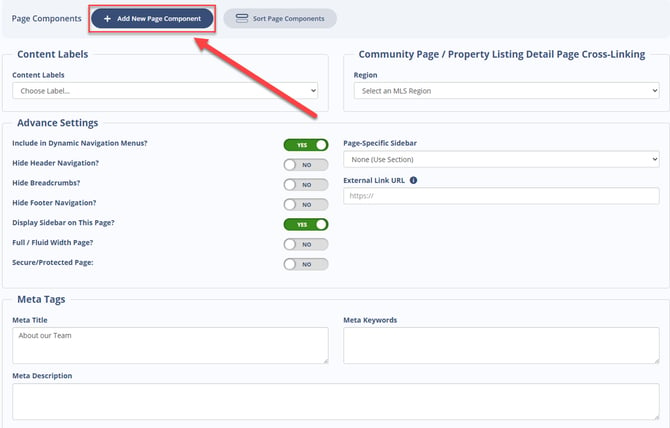
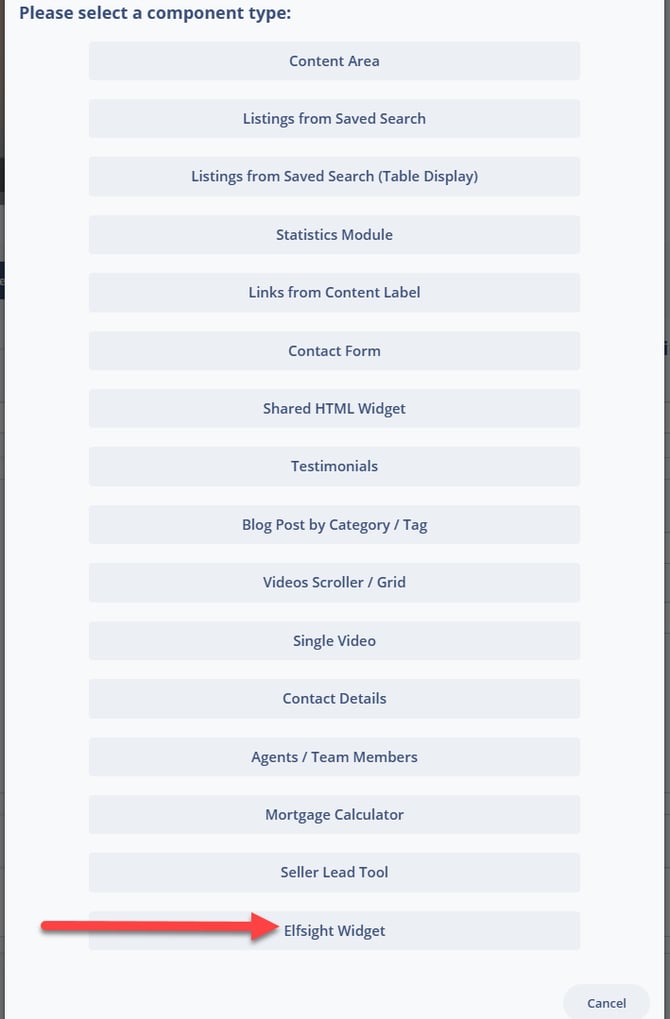
- In the overlay window, select Elfsight from the component list.
- Paste your Elfsight embed code into the provided field (see Section 5 below).
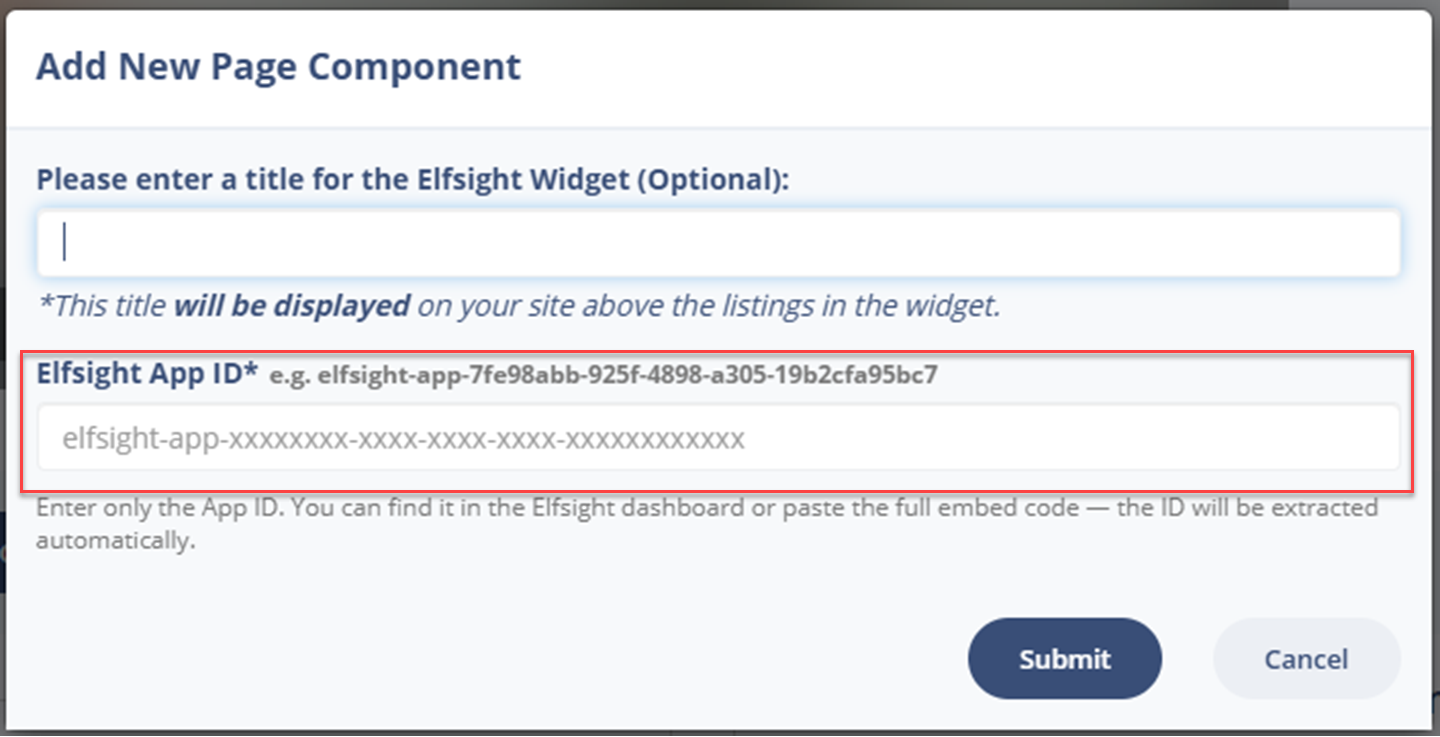
- Click Save to apply the component to your page.
Add Elfsight On a Blog Post
- Log in to your Sierra Client Admin Area (CAA).
- Click Content in the top navigation.
- Select Blog Posts.
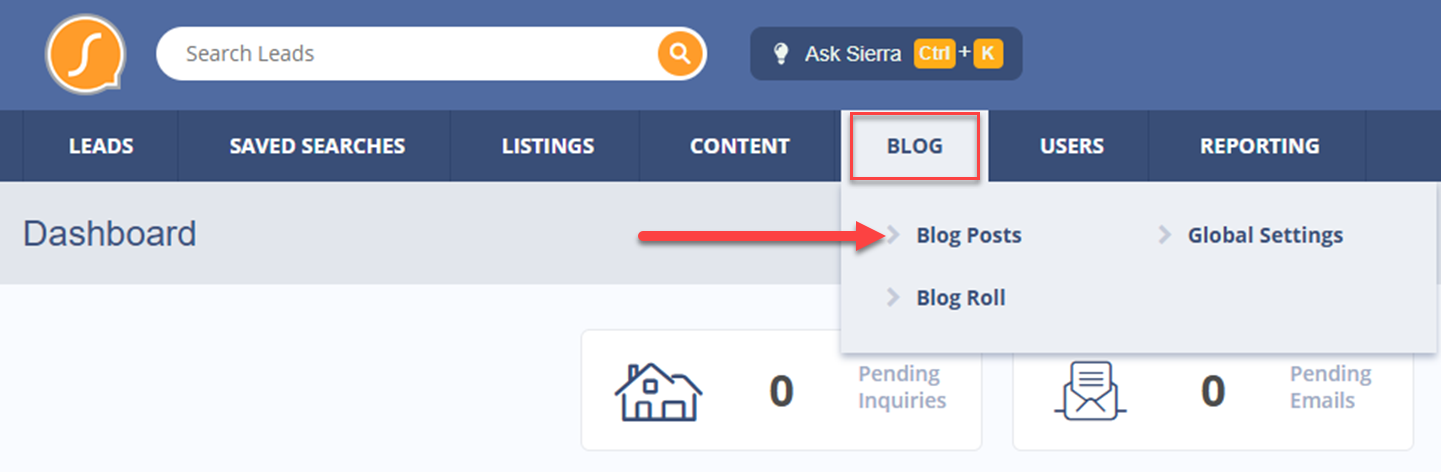
- Click Create New Blog Post or open an existing post to edit.
- Scroll down and click + Add New Page Component.
- Select Elfsight from the component list.
- Paste your Elfsight embed code and click Save.
Need help within Elfsight? Visit the Elfsight Help Center for step-by-step instructions on building and configuring widgets.
Recommended Widgets for Real Estate Professionals
Elfsight offers hundreds of widget types. The following widgets are particularly well-suited for real estate agents and teams looking to build credibility, generate leads, and increase engagement on their Sierra website.
This is not an exhaustive list. Elfsight offers hundreds of additional widget types. Explore the full catalog at elfsight.com to find widgets that fit your business needs.
|
Widget |
Best Use for Real Estate Professionals |
|---|---|
|
Google Reviews |
Display your Google Business reviews directly on your site to build social proof with buyers and sellers. |
|
Facebook Reviews |
Showcase client feedback from your Facebook page to reinforce credibility across platforms. |
|
Testimonials Slider |
Feature rotating client testimonials in a polished slider layout to highlight your expertise and past successes. |
|
Instagram Feed |
Embed a live Instagram feed to showcase listings, community highlights, and behind-the-scenes content. |
|
Facebook Feed |
Pull your Facebook page activity onto your site to keep content fresh and promote your social presence. |
|
TikTok Feed |
Display your TikTok videos for agents actively using short-form video to market listings and build brand awareness. |
|
Social Feed |
Aggregate posts from multiple social platforms into a unified feed for visitors to browse. |
|
YouTube Gallery |
Showcase a gallery of your YouTube videos, including listing walkthroughs, neighborhood tours, and educational content. |
|
Event Calendar |
Promote open houses, community events, or webinars with an interactive calendar widget. |
|
Form Builder |
Create custom forms for buyer consultations, seller inquiries, or referral requests beyond Sierra's native contact form. |
|
Contact Form |
Add a quick-contact form to any page to make it easy for visitors to reach you directly. |
|
AI Chatbot |
Deploy a customizable AI chatbot to answer common buyer and seller questions around the clock. |
|
FAQ |
Add an expandable FAQ section to answer common questions about the buying or selling process and boost on-page SEO. |
|
Google Maps |
Embed an interactive map to highlight neighborhoods, office location, or points of interest near a listing. |
|
Logo Showcase |
Display logos from preferred vendors, lenders, or community partners to add credibility and highlight your professional network. |
|
PDF Embed |
Embed buyer guides, seller presentations, neighborhood reports, or other PDF resources directly on your content pages. |
|
Social Share Buttons |
Add one-click sharing buttons so visitors can easily share your listings or blog posts across social media. |
|
Facebook Chat |
Allow visitors to start a Facebook Messenger conversation directly from your website for quick, informal communication. |
|
Job Board |
Post open agent or admin positions on your site to support team recruiting efforts. |
Best Practices
- Plan your widget layout before you start. With a 5-widget limit per page, decide which widgets add the most value to that specific page before adding them.
- Match widgets to the page's purpose. Google Reviews belong on a homepage or about page; a Form Builder or AI Chatbot may perform better on a listings or neighborhood page.
- Use Elfsight's preview tools before saving. Customize and review each widget in your Elfsight account before copying the embed code to avoid publishing an unfinished widget.
- Check display on mobile. Some widget types may render differently on smaller screens. Review each page on a mobile device after adding widgets.
- Free plan users: choose your one widget strategically. Google Reviews or a Testimonials Slider typically deliver the highest trust signal for real estate professionals on a free account.
Additional Resources
- Enhance Your Pages with Page Components (Sierra Help Center)
- Elfsight Pricing
- Elfsight Help Center
- Using the Content Editor to Create Content Pages (Sierra Help Center)
- How to Create and Manage Blog Posts in Sierra (Sierra Help Center)