
Overview
Page Components are prebuilt, customizable elements you can add to your website pages or blog posts without frontend development required. They allow you to easily enrich your content with listings, videos, forms, and more, creating a more engaging and dynamic user experience.
Table of Contents
Why This Feature Matters
Increase Engagement & Conversions
Adding Page Components helps keep visitors on your site longer by making your pages more interactive and informative. You can also strategically place calls to action, like contact forms or listing displays, to increase lead conversion opportunities.
Improve SEO Performance
Page Components play a key role in strengthening your on-page SEO by allowing you to:
- Create internal links between related content (content clusters)
- Display relevant listings tied to specific searches
- Add rich media like videos and testimonials to enhance content value
Where to Find Page Components
On Content Pages
- Log in to the Sierra Client Admin Area (CAA)
- Click Content in the top navigation
- Select Content Pages
- Click Create New Page (or edit an existing page)
- Scroll down and click + Add New Page Component
- Choose your desired component from the overlay window
On Blog Posts
- Click the Blog tab
- Select Blog Posts
- Click Create New Blog Post or edit an existing one
- Scroll down and click + Add New Page Component
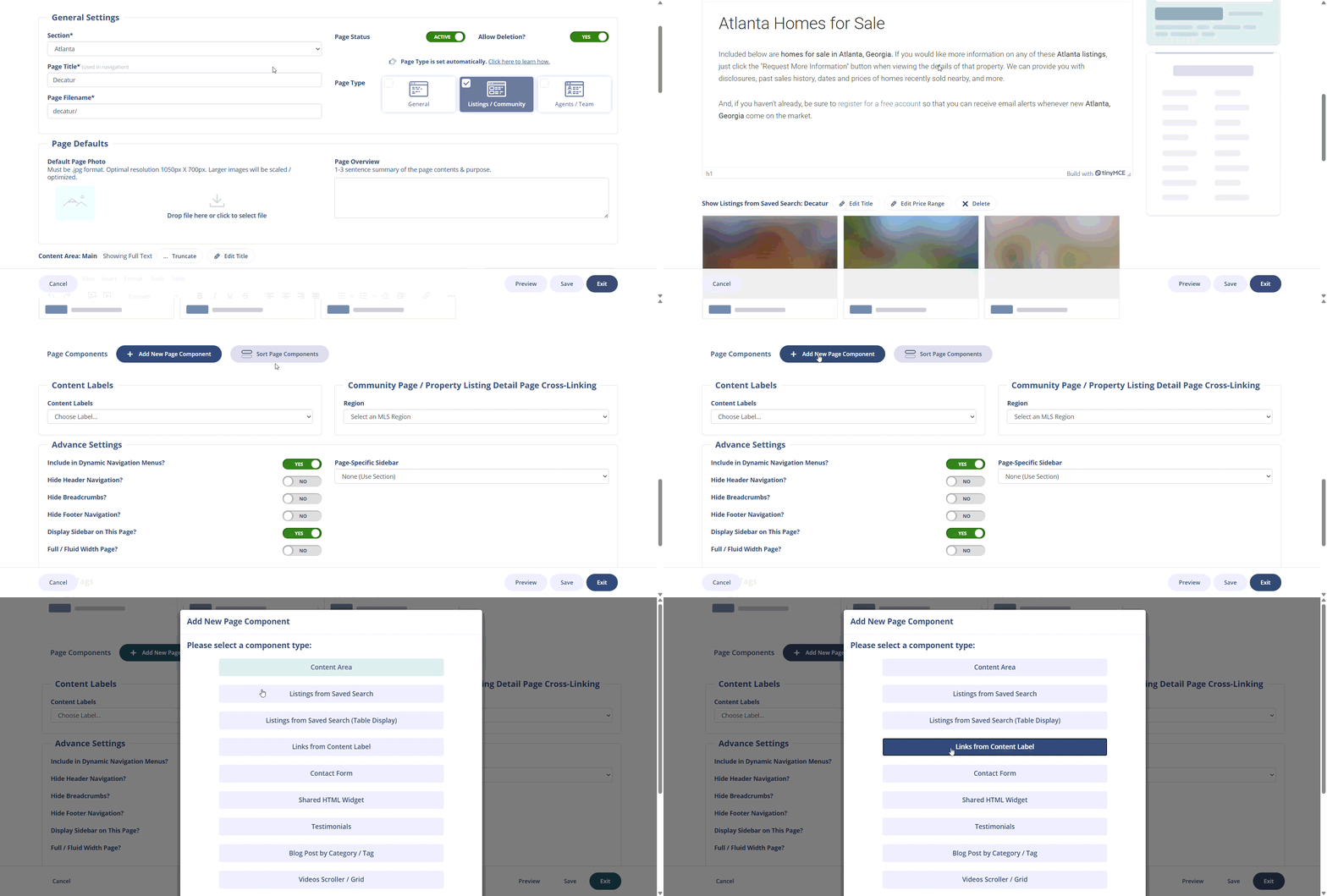
Page Component Descriptions
Below is a breakdown of available Page Components and when to use them:
|
Page Component |
Description |
When to Use |
|
Content Area |
Add text, images, videos, and links with full formatting control. |
Use it as the main building block for creating and formatting your page content. |
|
Listings from Saved Searches |
Displays listings based on saved search criteria. |
Lets users display listings on a page based on specific criteria, like your listings, a neighborhood, or features such as pools or school districts. |
|
Listings from Saved Searches (table display) |
Displays listings in a structured table format. |
Ideal for a more data-focused, organized layout. |
|
Links from Content Label |
Displays a list of related content pages. |
Lets users display a table of related pages, making it easy to showcase grouped content like buyer or seller resources on the same page. |
|
Contact Form |
Adds a lead capture form to your page. |
Capture visitor information on content pages where registration isn’t automatic. 💡Boost User Engagement: How to Add a Contact Form to Your Content Pages |
|
Shared HTML Widget |
Allows you to insert custom HTML components. |
Use for advanced customization or reusable design elements. |
|
Testimonials |
Displays client testimonials on your page. |
Lets users add client Testimonials to highlight your expertise and build trust with potential leads. |
|
Blog Post by Category/Tag |
Displays blog posts based on selected categories or tags. |
Highlight related blog content, such as community insights or lifestyle topics. |
|
Video Scroller/Grid |
Displays multiple videos in a scrollable or grid layout. |
Keep visitors engaged by showcasing a video collection, featuring content such as local insights or community highlights. |
|
Single Video |
Displays one featured video. |
Highlight a specific message or piece of content. |
|
Contact Details |
Automatically displays your contact information. |
Ensure consistent contact details across pages without manual entry. |
|
Agents/Team Members |
Displays agent or team profiles. |
Showcase your team to build trust and provide social proof. 💡Manage Agents and Display Them on Your Site Using the Sierra Agent Manager and Agent / Team Widget |
|
Mortgage Calculator |
Provides a built-in payment calculator. |
Use on buyer-focused pages to help visitors estimate affordability. |
|
Seller Lead Tool |
Adds a home valuation tool to capture seller leads. |
Lets users add a home valuation widget to your site to attract and capture potential seller leads. 💡 Create Effective Seller Lead Sites to Capture Homeowner Leads |
Best Practices
- Use a mix of components (text, video, listings) to keep pages engaging
- Add internal links through Content Labels to boost SEO
- Place contact forms strategically throughout your pages
- Keep content organized with tags to ensure components populate correctly
Troubleshooting Common Issues
- Seller Lead Tool is missing
Make sure you’ve set up and launched a Seller Lead Site before adding this component. - No videos appear in the Single Video component
Upload your videos first via:
Content → Videos (from YouTube or Vimeo). - Agents/Team Members are not showing
Ensure Agent Profiles have been created in your system. - Components are empty or not populating correctly
Check Content Tags: Ensure your content is correctly categorized using tags. Tags organize content like:
-
- Testimonials
- Videos
- Team Members
- Workaround: You can create a custom About page and hide the original one to avoid this limitation.