
Overview
The Sierra Interactive and Follow Up Boss (FUB) integration keeps your lead data aligned across both platforms, ensuring your team always works from the most accurate and up-to-date information.
With proper setup and occasional maintenance, syncing allows you to automate data updates, reduce manual entry, and maintain consistency across your systems.
Table of Contents
How Syncing Works
Once the integration is enabled, Sierra and FUB automatically share key lead data between platforms. This includes updates to contact details, assignments, and tags. If you've turned on communication sync, notes, calls, and other communication items also sync based on your settings.
For leads that exist in only one system or if data becomes misaligned you can run a manual sync to bring both platforms back into alignment.
What Data Syncs Between Sierra and FUB
The following data syncs between both platforms:
- Lead contact information (name, email, phone, address)
- Tags
- Lead source
- Agent assignments
- Optional: Communication items, in either direction, depending on your sync settings
- Sierra to FUB: site messages, emails, logged phone calls, text messages, and notes
- FUB to Sierra: phone calls and notes
Each direction has its own setting, so you can turn on one, both, or neither. To review or change these settings, see Connect and Configure Sierra Interactive with Follow Up Boss.
The following data does not sync:
- Lead statuses in Sierra
- Stages in FUB
- Lender assignments
Understanding what does and does not sync helps set expectations and ensures your team uses each platform effectively.
Before You Sync: User Matching Requirements
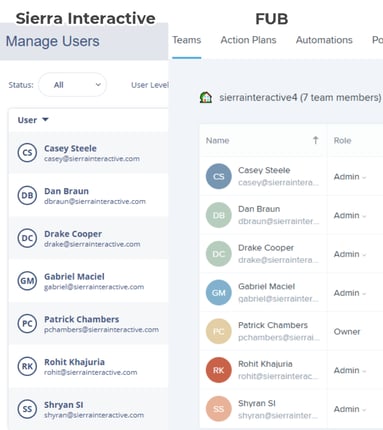
For syncing to work correctly, users must exist in both Sierra and FUB with matching email addresses.
This ensures:
- Leads are assigned to the correct agents
- Notes and activity stay connected to the right users
- Sync processes complete successfully
If users are not aligned, certain data, especially assignments, may not sync as expected.
Importing Users from FUB
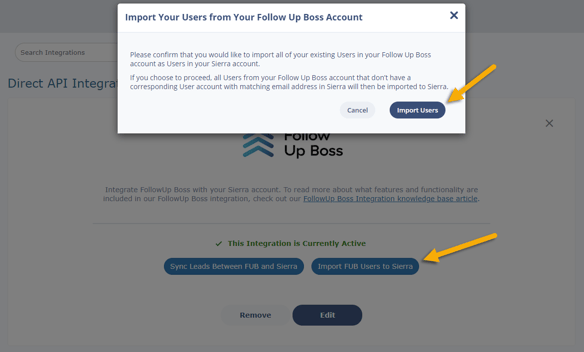
To streamline setup, you can import users from FUB directly into Sierra.
What this does:
- Creates Sierra users for any FUB users that do not already exist
- Matches users based on email address
- Helps ensure assignments and communication sync correctly
To import users:
- Go to Settings > Integrations > Follow Up Boss
- Click Import Follow Up Boss Users to Sierra
- Select Import Users
Running a Manual Sync
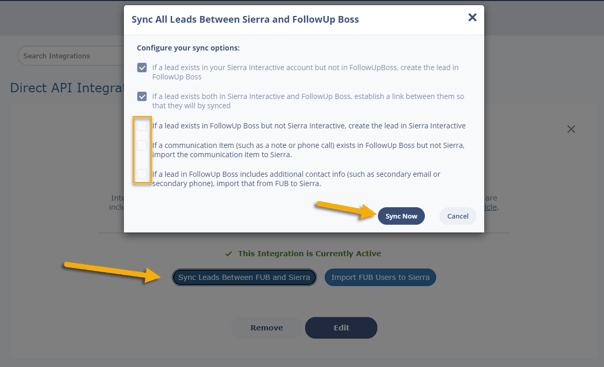
While syncing happens automatically for most activity, a manual sync can be used to align historical data or connect leads that exist in only one system.
To run a manual sync:
- Go to Settings > Integrations > Follow Up Boss
- Click Sync Leads Between Follow Up Boss and Sierra
- Review your sync options
- Click Sync Now
What to expect:
- The system will verify that users match before starting
- Larger syncs may take several hours depending on lead volume
- You can choose optional settings based on your sync goals
Manual syncs are especially useful after initial setup or when making large updates.
Resetting the Integration
In some cases, you may want to fully reset the integration and reconnect both systems.
This process:
- Disconnects the current integration
- Allows you to reconnect using an API key
- Requires a manual sync afterward to reconnect existing leads
To reset:
- Go to Settings > Integrations > Follow Up Boss
- Click Edit and proceed to Step 11
- Select Remove
- Reconnect the integration using a valid API Key
- Run a manual sync
Resetting does not delete your data, but it does require re-syncing to restore connections.
Best Practices
To keep your data aligned and your workflows running smoothly:
- Ensure all users exist in both systems with matching emails
- Run manual syncs after major updates or changes
- Schedule large syncs outside of business hours
- Use a valid API Key created by the FUB account owner
- Periodically review data to confirm alignment
Troubleshooting & Common Questions
Troubleshooting Common Issues
-
Leads, agent assignments, or tags are not syncing.
Confirm that all users match on both Sierra and FUB. -
Leads did not sync from FUB to Sierra.
Verify that every lead in FUB includes an email address. Leads without an email will not sync with Sierra. -
The sync process is slow.
Large syncs can take time; schedule them for outside business hours. -
Manual sync won’t start.
Ensure all user discrepancies are resolved first. - Notes or communication items aren't appearing in the other system.
Communication sync is controlled by two separate settings: Send communication items from Sierra to FUB and Send communication items from FUB to Sierra. Confirm the setting for the direction you expect is toggled ON, and that users match by email address in both systems.
FAQs
-
Do I need to run manual syncs regularly?
No. Most data syncs automatically, but manual syncs are helpful for aligning historical data or resolving gaps. -
Why are some leads not syncing?
Leads in FUB must have an email address to sync into Sierra. -
What happens if I reset the integration?
Your data remains intact, but you’ll need to run a manual sync to reconnect leads across both systems. -
How do I disable or remove the Follow Up Boss integration?
To disable the FUB integration, you’ll need to remove the connection from within the integration settings:- Go to Settings > Integrations > Follow Up Boss
- Click Edit on the existing integration
- Continue through the setup steps until you reach Step 11
- Click Remove
- When prompted, confirm by selecting “Are you sure you want to remove this integration?” → Confirm
Once confirmed, the integration will be disabled.