
Overview
Your Sierra homepage supports a full-width background photo or looping video. This article covers how to upload or change that media, the requirements for each format, and what to expect on mobile devices.
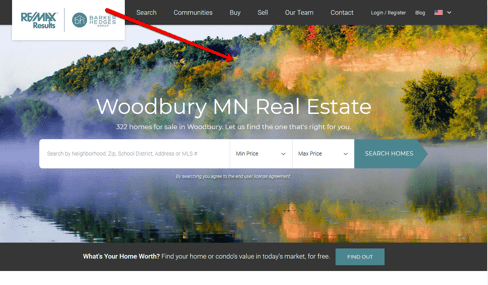
Table of Contents
- Why This Feature Matters
- Adding or Changing the Background Photo
- Adding a Background Video
- Best Practices
- Troubleshooting Common Issues
- FAQs
Why This Feature Matters
- A strong homepage visual is the first impression for most site visitors and it sets the tone before they read a word.
- Background videos create a more immersive experience on desktop and can increase time spent on the page.
- Because videos don't display on mobile, a well-chosen fallback photo ensures the homepage looks polished on every device.
- Keeping your homepage media current signals to returning visitors that the site is active.
Adding or Changing the Background Photo
- Navigate to the Gear Icon > Site Layout Settings.
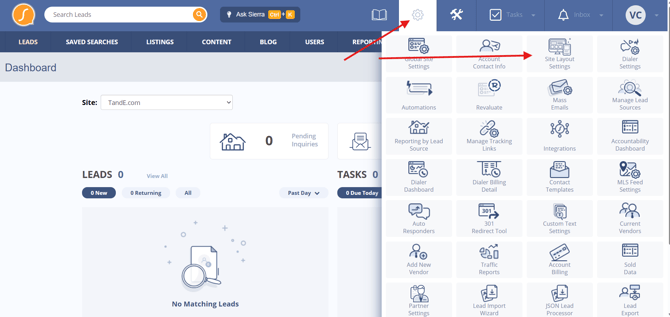
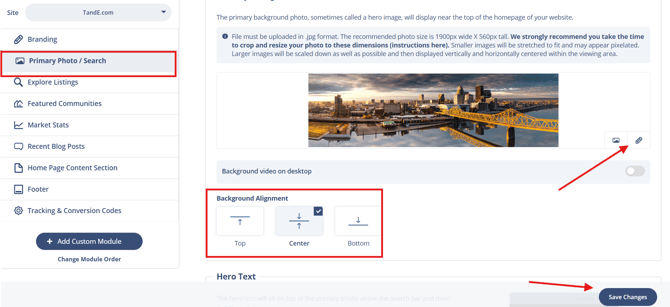
- Select the Primary Photo/Search tab.
- Upload your image in .jpg format. Recommended dimensions: 1900px wide × 560px tall.
- Select your Background Vertical Position — Top, Center, or Bottom — to control how the image is cropped on different screen sizes.
- Click Save.
Adding a Background Video
Background videos loop silently on desktop. On mobile devices, your background photo displays instead.
Before you start:
- Videos must be hosted on YouTube or Vimeo. Locally uploaded video files are not supported.
- Vimeo requires a Standard, Advanced, or Enterprise account to use the background video feature. Free Vimeo accounts are not supported.
- For Vimeo: enable the loop setting on your video before copying the link, then use the High-def link.
- ⚠️ YouTube videos will briefly display a play button overlay when the background video loads. This cannot be disabled. If you prefer a cleaner, uninterrupted visual, Vimeo is recommended.
Steps:
- Navigate to the Gear Icon > Site Layout Settings.
- Select the Primary Photo/Search tab.
- Copy the URL of your YouTube or Vimeo video.
- Paste the URL into the Video URL field.
- Select your Background Vertical Position.
- Click Save. The video will loop automatically on desktop.
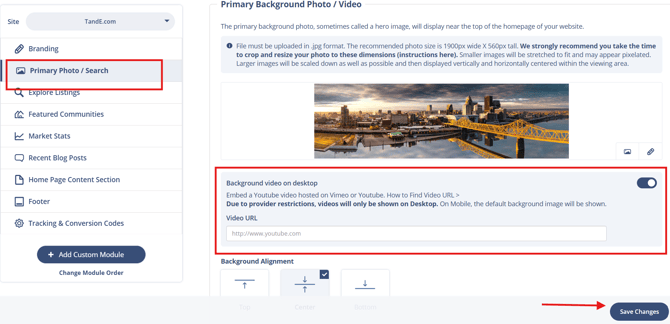
⚠️ Make sure a background photo is also uploaded. It displays as the fallback on mobile and for any visitors whose browsers block autoplay video.
Best Practices
- Use an image that meets the recommended dimensions (1900px × 560px) to avoid stretching or distortion. Uploading an oversized image and relying on cropping can produce unpredictable results.
- If choosing between YouTube and Vimeo for your background video, Vimeo is the stronger option as it produces better visual quality, doesn't display platform branding or suggested videos, and avoids the play button overlay that briefly appears on YouTube background videos due to a recent platform change.
- Set your Background Vertical Position based on where the main subject of your photo or video frame sits so if your key visual element is centered, use Center; if it's a skyline or landscape, Top or Bottom may frame it better.
- Revisit your homepage media seasonally or after major market shifts — stale visuals are easy to overlook but visible to every new visitor.
Troubleshooting Common Issues
- Video doesn’t display on mobile devices.
This is expected behavior. Video providers restrict autoplay on mobile browsers. Your background photo will display instead so make sure a photo is uploaded so the fallback isn't blank. - My image is stretched or distorted.
Your photo may not match the recommended dimensions of 1900px × 560px. Resize it to the correct dimensions using an image editing tool before uploading. Uploading a very small image and having it scaled up is the most common cause of distortion. - Video URL isn't being accepted.
Confirm you're using a direct YouTube or Vimeo URL (not a shortened link or embed code). For Vimeo, make sure you're copying the High-def link, not the standard share URL. - Changes aren't showing on the live site.
After saving, allow a few minutes for CDN propagation. If the update still isn't visible after 10–15 minutes, try clearing your browser cache or viewing the site in an incognito window.
FAQs
- Can I upload a video file directly from my computer?
No. Only videos hosted on YouTube or Vimeo are supported as background videos. Upload your video to one of those platforms first, then paste the URL into the Video URL field. - Does the background photo or video work on all devices?
Background images will display on all devices, but videos are only shown on desktop versions of the site. - How do I remove the background video without deleting my photo?
Clear the Video URL field in the Primary Photo/Search tab and click Save. Your background photo will continue to display.