
Table of Contents
Why This Feature Matters
Adding photos or videos to your messages can:
- Enhance clarity and engagement with visual context.
- Increase response rates with rich media.
- Improve lead qualification through image or video walkthroughs.
Consider how often communication can feel impersonal—adding visual elements transforms your messages, making interactions feel more personalized and impactful.
Step-by-Step Instructions
1. Connect to the Sierra Dialer
Before sending text messages with attachments:
-
Enable the Sierra Dialer at the team/account level
-
Connect to the Sierra Dialer at the individual user level
If your site doesn’t have the Dialer, contact support@sierrainteractive.com
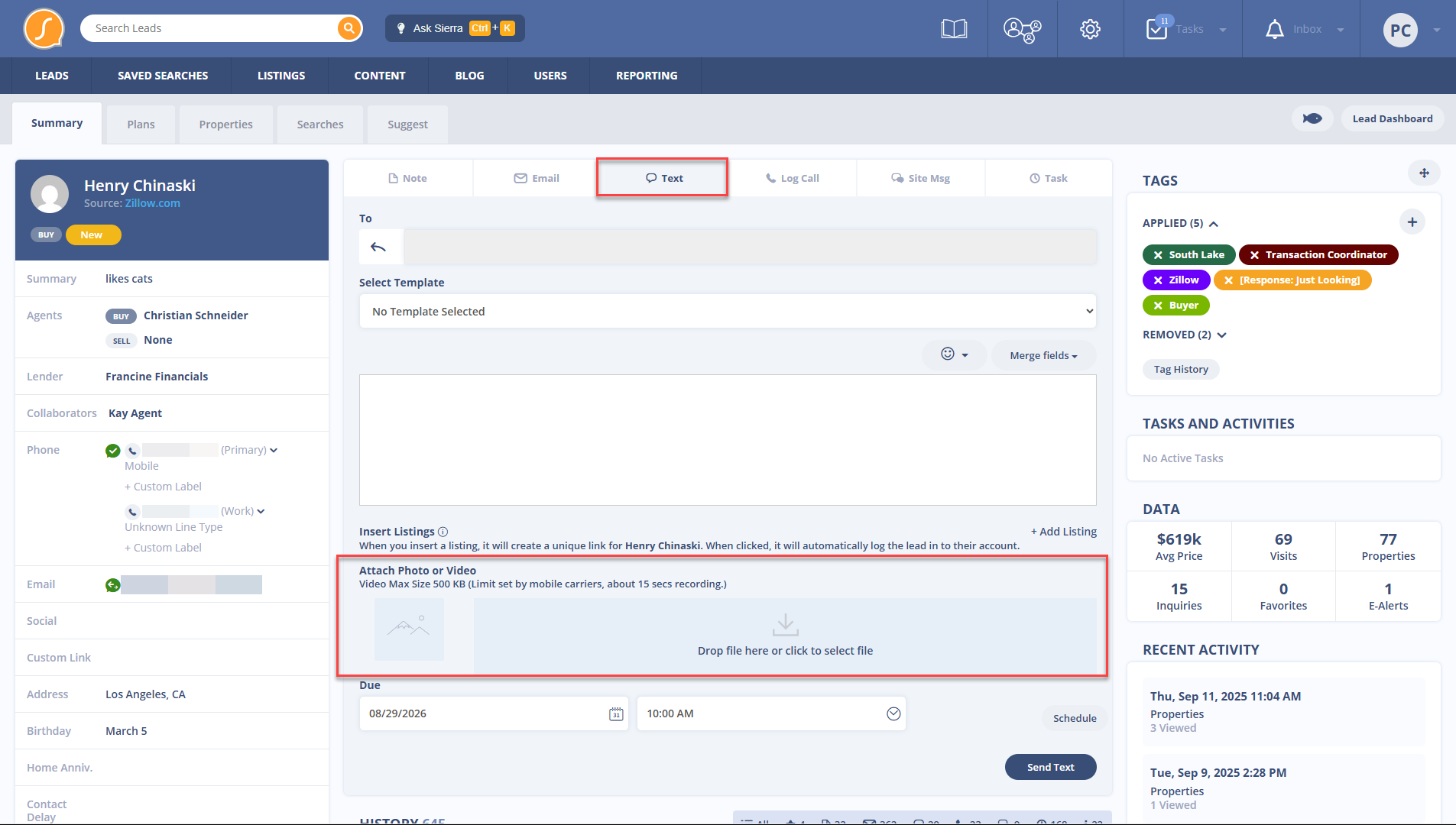
2. Add Photos or Videos to a Text Message
-
While composing a message, click “Drop file here or click to select file” under the “Attach Photo or Video” section
-
Or, drag and drop your file into that area
-
Enter text content (required) before sending the message
3. Where You Can Add Photos & Videos
You can add media attachments wherever text messaging is available in Sierra, including:
-
Manual texts (Lead Detail Page or Inbox)
-
Mass texts from the Lead Dashboard
-
Text message contact templates
-
Auto responders
-
Tracking links using the Tracking Link Generator
4. Attachment Limits
-
Maximum: 3 photo and/or video files per message
-
Mix and match photos and videos in the same message
5. File Size Limits
-
Photos: Up to 5MB each (auto-scaled before sending)
-
Videos: Up to 0.5MB each (~15 seconds) due to carrier limits
Tip: Use Snapchat or Instagram to record and download short videos
6. Accepted File Formats
-
Photos: .jpg, .jpeg, .png, .gif
-
Videos: .mp4, .3gp, .3g2, .h261, .h263, .h264, .mpeg, .webm, .qt
7. View Sent Media in Lead History
-
All media messages appear in the lead’s correspondence history
-
Accessible from the Lead Detail Page or when composing follow-up messages
Best Practices
- Use clear, high-quality images that directly support your message.
- Keep videos under 15 seconds to meet file size limits and enhance viewer engagement.
- Add brief context in the message body to explain the attachment and its relevance.
- Avoid sending overly large files that may fail to deliver and disrupt communication.
Troubleshooting Common Issues
- Issue: File won’t upload
- Solution: Check that file format and size meet the accepted limits
- Issue: Message won’t send
- Solution: Confirm that you’ve entered text in addition to the attachments
FAQs
- How many photos or videos can I send per message?
- You can send up to 3 combined photo/video attachments per text message.
- What happens if I exceed the file size limit?
- The file will fail to upload. Resize the media or record a shorter video.
- Where can I check my MMS usage?
- Go to the Dialer Billing Detail page in your admin to track MMS usage.