
Why This Feature Matters
Tracking technologies such as the Meta Pixel allow businesses to measure website activity and advertising performance. Sierra provides a dedicated section where authorized users can install, update, or remove tracking and conversion IDs at the account level.
This resource explains where to manage these settings and how to add or remove a Meta Pixel ID and other supported tracking codes.
Sierra does not provide legal guidance regarding tracking technologies. Clients are responsible for determining whether and how tracking technologies should be used in compliance with applicable laws and regulations.
💡Only Primary Manager & Managers can access and modify tracking and conversion code settings. If you do not see the options described below, you may not have the required permissions.
Table of Contents
Important Considerations
- Sierra provides the technical ability to add or remove tracking codes.
- Sierra does not manage or monitor how tracking technologies are used.
- Sierra does not add tracking codes on behalf of customers.
- Clients are responsible for ensuring compliance with applicable privacy laws, regulations, and platform policies.
- You may wish to consult with legal or compliance professionals regarding your use of tracking technologies.
How to Access Tracking & Conversion Codes
-
Log into your Sierra Client Admin Area (CAA).
-
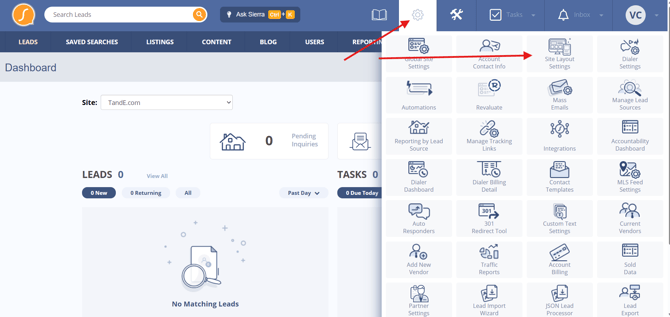
Click the Gear icon in the top navigation.
-
Select Site Layout Settings.
-
Locate the section titled Tracking & Conversion Codes.
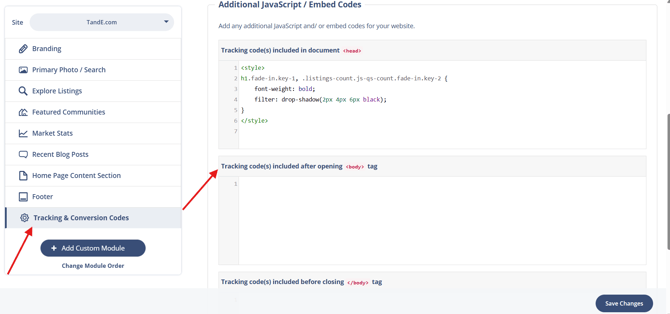
You will see a field labeled Facebook Tracking Pixel ID, where your Meta Pixel ID can be added, updated, or removed.
Installing a Meta Pixel
 Note: Meta's interface may change over time. Screenshots have been intentionally omitted from this article. For the most accurate and up-to-date navigation and UI, refer directly to Meta's support documentation.
Step 1: Locate Your Meta Pixel ID
Before adding a Pixel to Sierra, you will need your Pixel ID from your Meta Business account.
To locate your Pixel ID:
-
Log in to Meta Business Manager.
-
Navigate to Events Manager.
-
Select your Data Source (Pixel) from the list.
-
Your Pixel ID will be displayed near the top of the screen.
Copy the Pixel ID only.
If you do not see a Pixel listed in Events Manager, you may need to create one within your Meta account. Refer to Meta’s Help Center documentation for assistance.
Step 2: Add the Pixel ID in Sierra
-
Navigate to the Facebook Tracking Pixel ID field in CAA.
-
Paste your Pixel ID into the field.
-
Click Save.
Once saved, your Meta Pixel will begin firing on your website.
Removing a Meta Pixel
To remove your Meta Pixel:
-
Navigate to the Facebook Tracking Pixel ID field.
-
Delete the Pixel ID currently entered.
-
Click Save.
Once removed and saved, the Meta Pixel will no longer fire on your website.
Other Tracking & Conversion Codes in This Section
In addition to the Meta Pixel, the Tracking & Conversion Codes section may include fields for:
- Google Analytics
- Google AdWords Conversion ID
- Google AdWords Conversion Label
- Microsoft UET Tag ID
These fields function similarly:
- Enter the applicable tracking ID to activate tracking
- Remove the ID and save to disable tracking
Each platform has its own requirements for configuration within the respective advertising or analytics account.
Best Practices
- Confirm your tracking ID is accurate before saving.
- After installation, test your Pixel or tag within the respective platform to verify it is firing correctly.
- Document any tracking changes internally for your own records.
- Review privacy policies and consent mechanisms if using tracking technologies.
Troubleshooting & Common Questions
Troubleshooting Common Issues
-
I do not see the Tracking & Conversion Codes section
Confirm you are logged in as a Primary Manager or Manager. -
My Meta Pixel is not firing after installation
Verify that:
The correct Pixel ID was entered
Changes were saved
The Pixel is active within your Meta Business Manager account - I removed my Pixel but still see activity in Meta
Some reporting platforms may display historical data. Confirm the ID has been removed and saved in CAA.
FAQs
-
Does Sierra automatically install tracking technologies?
No. Tracking IDs must be manually entered by an authorized user. -
Does Sierra provide legal guidance on tracking technologies?
No. Clients are responsible for determining appropriate usage and compliance. -
Can Sierra remove tracking codes for me?
Authorized users can remove tracking codes directly within the Client Admin Area. If assistance is needed, contact Sierra Support.