
Table of Contents
- Why This Feature Matters
- Step-by-Step Instructions
- Best Practices
- Troubleshooting Common Issues
- FAQs
Why This Feature Matters
-
Search by proximity, not just geography: Instead of defining searches by city, zip code, or drawn boundary, Radius Search lets you center a search on any specific location — a school, employer, lake, golf course, or downtown district.
-
Build niche community pages that rank: Target the lifestyle and location-specific searches buyers are actually making, like "homes near [employer]" or "properties within 5 miles of [lake]."
-
More flexible saved search creation: Create saved searches and listing alerts for clients based on a specific radius, giving you more precision when matching leads to listings.
-
Available to both agents and site visitors: Radius Search is part of the IntelliSearch experience on your Sierra website, so buyers can use it on their own as well.
Step-by-Step Instructions
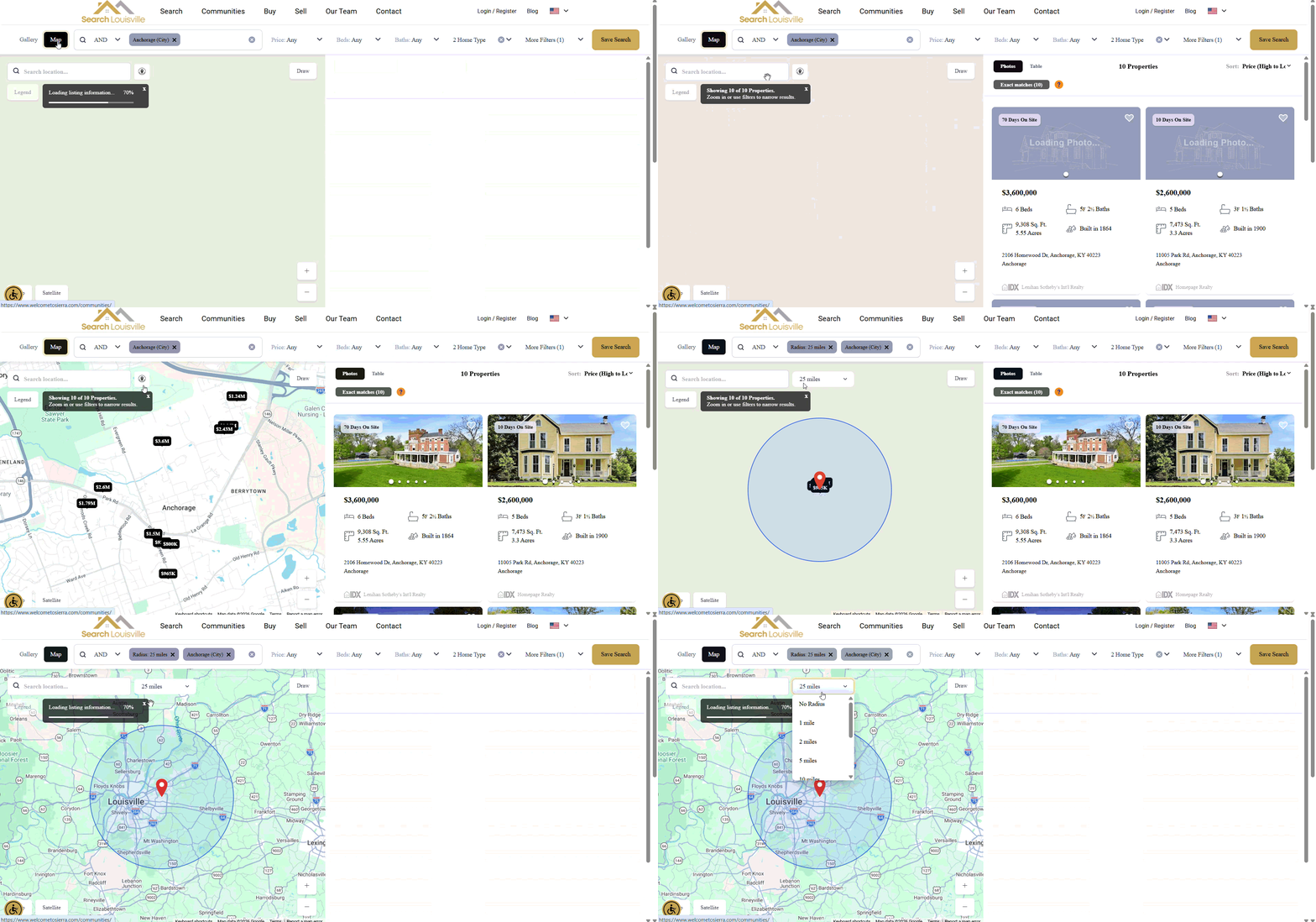
- Navigate to Saved Searches in the top navigation bar and select Saved Searches.
- Click + New Saved Search.
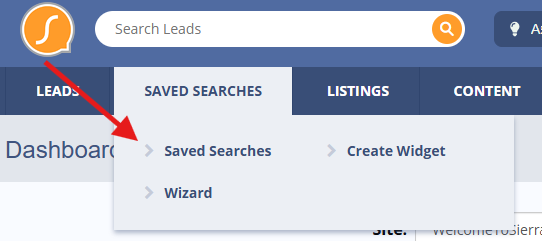
- On the property search page, click the Map button in the upper left corner to switch to map view.

- Once in map view, click the location pin icon that appears to the right of the search bar.
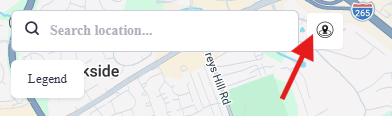
- A Search location... field will appear. Enter the address, landmark, or point of interest you want to search around.
- Select a radius distance from the dropdown to define how far out from that location to search.
- Results will update to show listings within the specified radius.
- Save the search as needed to use it as a saved search or listing alert.
Best Practices
- Use landmarks buyers actually care about: Schools, employers, transit hubs, waterfronts, and downtown districts tend to drive higher engagement than generic zip code searches.
- Pair with keyword filters: Combine Radius Search with the Keyword Modal to further refine results (e.g., homes within 3 miles of a school with "in-ground pool").
- Build community pages around radius searches: Radius-based searches are well-suited for niche IDX community pages targeting lifestyle-driven buyers.
- Communicate proximity to clients: When suggesting listings based on a radius search, note the distance from the anchor point in your outreach so clients understand why those properties were included.
Troubleshooting Common Issues
- Issue: The location pin icon isn't visible after clicking Map view.
Solution: Confirm you are fully in Map view (not Gallery view). The pin icon only appears after switching to the Map tab. - Issue: Search returns no results for the specified radius.
Solution: Try expanding the radius distance. If results are still limited, the area may have low listing inventory.
FAQs
- Can site visitors use Radius Search on their own?
Yes. Radius Search is part of the IntelliSearch experience on your Sierra website and is available to visitors searching for listings. - What radius increments are available?
1 mi, 2mi, 5 mi, 10 mi, 15mi, 20mi, 25 mi, and 50mi. - Can I use Radius Search to create listing alerts?
Yes. Once you've defined a radius search, you can save it and attach it to a listing alert for any lead.