
Summary
Sierra’s Notification Settings give each user control over how they receive updates about lead activity, including via email, text message, and in-app alerts.
Every user can configure their own notification preferences, while manager-level users define which options are available across the account.
These settings are built to be flexible and tailored to the individual. Users are responsible for setting their own preferences, and managers ensure the account offers the right options for the team.
Table of Contents
- How Notification Settings Work
- Accessing Your Notification Settings
- Setting Your Delivery Preferences (Schedule & Phone Number)
- Notification Types and Methods
- Full List of Notification Types
- Manager Controls: Account Notification Settings
- Best Practices
- Troubleshooting Common Issues
- FAQs
How Notification Settings Work
Sierra's notification system operates at two levels:
- User level ("My Notification Settings") — Each user controls which activities they're notified about and how (email, text, in-app).
- Account level ("Account Notification Settings") — Managers control which delivery methods and notification types are available to agents across the account.
Every user is responsible for configuring their own preferences. Managers determine the options available to the team.
Accessing Your Notification Settings
- Click your profile icon in the right-corner
- Select My Notification Settings.
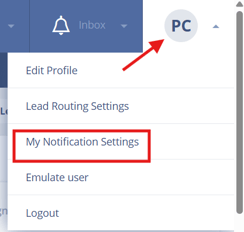
Your individual preferences can be updated here at any time.
Setting Your Delivery Preferences
The Delivery Preferences section of My Notification Settings controls when and where non-email notifications are sent.
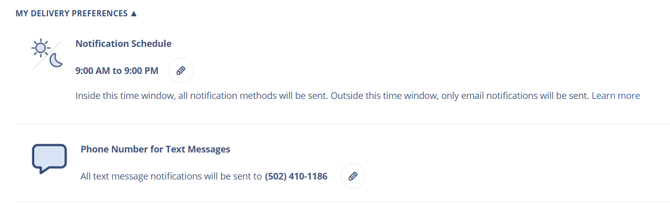
Notification Schedule
- Inside this time window, all notification methods will be sent. Outside this time window, only email notifications will be sent.
- Defaults to your account's Actionable Window.
- Can be customized per user to match your working hours.
Phone Number for Text Messages
- Determines where text notification messages are sent.
- Required if you enable any text notifications.
- Can be updated at any time in this section.
⚠️ All Sierra text notifications are sent from a single dedicated number: (866) 944-2025. Save this number as a contact in your phone labeled something like "Sierra Notifications" so notifications aren't filtered or flagged as spam by your carrier or device. This number is separate from your Sierra Dialer role numbers, so save it in addition to those.
Choosing Notification Types and Methods
In My Notification Settings, each notification type can be toggled on or off independently, and you can choose how you receive each one:
- Email — Sent to the address on file in your user profile, in real time.
- Text Message — Sent to your saved phone number, during your notification schedule. Must be enabled at the account level.
- In-App Notification — Appears in the Sierra mobile app, during your notification schedule.
You can mix and match delivery methods per notification type — for example, receiving new lead alerts by both text and email while only receiving task reminders in-app.
Full List of Notification Types
Lead Activity
- New Lead
- Lead Returns to Site After 30 or More Days
- Lead Views a Single Property 3 or More Times
- Lead Clicks 2 Consecutive Listing Alerts
- Lead Reassigned to Me
- Registrations by Leads Who Are Already in Your Account
Inquiries & Requests
- Saved Listing
- Request for More Info
- Schedule Showing Request
- Contact Form Submission
Communications
- Incoming Phone Call from Lead
- Received Voicemail from Lead
- Incoming Text from Lead
- Incoming Email from Lead
- Response to On-Site Message from Lead
- Incoming Calls / Texts from Unknown Numbers
Tasks & Automation
- Task Is Due
- Automations Limits Reached
- Sierra AI Alerts
Pond Activity
- Lead Added to a Pond
- Agent Requests to Claim a Lead from a Pond
- Specific Pond Lead Action Alerts
- New Leads Added into Distribution
Other
- External Notes
Manager Controls: Account Notification Settings
Manager-level users can access Account Notification Settings to configure options that apply across the entire account. Managers always retain access to all notification types and methods, regardless of these settings.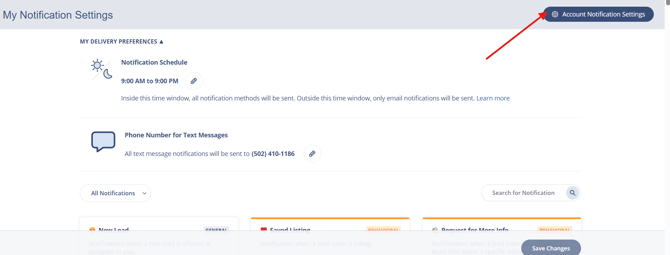
Notification Methods for Agents
Toggle which delivery channels are available to agent-level users:
| Method | Default |
|---|---|
| Enabled | |
| In-App Notifications | Enabled |
| Text Message | Optional |
| Send to Alternate Email | Optional |
Notification Types for Agents
- All notification types are enabled for agents by default.
- Managers can disable specific notification types to limit what agents are alerted about.
Behavioral Notification Thresholds
Set the numerical values that trigger certain behavioral notifications account-wide — for example, the number of property views or consecutive listing alert clicks required to generate an alert. These thresholds apply to all users on the account.
BCC Settings
- Send BCC on Email to Friend — When enabled, automatically BCCs emails sent through the Email to Friend feature.
- Enable BCC of Listing Alert Emails to Agents by Default for New Leads — When enabled, automatically BCCs the assigned agent on listing alert emails for newly created leads.
⚠️ Enabling text message notifications may increase usage tied to your Sierra Dialer billing. Review usage details in the Dialer Billing section of the platform.
Manager Option: "Send Me All Notifications"
Manager-level users can enable "Send me all notifications of this type" for any notification type. When enabled, the manager receives alerts for all leads across the account, not just leads assigned to them.
Best Practices
- Start with high-signal notifications. For new users, prioritize New Lead, Incoming Text from Lead, Incoming Email from Lead, and Request for More Info before enabling everything.
- Match your schedule to your actual working hours. Notifications delivered outside your active window are dropped — not queued — so a schedule that doesn't reflect your availability means missed alerts.
- Use email for high-priority alerts, in-app for lower-priority ones. Email is real-time; in-app is schedule-dependent. Route your most time-sensitive notifications (new leads, inquiries) to email.
- Managers: review agent notification access before onboarding. Confirm that the methods and types you want agents to have are enabled in Account Notification Settings before new users configure their own preferences.
- Audit your settings periodically. As your role or workflow changes, notification needs change too. A quarterly review keeps alerts relevant and reduces noise.
Troubleshooting Common Issues
- Not receiving any notifications.
Confirm the notification type is enabled in My Notification Settings and that the correct delivery method is selected. For text and in-app, verify that your notification schedule covers the time the activity occurred. - Not receiving text notifications specifically.
Check that (1) text messaging is enabled at the account level in Account Notification Settings, (2) your phone number is saved correctly, (3) your notification schedule is active during the relevant hours, and (4) you've saved (866) 944-2025 — the number all Sierra text notifications are sent from — as a contact in your phone. Messages from unsaved numbers may be filtered by your carrier or device and never reach your inbox. - Settings aren't saving.
Click Save Changes after making any updates. Navigating away before saving will discard your changes. - Certain notification types or methods aren't available.
Your manager may have restricted those options in Account Notification Settings. Contact a manager-level user to review access. - Email notifications are going to the wrong address.
The address used for notifications is pulled from your user profile. Update it there, not within Notification Settings.
FAQs
- Can I receive notifications for leads that aren't assigned to me?
Agent-level users only receive notifications for their own assigned leads by default. Manager-level users can enable "Send me all notifications of this type" to receive account-wide alerts for any notification type. - What happens if a lead activity occurs outside my notification schedule?
Text and in-app notifications are not delivered outside your scheduled window. Email notifications are unaffected and always sent in real time. - Can I set different delivery methods for different notification types?
Yes. Each notification type can be configured independently. You can receive some alerts by email only, others by text and email, and others in-app only. - Does enabling text notifications cost extra?
Text notifications may affect your Sierra Dialer billing. Managers can review usage in the Dialer Billing section. Contact Sierra support if you have billing questions. - Can agents configure their own notification schedule, or does the manager set it?
Each user sets their own notification schedule in My Notification Settings. The schedule defaults to the account's Actionable Window, but any user can customize it independently. - What number do Sierra text notifications come from?
All text notifications are sent from (866) 944-2025. Save it as a contact so messages aren't filtered as spam. This is a different number from your Sierra Dialer role numbers, which are used for lead-facing calls and texts.