
Table of Contents
- Why This Feature Matters
- Step-by-Step Instructions
- Best Practices
- Troubleshooting Common Issues
- FAQs
Why This Feature Matters
Managing lead sources is crucial for any real estate professional aiming to optimize their marketing efforts and conversion strategies. By accurately tracking where your leads come from, you ensure that your marketing budget is spent efficiently. This leads to:
- Targeted Marketing: You'll be able to focus your marketing efforts on the channels that yield the best results.
- Enhanced Reporting: Cleaner data and accurate attribution help in evaluating the effectiveness of your campaigns.
- Improved Lead Management: With better insights, you can route leads more effectively, increasing the chances of conversion.
Step-by-Step Instructions
⚠️ Only Primary Managers and Manager-level users with the permission "Can update Global Site Settings, Lead Routing and Lead Sources" can access the Lead Source Manager. Agent-level users cannot add, edit, or delete sources.
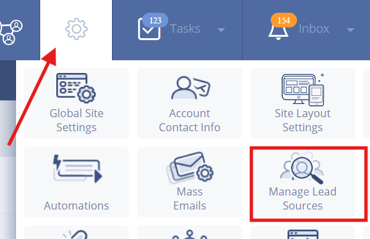
To open the Lead Source Manager:
- Click the Gear icon in your Sierra Admin Area.
- Select Manage Lead Sources.
Add a New Lead Source
-
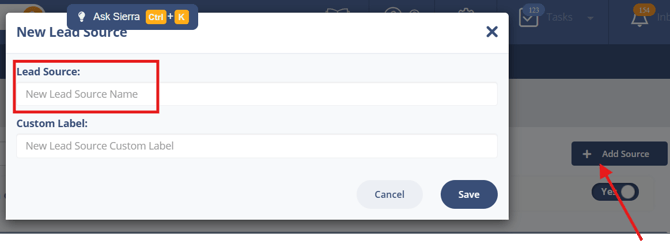
In the Lead Source Manager, click + Add Source.
-
Enter a name that clearly identifies the source (e.g., Realtor.com, Sphere of Influence, Google PPC).
-
Save your changes.
Activate or Deactivate a Source
-
Select Deactivate or Activate to adjust the source
-
Only active sources will appear in dropdown menus throughout the CRM

4. Edit a Source Name
-
Click the Edit icon next to a source to rename it

-
Save your changes
5. Delete a Source (Optional Reassignment)
-
Click the Delete icon next to a source

-
If leads or tracking links are associated with this source, you’ll be prompted to:
-
Keep them linked to the deleted source
-
Or reassign them to a different active source
-
6. Filter Your Lead Sources
-
Use the search and filter tools at the top of the page to quickly locate a source

Best Practices
- Use Clear, Standardized Naming Conventions: Use consistent names that reflect the source accurately (e.g., “Google PPC” instead of “Google Ads”) to avoid confusion among team members.
- Maintain Clean Listings: Periodically deactivate unused sources to prevent clutter in dropdown menus.
- Keep Accurate Reporting: When deleting sources, always reassign leads to ensure that your reporting remains precise and actionable.
Troubleshooting Common Issues
Issue: Can’t access “Manage Lead Sources”
Fix: Only Primary Managers and Manager-level users with permission can access it. Check your user role or ask an admin for access.
Issue: Source doesn’t appear in tracking link or lead form
Fix: Make sure the source is active in the Lead Source Manager.
FAQs
- Who can manage lead sources?
Only the Primary Manager and Manager-level users with the permission “Can update Global Site Settings, Lead Routing and Lead Sources”. - Can Agent-level users add or edit sources?
No. They must contact a Manager to request changes. - What happens to leads if I delete a source?
You can choose to keep them tied to the deleted source or reassign them to a different one. - Where can I view a lead’s full source history?
Primary and Manager-level users can hover over the Source field on a lead’s detail page and click Source History for an audit trail.