
Table of Contents
Why This Feature Matters
When leads come in from ads or campaigns, Sierra can automatically capture where they came from and tag them without any manual entry.
- Know which campaigns, platforms, and keywords are actually driving leads
- Automatically tag leads so they route to the right agent or pipeline
- Filter and search leads by source or campaign tag on the Manage Leads page
- Feed source data into Lead Routing Rules for smarter distribution
How Lead Tracking Works
Sierra reads specific URL parameters appended to your landing page links. When a lead registers after clicking a tracked URL, Sierra captures those parameter values and:
- Sets the lead's Source field
- Applies one or more Tags to the lead
- Populates the lead's Keywords field (UTM only)
There are two parameter systems you can use — UTM parameters and AWT/AWID parameters and they can be used together.
Step-by-Step Instructions
1. Use UTM Parameters
UTM parameters are the standard tracking format used by Google Analytics and most ad platforms. Sierra maps three of them to lead fields:
| UTM Parameter | What It Does in Sierra |
|---|---|
utm_source |
Sets the lead's Source value (e.g., Google, Facebook) |
utm_campaign |
Applies a tag to the lead |
utm_term |
Populates the lead's Keywords field |
Example URL:
https://www.yoursite.com/idx/search/?utm_source=google&utm_campaign=new-home-search&utm_term=affordable-condos
This would set:
- Source → google
- Tag → new-home-search
- Keywords → affordable-condos
⚠️ utm_medium and utm_content are not mapped to Sierra lead fields. Use utm_campaign for tagging.
2. Enable Dynamic Source Creation (Optional)
By default, Sierra only records a UTM source value if that source already exists in your account. To let Sierra auto-create new sources from incoming URLs:
- Go to Gear Icon > Manage Lead Sources
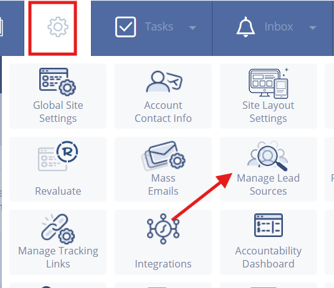
- Find the Allow Dynamic Creation of Sources from URLs toggle

- Enable it
⚠️ If this setting is off and a lead arrives with an unrecognized utm_source value, that source will not be recorded on the lead.
3. Use AWT and AWID Parameters
AWT and AWID are Sierra-specific parameters that apply tags directly to leads. Use these when you want explicit platform tagging without relying on UTM source mapping.
awt identifies the ad platform and applies a corresponding tag:
| AWT Value | Tag Applied |
|---|---|
awt=fb |
Facebook PPC |
awt=ggl |
Google Ads |
awt=bing |
Bing PPC |
awt=yahoo |
Yahoo PPC |
awt=ttr |
Twitter PPC |
awt=pt |
Pinterest PPC |
awid adds a second tag with the specific ad name, campaign, or keyword phrase you define.
Examples:
Google PPC campaign targeting condos: https://www.yoursite.com/beautiful-vista-condos/?awt=ggl&awid=beautiful-vista-condos → Tags applied: Google Ads, beautiful-vista-condos
Facebook ad for a specific listing: https://www.yoursite.com/idx/1234-main-st/?awt=fb&awid=1234-main-st → Tags applied: Facebook PPC, 1234-main-st
You can include multiple awid values as each is applied as a separate tag.
4. Format Your URLs Correctly
URL parameters follow strict formatting rules. A malformed URL will cause tracking to fail silently.
- Use
?only once — before the first parameter - Use
&to separate every additional parameter - Don't use spaces or special characters in parameter values — use hyphens instead
✅ Correct: https://www.yoursite.com?searchid=1234&awt=ggl&awid=my-campaign
❌ Incorrect (double
?): https://www.yoursite.com?searchid=1234?awt=ggl&awid=my-campaign
Best Practices
- Establish a tag naming convention before launching campaigns — consistency makes filtering and routing far more reliable
- Use short, hyphenated values for
awidandutm_campaign(e.g.,q1-buyer-leads, notQ1 Buyer Leads Campaign) - Combine AWT and UTM parameters to capture both Sierra tags and GA4 campaign data in a single URL
- Set up Lead Routing Rules that trigger on specific source or tag values to automate agent assignment from day one
- Periodically audit your campaign URLs. A single broken parameter means lost attribution data
Troubleshooting Common Issues
-
Tags aren't appearing on new leads
Check URL formatting for double?or special characters. Also confirm the lead registered by clicking the tracked link (direct registrations won't carry parameters). -
Source isn't being recorded
Verify the source already exists under Gear Icon > Manage Lead Sources, or enable Dynamic Source Creation. -
Leads aren't routing correctly based on tags
Confirm your Lead Routing Rules reference the exact tag or source value as it appears on the lead as values are case-sensitive.
FAQs
-
Do I need to create tags and sources in my account before using them in URLs? Not if Dynamic Source Creation is enabled. Tags created via
awt,awid, orutm_campaignare applied automatically. Sources fromutm_sourcerequire Dynamic Source Creation to be on if they don't already exist. -
Can I use UTM and AWT/AWID parameters together in the same URL?
Yes. They work independently and can be combined in a single URL to populate both GA4 campaign data and Sierra tags simultaneously. -
Where do I see the source and tags applied to a lead?
On the lead's detail page. Source and tags are also searchable and filterable from the Manage Leads page. -
Will tracking parameters affect my IDX search results or website behavior?
No. Sierra strips these parameters from the URL before processing the page as they're only used at the point of lead registration. -
What happens if a lead visits a tracked URL but doesn't register?
No lead record is created, so no tracking data is captured. Parameters are only recorded when a lead submits a registration form.