
Table of Contents
Why This Feature Matters
Sierra’s advanced lead routing system helps real estate teams tackle the challenges of managing leads effectively. Without a robust system, leads may fall through the cracks, reducing opportunities and wasting time. Sierra’s intelligently designed routing technology ensures leads are assigned efficiently, helping teams close deals faster.
Before You Start
Lead Routing Rules are configured at the account level and require Manager-level permissions. If you don't see the Lead Routing option, ask your Primary Manager to confirm your permissions under Users > Global Account Permissions.
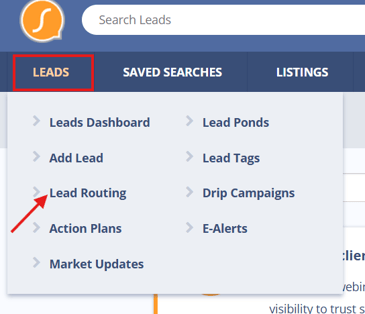
To access Lead Routing, go to Leads > Lead Routing in your top navigation.
⚠️ If you're coming from Sierra's legacy lead distribution system, see the FAQ for migration guidance.
How the Rules System Works
Before building your first rule, it helps to understand the logic behind how Sierra evaluates them:
- Rules are evaluated top to bottom. The first active rule that matches an incoming lead is the one that applies then Sierra stops checking after that.
- Every rule needs at least one lead criteria (who this rule is for) and at least one assigned agent (who gets the lead).
- At the very bottom of your list sits the Catch-All Rule. It's always active and captures any lead that doesn't match a rule above it. Think of it as your safety net.
This means rule order matters. More specific rules (e.g., "Facebook leads in Denver, Buyer") should sit above broader ones (e.g., "All Buyer leads").
Step-by-Step Instructions
Step 1: Create a New Rule
- Login to the Client Admin Area (CAA) > Leads tab > Lead Routing
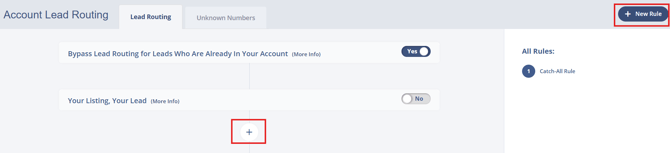
- On the Lead Routing page, click + New Rule. If you want to insert a rule between two existing ones, click the plus icon that appears between them.
- A new rule card will appear. Give it a clear, descriptive name.
Step 2: Define Your Lead Criteria
Lead criteria determine which leads this rule applies to. A rule with no criteria will match every lead.
- Click the + icon next to Lead Criteria.

- Select a criteria type from the dropdown. Your options include:
- Source — where the lead came from (e.g., Zillow, Facebook, your website)
- Tag — a label applied to the lead via tracking links, integrations, or manually
- Lead Type — Buyer or Seller
- Location — City, County, Neighborhood, Zip Code, or MLS Region
- Price Range — minimum and/or maximum price
- Property Type or Site
- Select the value(s) for that criteria type, then click Save.
- Repeat to add more criteria to the same rule.
How the logic works:
- Adding multiple values of the same type (e.g., two sources: Facebook AND Zillow) uses OR logic — the lead can match either.
- Adding criteria of different types (e.g., Source: Facebook + Lead Type: Buyer) uses AND logic — the lead must match both.
⚠️ How location criteria match leads
Location criteria (City, County, Zip Code, etc.) match against the search criteria explicitly saved on the lead's search, not the lead's physical location or any geographic relationship between values.
In practice, this means:
- A rule using County: Orange County will only match a lead whose saved search explicitly includes Orange County as a criteria
- It will not match a lead whose saved search uses City: Newport Beach, even though Newport Beach is in Orange County. Sierra does not infer geographic hierarchy between cities, counties, or states
- Leads who register from a polygon-based search (a custom-drawn map area) cannot match any location-based routing rule, since polygon searches have no associated location criteria
Workaround for county- or state-level routing:
- Create a Lead Routing Rule listing the key cities in your target area (e.g., Newport Beach, Irvine, Anaheim for Orange County leads)
- In Step 7: Add Automations, apply a tag like
Orange Countyto every lead that matches - Use that tag in downstream automations (Action Plans, Drip Campaigns, or additional routing rules) to manage those leads as a group
Step 3: Set Days and Times (Optional)
By default, a rule is active 24/7. If you want it to only fire during specific hours or days:
- Click the + icon next to Days and Times.

- Set the days of the week and the time window.
- Click Add to save the window. You can add multiple time windows if needed (e.g., separate morning and evening blocks).
⚠️ The Claim with Timeout and Instant Call distribution types only operate during the Actionable Window (default: 8 AM – 9 PM). Outside of those hours, leads are held and distributed when the window reopens.
Step 4: Assign Agents
- Click the pencil icon next to Assign to Agent(s).
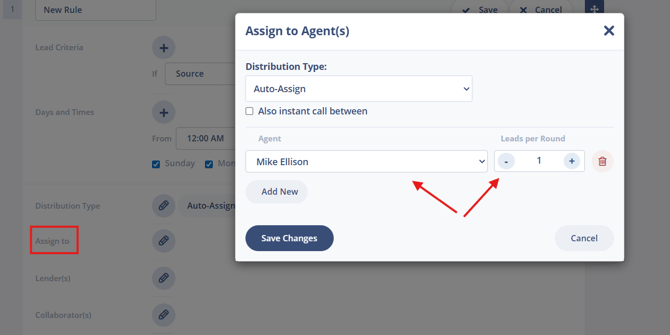
- Search for and select the agent(s) you want to include in this rule.
- For each agent, set their Leads Per Round.
- This controls how many leads they receive before the next agent in rotation gets one.
- Click Save.
Step 5: Choose a Distribution Type
Distribution type controls how the lead is delivered to the assigned agent(s). Select one for this rule:
- Auto-Assign → Sierra automatically assigns the lead based on rotation logic. No action required from the agent. Best for teams that want consistent, hands-off distribution.
- Claim with Timeout → The lead is offered to agents one at a time. Each agent has a set window to claim it before it moves to the next. Good for competitive team environments.
- Instant Call with No Delay → Sierra auto-calls agents via the dialer so they can accept the lead in real time. Requires the Sierra Dialer to be active for all agents in the rule.
- First to Claim → The new lead is simultaneously offered to multiple agents by phone. The first agent to answer and accept the call is assigned the lead.
- Lead Pond → Shared pools of leads accessible by multiple agents, often used by ISAs or teams.
Step 6: Assign a Lender (Optional)
If your account includes Lender users and you want leads from this rule to be connected with a lending partner:
- Click the pencil icon next to Assign to Lender(s).
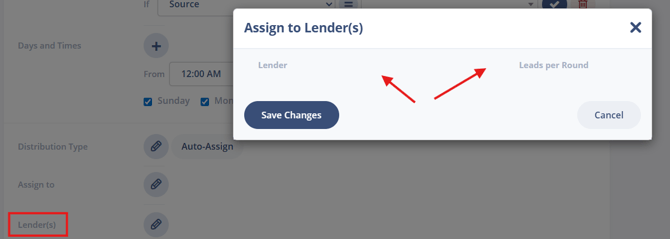
- Select a lender and set their Leads Per Round.
- Click Save.
Lender assignment does not require a separate distribution type as it follows the same rule logic as the agent assignment.
Step 7: Add Automations (Optional)
You can configure actions that fire automatically when a lead is assigned through this rule. Click into the Automations section and choose from:
- Tags — apply a tag to the lead on assignment
- Action Plans — enroll the lead in a follow-up sequence
- Drip Campaigns — add them to an email nurture series
- E-Alerts — set up property match notifications
- Market Updates — subscribe them to local market reports
- Auto-Responder — send an immediate email or text when the lead comes in
These automations fire at the moment of assignment, so they're a great way to ensure no lead goes without an immediate touchpoint.
Step 8: Activate the Rule
- Review your criteria, agent assignments, and distribution type.
- Click Save.
- Click Activate.
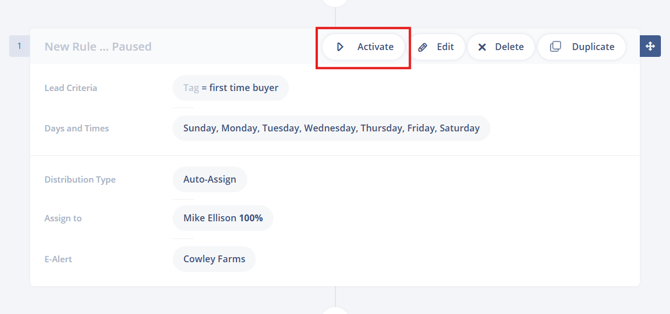
The rule is now live. Incoming leads that match its criteria will be routed accordingly.
⚠️ Rules are evaluated top to bottom. If you want this rule to take priority over an existing one, drag it above that rule in the list.
Special Routing Options
A few additional settings that affect how routing behaves across your account:
- Tracking Links: Routing parameters set in a tracking link override all Lead Routing Rules. If a lead comes in through a tracking link, that link's settings take precedence.
- Bypass Routing for Existing Leads: When enabled, re-registrations from existing leads won't trigger routing rules or change their current agent assignment.
- Your Listing, Your Lead: Automatically assigns leads who inquire on a listing to the agent associated with that listing.
Best Practices
- Use clear tag names and consistent rule naming conventions for easy management.
- Assign multiple agents per rule with fallback options to maximize chances of lead engagement.
- Limit the use of Claim or Instant Call if lead volume is low to avoid overwhelming agents.
Troubleshooting & Common Questions
Troubleshooting Common Issues
- Lead isn’t routed as expected → Review the lead criteria logic (AND/OR), time/day settings, and position of rules
- Lead routing isn’t balanced → Switch to Auto-Assign to honor percentage splits exactly
- Instant call not working → Ensure voice/text integration is enabled for all assigned agents
FAQs
- Can I assign leads by tag or city?
Yes, the routing engine supports both tag- and location-based assignments. - What if no rules match?
The Catch-All Rule will apply and route the lead. - Does this work across all websites in my account?
Yes, lead routing operates at the account level, not site level. - What’s the best way to ensure equal lead distribution?
Use Auto-Assign with properly configured “Leads per Round” settings. - Can I use AI to automatically assign leads to agents?
Sierra uses Lead Routing Rules—not AI—to assign leads based on criteria like source, tag, location, and price range. Once a rule matches, leads are distributed via Auto-Assign, Claim with Timeout, or Instant Call. If you want automated outreach after assignment, that is handled separately by Lead Engage, which you can enable within your routing rules. - Why isn't my County (or State) routing rule matching leads from cities in that area?
Lead Routing Rules match against the locations saved on a lead’s search, not inferred geography. A lead searching “Newport Beach” will not match a rule for “Orange County.” To route by county or state, build a rule with the key cities in that area and apply a tag (e.g., Orange County) via Automations to manage those leads as a group. - How do I migrate away from the Legacy Lead Distribution System?
If you are moving from Sierra’s legacy lead distribution setup to Lead Routing Rules:
1. Build and activate your new rules above the “Legacy Lead Distribution System” rule. New rules take priority, so you can run both in parallel while you verify routing behavior.
2. Send a few test leads through to confirm they are being routed as expected.
3. Once you are confident everything is working, click Pause or Delete on the Legacy rule to complete the cutover.
There is no time limit on this process, the legacy rule can remain inactive at the bottom of your list until you are ready to remove it.