
Table of Contents
- Work Through the Templates Tab
- Set Default Branding (Optional but Recommended)
- Best Practices
- Troubleshooting Common Issues
- FAQs
Why This Feature Matters
Single Property Sites are powerful tools that can significantly enhance your real estate marketing:
- They highlight specific listings in a premium, conversion-optimized layout.
- They attract both buyer and potential seller leads.
- They help build agent branding and listing marketing credibility.
- They offer flexibility in layout, media, and domain setup.
By utilizing Single Property Sites, you can effectively showcase properties and reinforce your personal or agency brand. For example, a well-branded property site can lead to higher engagement rates and more inquiries, turning casual browsers into serious buyers.
Step-by-Step Instructions
1. Access the Single Property Sites Tool
-
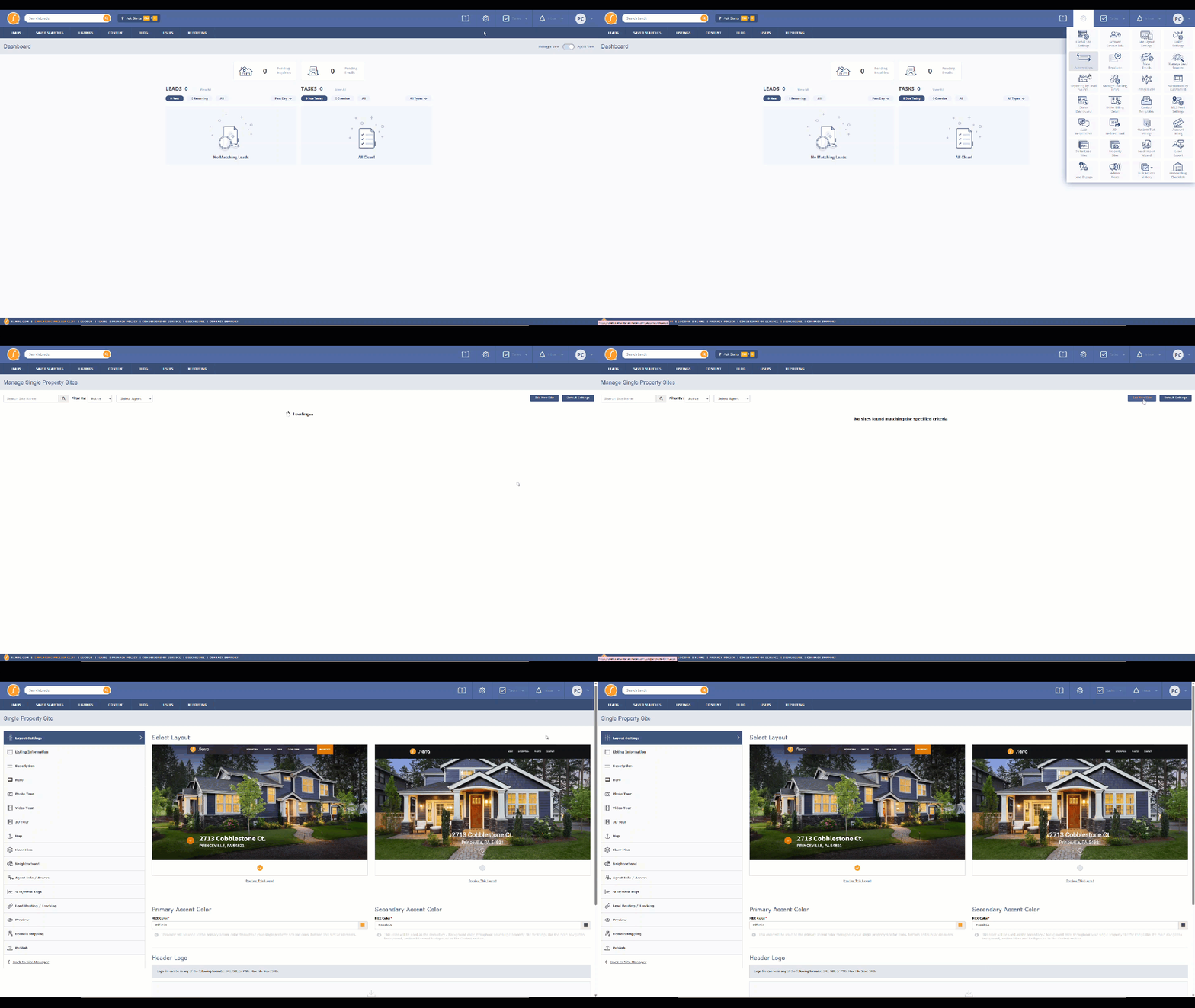
Navigate to the Gear icon > Property Sites
-
Click Add New Site
2. Manage Access
-
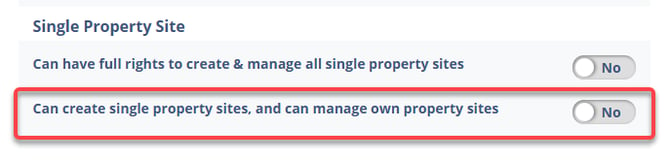
Primary Managers and Manager-level Users can manage all property sites by default
- Edit their User Profile and toggle the two permissions related to Single Property Sites
- To give Agent-level Users access to a specific property site via the Agent / Info tab when building the site
- To give Agent-level Users access to a specific property site via the Agent / Info tab when building the site
3. Work Through the Template Tabs
Layout Settings
-
Choose a layout (Layout 1 or 2)
-
Upload header and footer logos
-
Set primary and secondary brand colors
Listing Information
-
Pull property details from MLS® or enter manually
-
Add open house details (auto-delete after event)
-
Upload amenity details or PDFs (max size: 25MB)
Description
-
Add a short title/tagline and main description
Hero
-
Upload a cover photo
-
Optional: Add a video background
Photo Tour
-
Upload up to 100 images (10MB max each)
Video Tour
-
Add branded and unbranded video embed codes
3D Tour
-
Add branded and unbranded 3D tour links
Map
-
Add a specific or general location
Floor Plan
-
Upload floor plans and room details
Neighborhood
-
Add videos, images, and written descriptions of the area
Agent Info / Access
-
Add agent details
-
Assign visibility to one or more users
SEO / Meta Tags
-
Customize meta title, description, and keywords
Lead Routing / Tracking
-
Route leads via your existing lead routing rules or assign to a specific agent
-
Add tracking and embed codes for branded and unbranded versions
Preview
-
Use this tab to confirm layout and details before publishing
Domain Mapping
Choose one of the following:
-
Register a new domain directly
-
Use your own domain (update A records as needed)
-
Use a Sierra subdomain
Publish
-
Click Publish to take the site live
Be sure to SAVE at the bottom of each tab after making edits
4. Use Subdomains for Multiple Property Sites (Optional)
-
Purchase a standalone domain (e.g., GreatPropertiesForSale.com)
-
Email support@sierrainteractive.com with:
-
A request to use subdomains
-
Login credentials for your domain registrar
Sierra will configure DNS to support subdomains like:
-
123CanterLane.GreatPropertiesForSale.com
-
456FurlongDrive.GreatPropertiesForSale.com
-
5. Display an Unbranded Tour Version
- For domains purchased through Sierra:
- Add “tour.” before the domain name
- Example:
-
Branded: http://555caylin.com
-
Unbranded: http://tour.555caylin.com
-
- If using a third-party domain:
-
Login to your domain provider
-
Add an A Record:
-
Host: tour
-
Points to: 173.192.101.249
-
-
6. Set Default Branding (Optional but Recommended)
-
Go to Manage Single Property Sites > Default Settings
-
Set default logos and brand colors to ensure consistency across all property sites
Best Practices
-
Use high-quality images and videos to showcase the property
-
Include open house dates to drive urgency
-
Customize the Hero section with a compelling video or cover image
-
Use subdomains for cost efficiency and branding continuity
-
Track lead behavior with analytics and Facebook Pixel
Troubleshooting Common Issues
- Unbranded tour version doesn’t load
Confirm domain is purchased through Sierra, or add the required A Record for third-party domains - Lead routing isn’t working
Double-check that routing rules include leads from property sites or assign directly in the routing tab
FAQs
- Can agents create their own single property sites?
Yes, if granted the correct permissions in their user profile. - Do I need a new domain for each site?
No. You can use a single domain with subdomains for each property site. - Can I track ad performance for each property site?
Yes. Add tracking pixels and analytics codes in the tracking settings. - Is there a limit to how many property sites I can create?
No, you can create as many as needed.