
Table of Contents
-
Why This Feature Matters
-
How to Merge Leads
- Review the Merged Record
-
Finding Duplicate Leads
-
Best Practices
-
Troubleshooting Common Issues
-
FAQs
Why This Feature Matters
Duplicate lead records are a common problem in any active CRM — the same person registers twice, an import creates a second record, or a lead comes in through a different source. Left unaddressed, duplicates cause agents to work the same contact without realizing it, fragment engagement history, and clutter reporting.
Merging lets you:
- Combine two records into one without losing contact details, assigned agents, or lead history
- Prevent duplicate outreach and confusion across your team
- Keep your database accurate so Smart Filters, routing rules, and reporting reflect real data
How to Merge Leads
💡 Only Primary Manager and Manager-level users can merge leads. Agent and Lender users do not have access to the merge action.
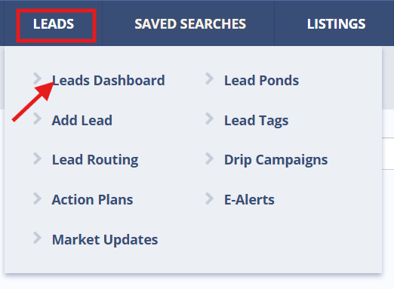
- Navigate to Leads > Leads Dashboard.
- Select exactly two lead records using the checkboxes on the left.
- ⚠️ The Merge Two Leads option in the Bulk Actions dropdown will be disabled if fewer than or more than two leads are selected.
- Open the Bulk Actions dropdown and select Merge Two Leads.
- An overlay will appear showing both lead records side by side.
- For each field, choose which record's data to keep. Fields include:
- Name
- Email(s)
- Phone(s)
- Address
- Lead Status
- Assigned Agent(s)
- Lender
- Communication Preferences
- Source
- Active Campaigns
- Review your selections, then check the confirmation box: "I confirm that I am about to merge two lead records into one. This action cannot be undone."
- Click Submit.
⚠️ Merging is permanent and cannot be reversed. Double-check your field selections before confirming.
Review the Merged Record
After submitting, a confirmation overlay will appear with a direct link to the newly merged lead profile.
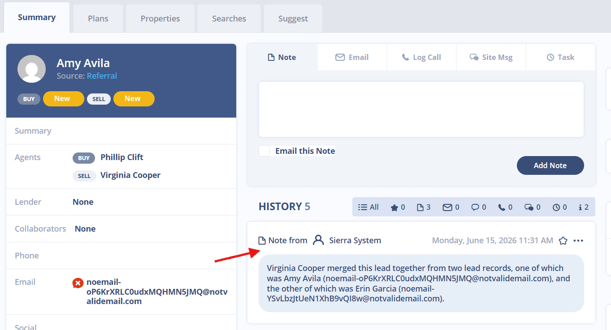
The merged record will include a system note showing:
- The date and time the merge was performed
- The user who initiated the merge
- The names and email addresses of both original records
Finding Duplicate Leads with Smart Filters
Sierra includes a Potential Duplicates Smart Filter to help you identify leads that may be duplicates before they cause problems.
- Navigate to Leads > Leads Dashboard.
- Select Advanced Search
- Add the filter criteria: Phone Number → Is Not Unique Sort: Phone Number (Ascending)
- Click Add Filter.
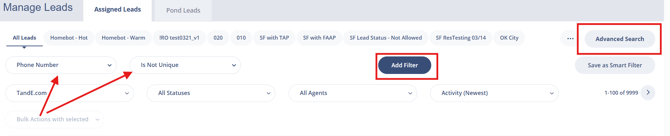
This groups leads that share the same phone number so you can review and merge them as needed.
Best Practices
- Run the Potential Duplicates Smart Filter regularly — monthly or after large lead imports — to catch duplicates early.
- Before merging, review both records for notes, activity, and assigned agents so you know which data to preserve.
- If two leads share the same contact info but are assigned to different agents, align internally on ownership before merging.
- When in doubt about which record to keep, default to the one with more complete activity history.
Troubleshooting Common Issues
-
"Merge Two Leads" is greyed out in the Bulk Actions dropdown.
Confirm that exactly two leads are selected — no more, no less.
-
Communication history from one lead isn't visible after the merge.
Only the communication history from one of the two leads is retained after merging. Review both records' activity before merging so you don't lose important context.
FAQs
-
Can I merge more than two leads at once?
No — the merge tool requires exactly two leads to be selected. If you have multiple duplicates for the same contact, merge them in pairs. -
What happens to the secondary email or phone number?
During the merge, you can designate one record's email or phone as the secondary contact on the merged profile so the information isn't lost. -
Can I undo a merge after it's done?
No. Merging is permanent. Review all field selections carefully before clicking Submit.