
Table of Contents
Why This Feature Matters
Adding your own measurement tools—such as Google Analytics, Meta (formerly Facebook) Pixel, and Google Ads conversion codes—to your personal agent site helps you better understand how your individual marketing efforts are performing. With these tools in place, agent-level users can track site traffic, monitor conversions, and measure return on investment more accurately, giving them clearer visibility into what is driving results on their own site.
Step-by-Step Instructions
-
Navigate to Your Agent Site
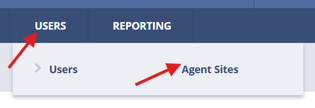
- To edit your agent site, click on "Users" then select "Agent Sites"
- Or if you are editing your own agent site, click on your "Profile" link and choose "Website Profile" from the dropdown menu.
- To edit your agent site, click on "Users" then select "Agent Sites"
-
Locate the Tracking / Conversion Codes Section
- Scroll down to the "Tracking / Conversion Codes" section.

- Scroll down to the "Tracking / Conversion Codes" section.
-
Choose Your Tracking Option
- By default, agent sites use the tracking and conversion codes applied to your main Sierra site.
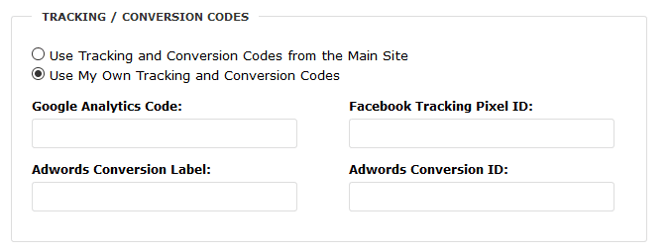
- To add your own codes, select the "Use My Own Tracking and Conversion Codes" option.
-
Enter Your Codes
- Four fields will appear for you to input your tracking and conversion codes:
- Google Analytics Codes
- Facebook Tracking Pixel ID
- AdWords Conversion Label
- AdWords Conversion ID
- Enter the relevant codes for each field.
- Four fields will appear for you to input your tracking and conversion codes:
-
Save Your Changes
- Once you've added your codes, click "Save and Continue" to proceed, or "Save and Exit" to finalize the changes.
Best Practices
- Ensure Accurate Measurement: Double-check that the codes you enter are correct to avoid any data integrity issues.
- Use Separate Accounts for Different Agents: For better performance monitoring, ensure each agent use their own unique codes instead of sharing codes across multiple sites.
Troubleshooting Common Issues
-
Codes aren't working or showing data.
Verify that the codes entered are accurate and belong to the correct Google Analytics, Facebook, or Google Ads accounts. Ensure that the codes are for the correct subdomain (agent site). -
Changes don't seem to save.
Make sure you've clicked either "Save and Continue" or "Save and Exit" after entering the code(s). If the issue persists, try clearing your browser cache and re-entering the code(s).
FAQs
- How do I remove the code(s)?
Simply delete the code from the applicable field and save your changes. -
Can I use the same codes for all agents?
It's possible, but for more accurate performance measurement, it's best for each agent to use their own unique codes. -
Do I need separate Google Ads Conversion IDs for each agent?
Yes, it’s recommended to use separate IDs to measure each agent’s conversions independently. -
What happens if I don’t enter any codes?
If no codes are entered, the agent site will use the main Sierra site's account-level codes by default.