
Table of Contents
Why This Feature Matters
Managing client communications can be challenging, especially during sensitive times. Blackout dates allow you to:
- Avoid sending marketing messages on holidays or sensitive dates, which can be off-putting to recipients.
- Maintain a professional and respectful cadence in your communications.
- Automatically delay scheduled action plan messages, ensuring they don't go out during undesirable times.
- Take full control over when your communications are sent out, allowing you to prioritize client relationships.
Step-by-Step Instructions
1. Access Blackout Date Settings
-
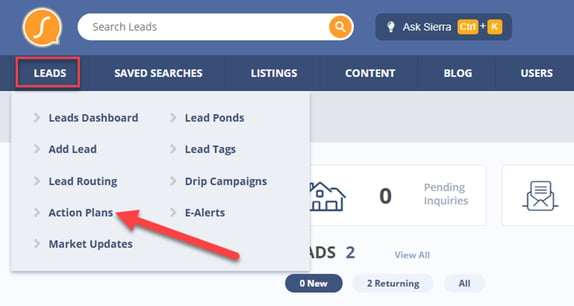
Go to Leads → Action Plans → Action Plan Settings
-
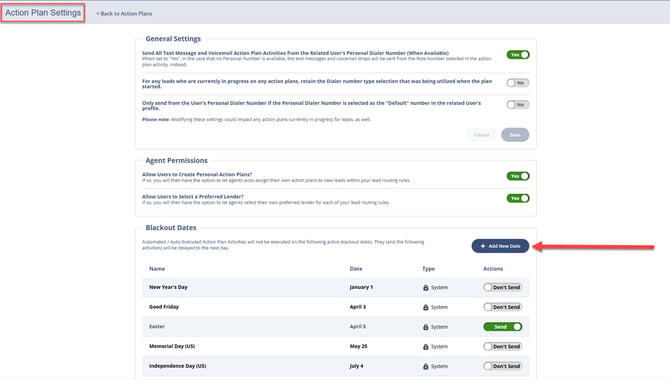
Scroll to the Blackout Dates section

2. Add a New Blackout Date
-
Click + Add New Date
-
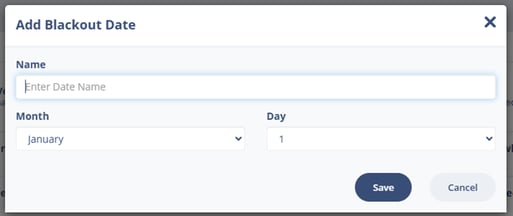
Enter a name for the blackout date
-
Select the month and day
-
Click Save to activate it immediately
3. Manage “System” Blackout Dates
-
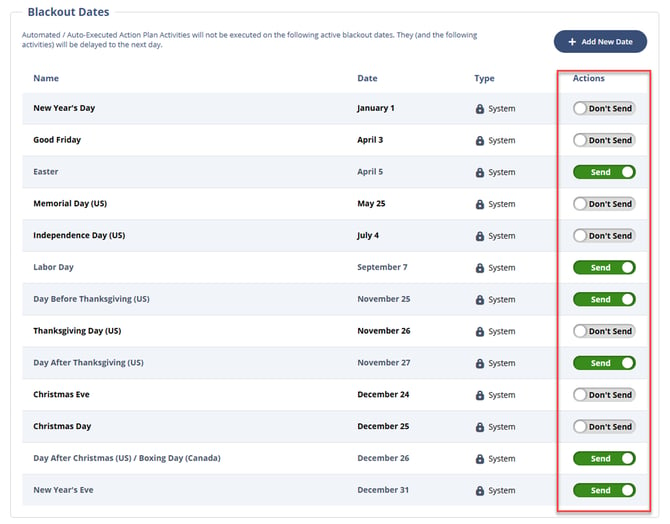
Preloaded dates (e.g., national holidays) are called System blackout dates
-
Toggle ON/OFF to activate or deactivate them for your account
4. Manage “Custom” Blackout Dates
-
Custom blackout dates are created manually
-
You can Edit or Delete any custom blackout date directly in the settings
5. Understand Regional Holiday Defaults
-
U.S.-based clients will see U.S. holidays
-
Canadian clients will see Canada-specific holidays
-
Shared holidays like New Year’s Day appear for all users
-
“Rolling” holidays (like Thanksgiving) update each year automatically
Best Practices
-
Use blackout dates for major holidays, long weekends, or local observances
-
Review and update blackout dates annually to reflect your business needs
-
Combine blackout dates with other communication best practices (like avoiding early-morning sends)
-
Double-check auto-execute settings in traditional action plans to ensure blackout compliance
Troubleshooting Common Issues
-
An action plan message sent on a blackout date
Ensure the message is part of a fully automated plan or a traditional plan set to auto-execute. Other tools like saved searches or market reports are not covered.
-
A holiday didn’t trigger a blackout
Check if the holiday is toggled on in the System Blackout Dates list or manually add it as a custom date.
FAQs
-
Do blackout dates stop all emails in Sierra?
No. They apply only to fully automated action plans and auto-executing emails/texts in traditional action plans. -
Are voicemail drops paused on blackout dates?
Yes, if they are part of a fully automated plan. Manually triggered voicemail drops are not affected.
-
Will saved search alerts or market reports be paused?
No. Blackout dates do not apply to saved searches, drip campaigns, or market reports.